How to Convert PS2 ISO to CHD Without Losing Game Data
Your PS2 game collection might contain dozens of ISO files, each occupying several gigabytes of storage. If you’re running out of space on your computer or Steam Deck, deleting games isn’t your only option. You can compress supported PS2 disc images into CHD files and keep the game data intact. The important part is choosing the correct conversion method for your original disc format.
I’ll show you how to convert PS2 ISO to CHD using CHDMAN on Windows, macOS, and Linux. We’ll cover DVD and CD game images, explain how to verify the converted files, and troubleshoot common errors. By the end, you’ll know how to reduce storage usage while keeping your original backups protected.
Table of contents 12 sections
- What Is a PS2 CHD File?
- Why Convert PS2 ISO to CHD?
- What Do You Need Before Converting PS2 ISO to CHD?
- How to Convert PS2 ISO to CHD on Windows
- How to Convert PS2 ISO to CHD on macOS and Linux
- How to Convert PS2 BIN/CUE Games to CHD
- How to Verify PS2 CHD Files After Conversion
- How to Play PS2 CHD Games in PCSX2
- PS2 ISO to CHD Conversion Failed? Fix Common Errors
- Can You Convert PS2 CHD Back to ISO?
- Frequently Asked Questions
- Conclusion
What Is a PS2 CHD File?
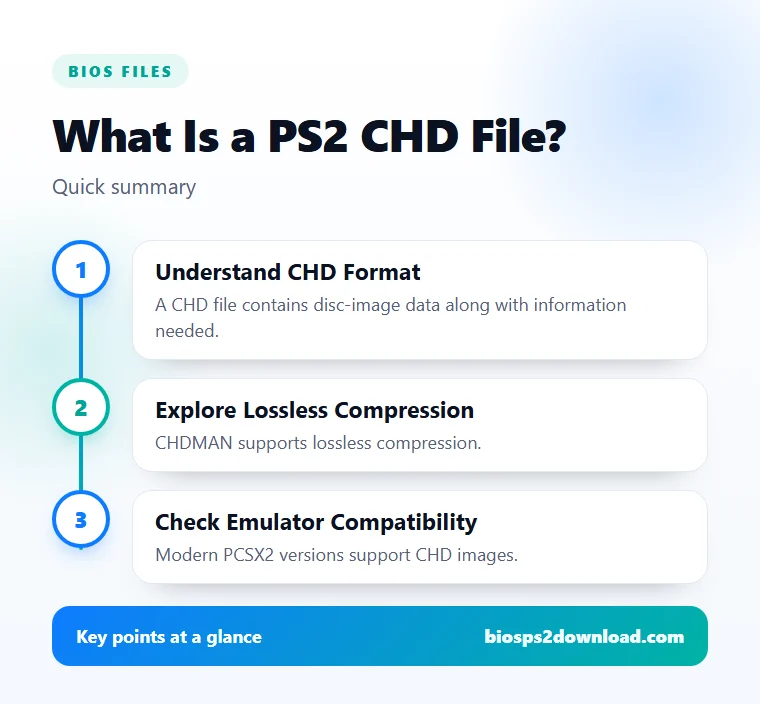
CHD stands for Compressed Hunks of Data. It’s a disc-image storage format used by several emulators, including supported versions of PCSX2. Instead of keeping an entire DVD image in an uncompressed ISO, CHD stores the data in a compressed structure.
Understand CHD Format
A CHD file contains disc-image data along with information needed to reconstruct it. The format supports different media types, which is why selecting the correct conversion command matters.
Explore Lossless Compression
CHDMAN supports lossless compression, meaning the original disc data can be reconstructed without intentional information loss. However, a successful conversion cannot repair errors already present in your source ISO.
Check Emulator Compatibility
Modern PCSX2 versions support CHD images, but not every PS2 emulator or older release does. I recommend checking compatibility before converting an entire game library.
| Format | Compression | Typical Use |
|---|---|---|
| ISO | Uncompressed | DVD game images |
| BIN/CUE | Usually uncompressed | CD game images |
| CHD | Lossless compression | Supported emulator libraries |
Why Convert PS2 ISO to CHD?
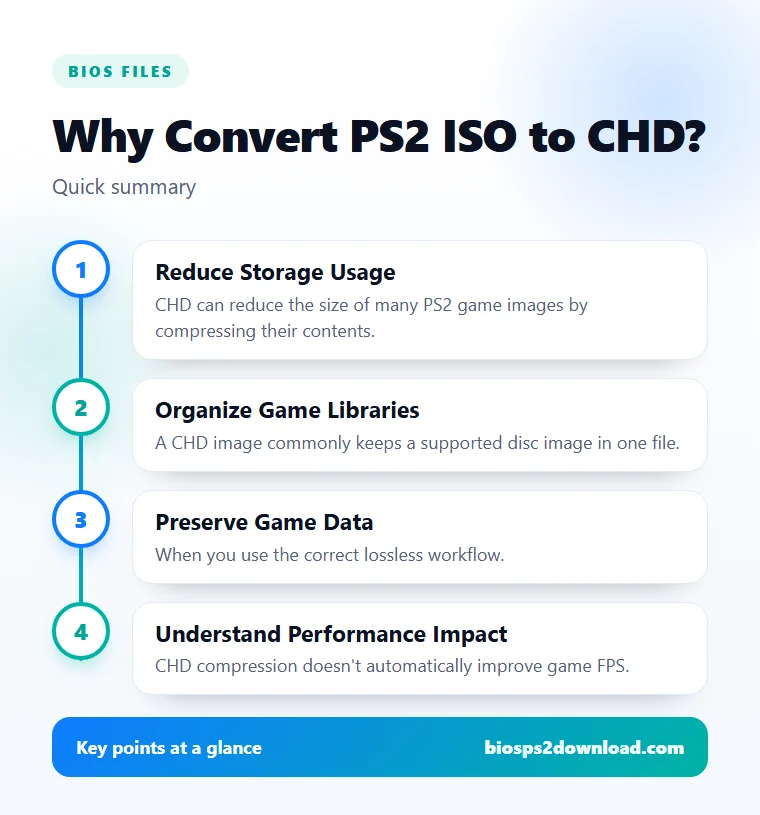
The main reason to convert PS2 games into CHD is storage efficiency. However, compression also changes how you manage your game library, so it’s worth understanding the benefits and limitations first.
Reduce Storage Usage
CHD can reduce the size of many PS2 game images by compressing their contents. Actual savings depend on the game’s data, so don’t expect every title to shrink by the same percentage.
Organize Game Libraries
A CHD image commonly keeps a supported disc image in one file, making game folders easier to manage. This is particularly useful when transferring a large library between computers or storage devices.
Preserve Game Data
When you use the correct lossless workflow, CHD preserves the source image’s data. I still recommend retaining your original ISO until you’ve verified the conversion.
Understand Performance Impact
CHD compression doesn’t automatically improve game FPS. Your emulator must decompress data while reading it, and actual performance depends on your hardware and emulator implementation.
| Feature | ISO | CHD |
|---|---|---|
| Storage size | Usually larger | Often smaller |
| Compression | None | Lossless |
| PCSX2 support | Yes | Supported versions |
| Conversion needed | No | Yes |
What Do You Need Before Converting PS2 ISO to CHD?
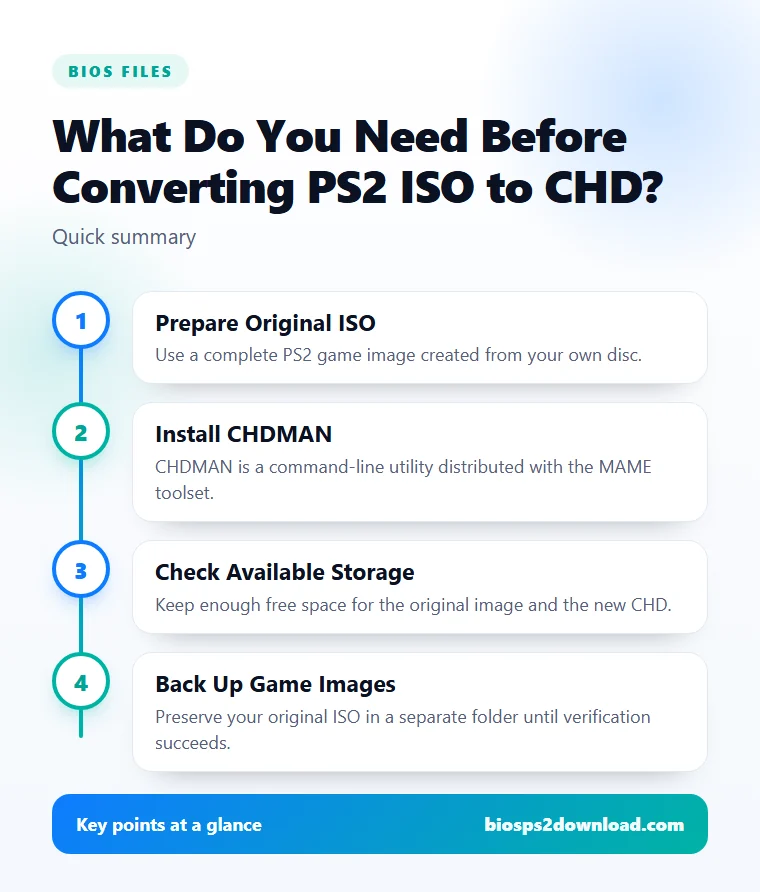
Before starting, prepare your original image and confirm that you have enough storage for the conversion. This prevents unnecessary failures and protects your existing game backup.
Prepare Original ISO
Use a complete PS2 game image created from your own disc. If the original ISO contains unreadable or missing data, converting it won’t restore that information.
Install CHDMAN
CHDMAN is a command-line utility distributed with the MAME toolset. You’ll need a compatible executable for your operating system. I recommend using a trustworthy build and checking that the command runs before beginning.
Check Available Storage
Keep enough free space for the original image and the new CHD. Conversion may also require additional working space, depending on the utility and storage environment.
Back Up Game Images
Preserve your original ISO in a separate folder until verification succeeds. I prefer this approach because it gives you a reliable recovery option if the conversion is interrupted.
| Requirement | Purpose |
|---|---|
| Original PS2 ISO | Source game image |
| CHDMAN | Conversion utility |
| Windows, macOS or Linux | Operating environment |
| Free storage | Output and working space |
| Original backup | Recovery and comparison |
How to Convert PS2 ISO to CHD on Windows
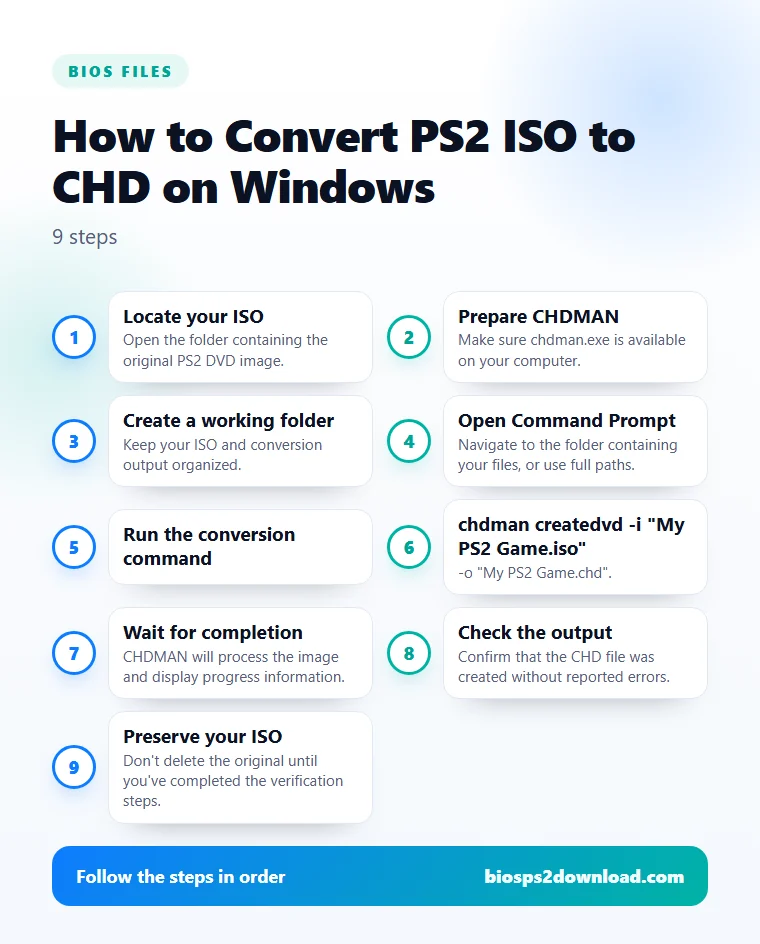
For DVD-based PS2 ISO files, CHDMAN provides the createdvd command. I’ll use a sample game filename below, but you should replace it with your actual ISO name.
Follow these steps:
- Locate your ISO. Open the folder containing the original PS2 DVD image.
- Prepare CHDMAN. Make sure
chdman.exeis available on your computer. - Create a working folder. Keep your ISO and conversion output organized.
- Open Command Prompt. Navigate to the folder containing your files, or use full paths.
- Run the conversion command:
chdman createdvd -i "My PS2 Game.iso" -o "My PS2 Game.chd"- Wait for completion. CHDMAN will process the image and display progress information.
- Check the output. Confirm that the CHD file was created without reported errors.
- Preserve your ISO. Don’t delete the original until you’ve completed the verification steps.
I recommend using quotation marks around filenames containing spaces. If Windows reports that chdman isn’t recognized, run the executable from its actual directory or provide its full path.
How to Convert PS2 ISO to CHD on macOS and Linux
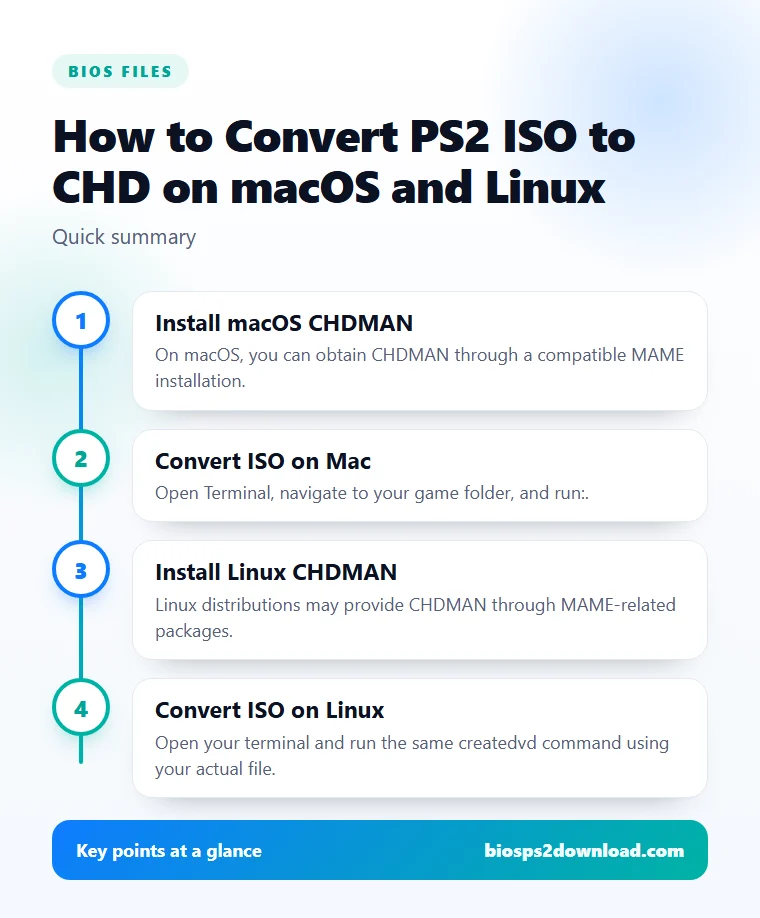
The conversion command is similar across operating systems, although installing CHDMAN may require different steps. Once the utility is available, the same DVD-image workflow generally applies.
Install macOS CHDMAN
On macOS, you can obtain CHDMAN through a compatible MAME installation or package-management setup. Confirm that the executable works in Terminal before starting.
Convert ISO on Mac
Open Terminal, navigate to your game folder, and run:
chdman createdvd -i "My PS2 Game.iso" -o "My PS2 Game.chd"
Wait for the process to finish and check the completion status before moving the file.
Install Linux CHDMAN
Linux distributions may provide CHDMAN through MAME-related packages. Package names and availability vary, so confirm that the chdman command is installed and accessible.
Convert ISO on Linux
Open your terminal and run the same createdvd command using your actual file paths. I recommend checking write permissions and available storage if the conversion fails.
| Platform | Tool | Main Command |
|---|---|---|
| Windows | CHDMAN executable | createdvd |
| macOS | CHDMAN in Terminal | createdvd |
| Linux | CHDMAN in Terminal | createdvd |
How to Convert PS2 BIN/CUE Games to CHD
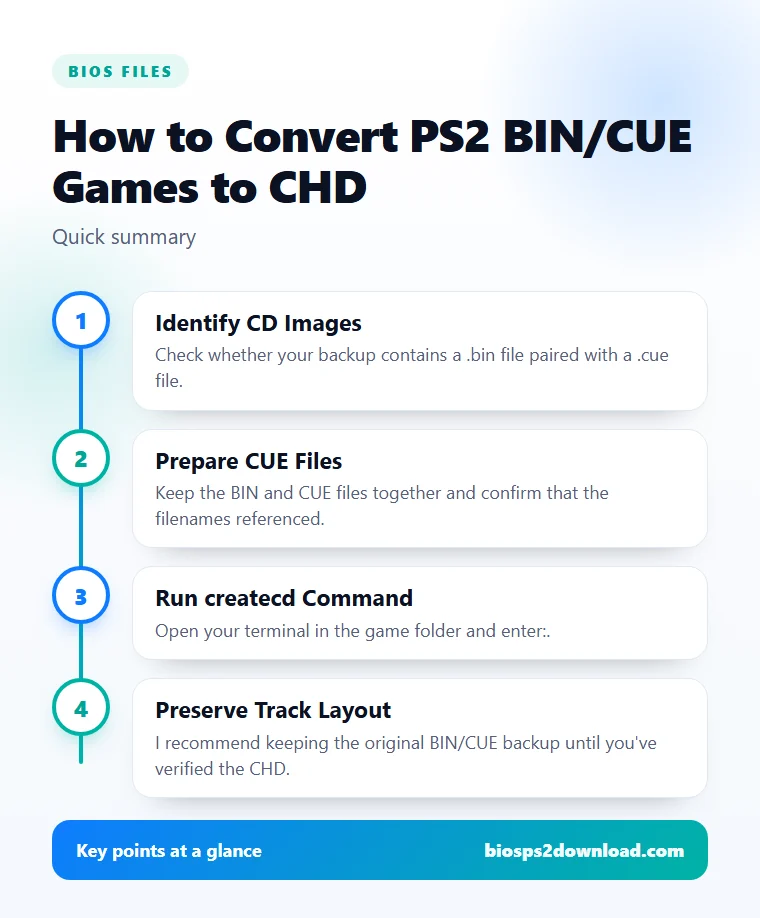
Not every PS2 game was released on DVD. Some titles use CD-ROM media, and these images may contain track information described by a CUE file. For these games, the CD-specific conversion workflow is more appropriate.
Identify CD Images
Check whether your backup contains a .bin file paired with a .cue file. The CUE sheet describes the disc’s track layout and references the associated data files.
Prepare CUE Files
Keep the BIN and CUE files together and confirm that the filenames referenced inside the CUE sheet are correct. Missing or incorrectly named tracks can prevent conversion.
Run createcd Command
Open your terminal in the game folder and enter:
chdman createcd -i "My PS2 Game.cue" -o "My PS2 Game.chd"
CHDMAN will read the track information and create a compressed CD image.
Preserve Track Layout
I recommend keeping the original BIN/CUE backup until you’ve verified the CHD. Don’t replace a multi-track CD image with a single ISO unless you’ve confirmed that the conversion preserves the necessary disc information.
| Original Image | CHDMAN Command | Purpose |
|---|---|---|
| DVD ISO | createdvd | Compress DVD image |
| CD BIN/CUE | createcd | Preserve CD track layout |
How to Verify PS2 CHD Files After Conversion
Creating a CHD file is only the first step. I recommend verifying its integrity before replacing your existing ISO, particularly when you’re converting an entire collection.
Check Conversion Status
Review CHDMAN’s final output. If the process ended with an error, don’t assume the resulting CHD is complete simply because the file exists.
Verify CHD Integrity
Use CHDMAN’s built-in verification command:
chdman verify -i "My PS2 Game.chd"
This checks the CHD’s internal integrity. However, it doesn’t independently prove that your original game image was error-free.
Compare Extracted Data
For a DVD-based CHD, extract the image back into ISO format:
chdman extractdvd -i "My PS2 Game.chd" -o "Restored Game.iso"
Then calculate SHA-256 checksums for the original and restored ISO files. Matching hashes provide strong evidence that the original image data was preserved.
Test Emulator Loading
Open the converted CHD in a compatible PCSX2 version and check whether the game launches. This adds a functional compatibility check, although successful startup doesn’t guarantee every game sector is valid.

| Verification | What It Confirms |
|---|---|
| Conversion completed | Process finished without reported failure |
chdman verify | CHD internal integrity |
| Extract and compare hashes | Reconstructed ISO matches original |
| PCSX2 startup | Basic emulator compatibility |
How to Play PS2 CHD Games in PCSX2
Once your CHD passes verification, you can add it to a supported PCSX2 game library. You don’t need to convert it back into ISO merely to play it.
Check PCSX2 Version
Use a PCSX2 release that supports CHD disc images. Older builds may not recognize the format, even when the CHD itself is valid.
Add CHD Folder
Open PCSX2’s game directory settings and add the folder containing your converted games. Refresh the library if necessary.
Launch Converted Game
Select the CHD image from the game list and start it normally. Your configured PS2 BIOS remains necessary for the emulator’s firmware-dependent operation.
Confirm Game Compatibility
If the CHD doesn’t launch, test the original ISO in the same PCSX2 configuration. This helps distinguish conversion problems from general game compatibility issues.

| Problem | Recommended Check |
|---|---|
| CHD not listed | Game directory and PCSX2 version |
| Game won’t launch | Test original ISO |
| Black screen | Verify image and emulator settings |
| CHD error | Run CHDMAN verification |
PS2 ISO to CHD Conversion Failed? Fix Common Errors
Most conversion failures involve incorrect commands, inaccessible files, damaged source images, or insufficient storage. I recommend reading the exact error message before repeating the process.
Fix CHDMAN Errors
If your terminal doesn’t recognize CHDMAN, check the executable location and installation. Use its full path when necessary.
Correct Conversion Commands
Use createdvd for supported DVD ISO images and createcd for CD images with the appropriate CUE information. Selecting the wrong workflow can cause errors or produce unsuitable output.
Resolve Invalid Images
Confirm that the original game image is complete and readable. CHDMAN can’t restore data missing from a damaged source.
Fix Storage Problems
Check free disk space and write permissions. If the destination is full or inaccessible, choose another folder and restart the conversion.
Repair Incomplete CHD
An interrupted CHD shouldn’t be treated as a valid final image. Remove or rename the failed output and repeat the conversion from the original source.
Fix PCSX2 Detection
Confirm that your PCSX2 version supports CHD and that the correct game directory is configured. Test the original ISO when the converted file isn’t recognized.
| Problem | Likely Cause | Solution |
|---|---|---|
| CHDMAN not recognized | Executable path issue | Check installation |
| Invalid source | Damaged ISO | Verify original |
| Conversion fails | Wrong command | Check disc type |
| Process stops | Storage or access issue | Check destination |
| Incomplete CHD | Interrupted conversion | Convert again |
| PCSX2 rejects CHD | Compatibility or image issue | Test original ISO |
Can You Convert PS2 CHD Back to ISO?
Yes. CHD compression is reversible when the correct extraction method is used. This is one reason it’s useful for managing PS2 game backups without intentionally discarding source data.
Understand Reverse Conversion
CHDMAN can reconstruct supported disc images from CHD files. The correct extraction command depends on whether the original media was DVD or CD.
Extract DVD Images
For a DVD-based CHD, run:
chdman extractdvd -i "My PS2 Game.chd" -o "Restored Game.iso"
After extraction, compare the restored ISO with your original backup using a checksum.
Restore CD Images
For CD-based CHD files, use the appropriate CD extraction workflow. For example:
chdman extractcd -i "My PS2 Game.chd" -o "Restored Game.cue" -ob "Restored Game.bin"
This reconstructs a CUE sheet and associated binary track data.
Compare Restored Files
I recommend checking the restored image’s integrity before relying on it. For DVD images, comparing SHA-256 hashes with the original ISO is a practical way to verify reconstruction.
| CHD Type | Extraction Command | Output |
|---|---|---|
| DVD-based CHD | extractdvd | ISO |
| CD-based CHD | extractcd | BIN/CUE |
Frequently Asked Questions
Does CHD Reduce PS2 Game Quality?
No. When created using the appropriate lossless workflow, CHD preserves the source disc-image data without intentionally reducing game quality.
Is CHD Better Than ISO?
CHD often saves storage space, while ISO offers broader compatibility with different applications. The better choice depends on your emulator and storage needs.
Can PCSX2 Run CHD Files?
Yes. Modern PCSX2 versions support compatible CHD game images. Older releases may require ISO or another supported format.
Does CHD Improve FPS?
Not automatically. CHD primarily reduces storage usage rather than increasing emulator performance.
How Much Space Does CHD Save?
Savings vary by game. Images containing highly compressible data may shrink considerably, while others show smaller reductions.
Can I Delete Original ISO?
You can consider removing redundant copies after successful verification, but I recommend keeping at least one reliable backup of your original image.
Is CHDMAN Free to Use?
Yes. CHDMAN is distributed as part of the MAME project under its applicable open-source licensing terms.
Can I Convert CHD Back to ISO?
Yes, for DVD-based CHD images using extractdvd. CD-based images require the corresponding CD extraction workflow.
Conclusion
Converting PS2 ISO to CHD is a practical way to reduce game storage without intentionally losing disc-image data. The important distinction is choosing createdvd for DVD ISO files and createcd for CD-based BIN/CUE images. After conversion, verify the CHD, reconstruct the source image when appropriate, and confirm that your emulator recognizes the result.
I recommend keeping your original game backup until these checks succeed. With properly verified CHD files, you can maintain a smaller, more organized PS2 game library while retaining the ability to restore supported images when needed.