PCSX2 BIOS Not Found? Fix Detection and Import Errors

You’ve already placed your PS2 BIOS file on your computer, but PCSX2 still says the BIOS is missing or doesn’t show any firmware in its selection list. I know how confusing this can be, especially when the file is sitting right inside a folder and you’re unsure why the emulator won’t recognize it. The good news is that you can often resolve this problem without reinstalling PCSX2 or replacing your original firmware.
In this guide, I’ll help you fix the PCSX2 BIOS not found error by checking the BIOS directory, file format, import settings, and firmware integrity. We’ll start with simple checks and gradually move toward advanced solutions. Whether you’re using Windows, macOS, or Linux, you’ll learn how to identify the actual cause and confirm that PCSX2 recognizes your BIOS correctly.
Table of contents 12 sections
- Why Is PCSX2 Not Finding Your BIOS?
- How to Fix PCSX2 BIOS Not Found Step by Step
- How to Find the Correct PCSX2 BIOS Folder
- PCSX2 BIOS Folder Empty? Fix Missing Files
- How to Fix PCSX2 BIOS Import Errors
- PCSX2 BIOS Not Detected After Updating?
- How to Fix Invalid or Corrupted PS2 BIOS Files
- PCSX2 BIOS Not Showing on Windows, Mac or Linux
- How to Confirm PCSX2 Recognizes Your BIOS
- PCSX2 BIOS Still Not Found? Advanced Fixes
- Frequently Asked Questions
- Conclusion
Why Is PCSX2 Not Finding Your BIOS?
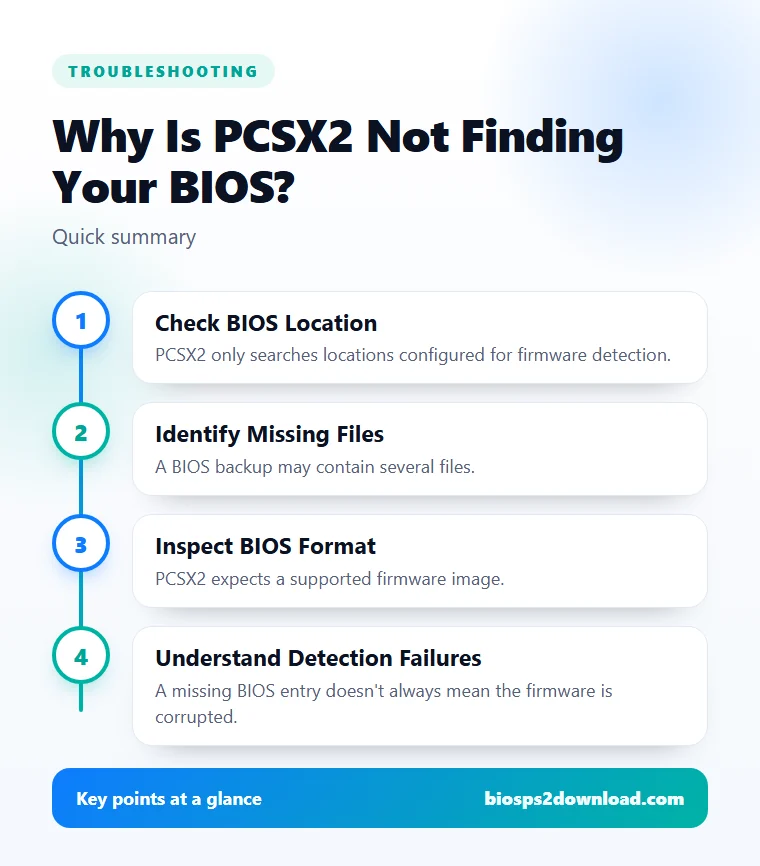
PCSX2 needs access to a valid PlayStation 2 BIOS image before it can use that firmware. Even if the file exists on your computer, the emulator may not detect it because the configured location is incorrect, the image is incomplete, or the file isn’t readable.
Check BIOS Location
PCSX2 only searches locations configured for firmware detection. If you’ve copied your BIOS into another folder, the emulator may continue displaying an empty list. I recommend checking the active BIOS directory before changing anything else.
Identify Missing Files
A BIOS backup may contain several files, but the main firmware image must be present. Supplementary files such as ROM0, ROM1, or NVM aren’t interchangeable with the primary BIOS image.
Inspect BIOS Format
PCSX2 expects a supported firmware image, not an unrelated file renamed with a .bin extension. A compressed archive, incomplete extraction, or incorrect file can prevent detection.
Understand Detection Failures
A missing BIOS entry doesn’t always mean the firmware is corrupted. The emulator may simply be unable to access the file because of folder permissions or configuration problems.
| Symptom | Possible Cause | First Check |
|---|---|---|
| Empty BIOS list | Incorrect directory | BIOS settings |
| BIOS file missing | Wrong folder | File location |
| Import rejected | Invalid image | File integrity |
| BIOS disappears | Configuration issue | Saved settings |
How to Fix PCSX2 BIOS Not Found Step by Step
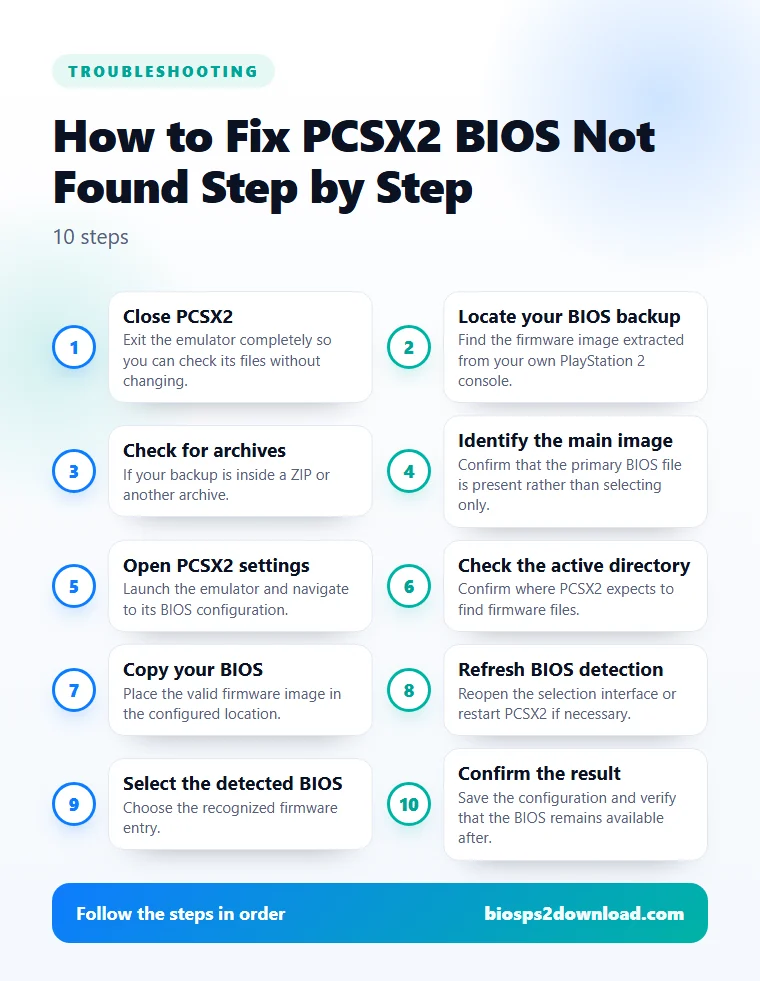
Before trying advanced solutions, I recommend following this sequence. It covers the most common detection problems without unnecessarily modifying your PCSX2 installation.
- Close PCSX2. Exit the emulator completely so you can check its files without changing active settings.
- Locate your BIOS backup. Find the firmware image extracted from your own PlayStation 2 console.
- Check for archives. If your backup is inside a ZIP or another archive, extract it into a normal folder.
- Identify the main image. Confirm that the primary BIOS file is present rather than selecting only ROM0, ROM1, or NVM.
- Open PCSX2 settings. Launch the emulator and navigate to its BIOS configuration.
- Check the active directory. Confirm where PCSX2 expects to find firmware files.
- Copy your BIOS. Place the valid firmware image in the configured location, or use the supported import method.
- Refresh BIOS detection. Reopen the selection interface or restart PCSX2 if necessary.
- Select the detected BIOS. Choose the recognized firmware entry.
- Confirm the result. Save the configuration and verify that the BIOS remains available after restarting.
The exact menu labels may differ between PCSX2 releases. If the firmware still doesn’t appear, continue with the folder and file checks below.
How to Find the Correct PCSX2 BIOS Folder
One common reason for BIOS detection failure is using the wrong directory. PCSX2 can store its configuration in different locations depending on your operating system, installation method, and portable settings.
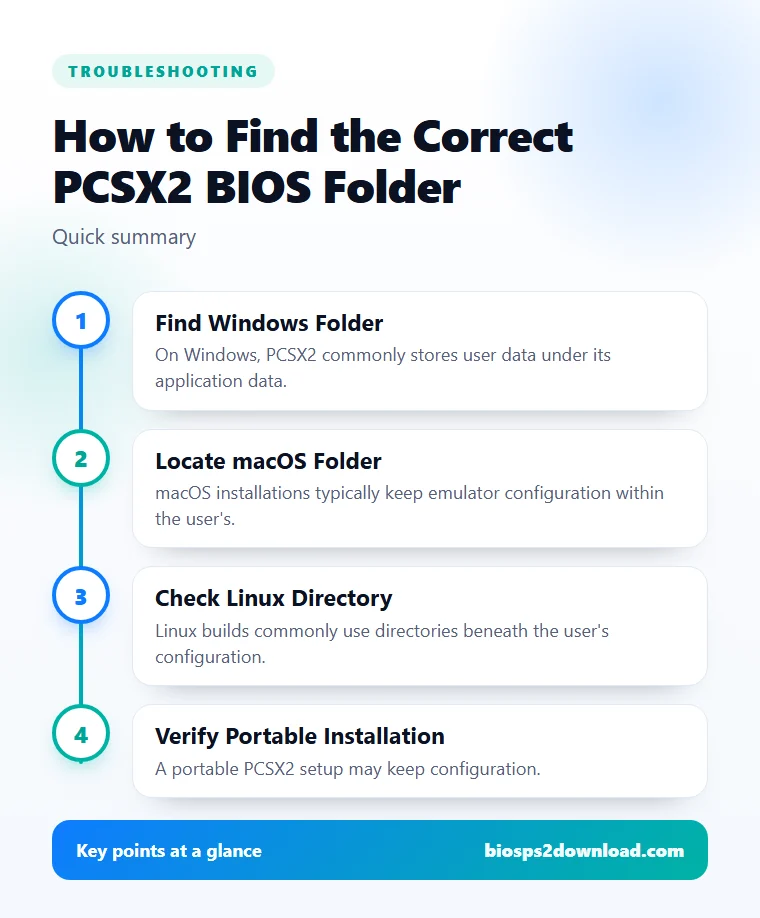
Find Windows Folder
On Windows, PCSX2 commonly stores user data under its application data directory. Some installations use a BIOS folder beneath the PCSX2 configuration location. I recommend checking the directory shown inside PCSX2 rather than assuming a fixed path.
Locate macOS Folder
macOS installations typically keep emulator configuration within the user’s application support directories. Open PCSX2’s settings to identify the active BIOS location, especially if you’ve changed installation methods.
Check Linux Directory
Linux builds commonly use directories beneath the user’s configuration or application-data folders. Flatpak and other sandboxed installations may use separate locations, so verify the directory from the emulator itself.
Verify Portable Installation
A portable PCSX2 setup may keep configuration and BIOS files near its application directory instead of using the operating system’s usual user-data location. Moving the portable folder can therefore affect firmware detection.
| Platform | Possible Configuration Location |
|---|---|
| Windows | User application-data directory |
| macOS | Application Support |
| Linux | User configuration or data directory |
| Portable PCSX2 | Portable application folder |
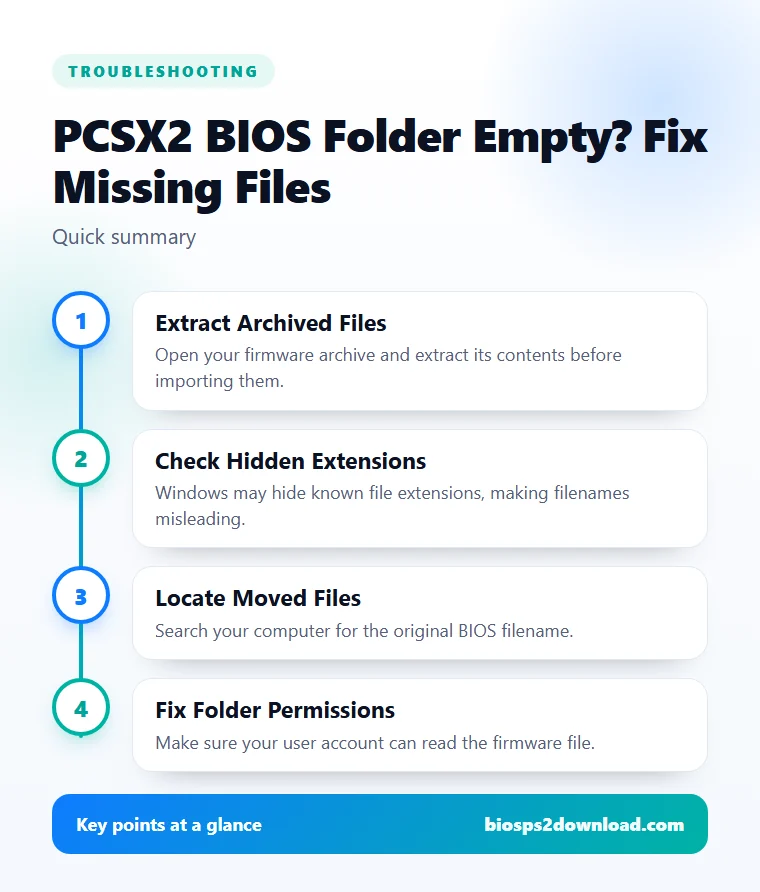
PCSX2 BIOS Folder Empty? Fix Missing Files
If the BIOS folder is empty, first confirm that you’re viewing the directory PCSX2 actually uses. A file may have been extracted successfully but saved somewhere different from your intended destination.
Extract Archived Files
Open your firmware archive and extract its contents before importing them. Don’t assume that placing a ZIP file in the BIOS folder will make PCSX2 recognize the firmware inside it.
Check Hidden Extensions
Windows may hide known file extensions, making filenames misleading. Enable extension visibility and confirm that your BIOS isn’t accidentally named something like bios.bin.txt.
Locate Moved Files
Search your computer for the original BIOS filename. If you’ve moved or renamed the backup, PCSX2 may still be checking its previous location.
Fix Folder Permissions
Make sure your user account can read the firmware file and access its containing folder. Avoid storing BIOS images in restricted system directories when a normal user-accessible folder is available.
| Problem | Recommended Fix |
|---|---|
| Empty folder | Verify active BIOS directory |
| Archived firmware | Extract the files |
| Hidden extension | Show filename extensions |
| File moved | Update the directory |
| Access denied | Correct file permissions |
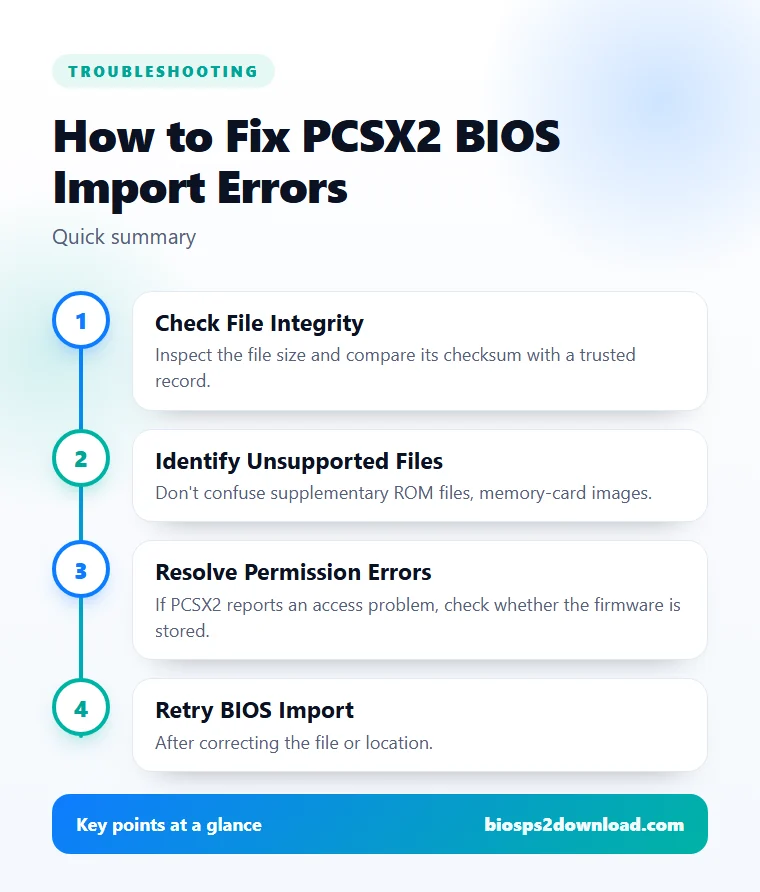
How to Fix PCSX2 BIOS Import Errors
Sometimes PCSX2 can access the selected file but refuses to recognize it as valid firmware. This usually requires checking the actual image rather than repeatedly changing its filename.
Check File Integrity
Inspect the file size and compare its checksum with a trusted record from your original dump, if available. A truncated image may be unreadable even when its filename looks correct.
Identify Unsupported Files
Don’t confuse supplementary ROM files, memory-card images, or PS2 game ISOs with the main BIOS image. These files have different purposes and cannot replace console firmware.
Resolve Permission Errors
If PCSX2 reports an access problem, check whether the firmware is stored on a restricted drive or inside a protected folder. Copying it into a user-accessible directory may resolve the issue.
Retry BIOS Import
After correcting the file or location, reopen the BIOS settings and repeat the import or detection process. If the emulator still rejects the image, investigate the original dump.
| Import Error | Likely Cause | Solution |
|---|---|---|
| Invalid BIOS | Unsupported or damaged image | Verify original |
| Access denied | Folder permissions | Change location |
| File not recognized | Wrong file type | Select main BIOS |
| Import fails again | Incomplete dump | Repeat extraction |
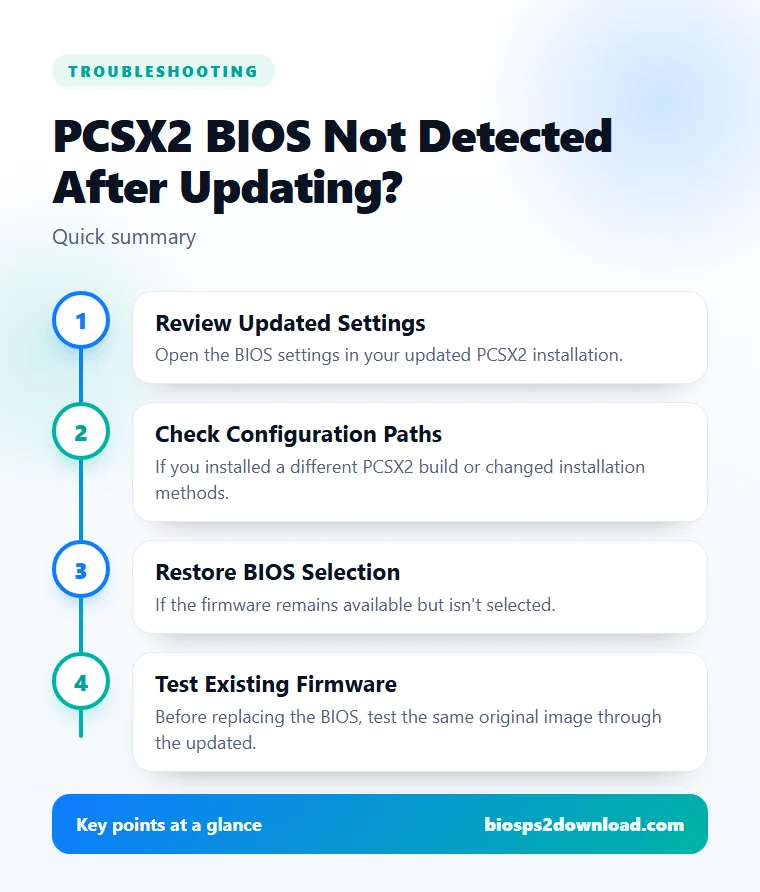
PCSX2 BIOS Not Detected After Updating?
A PCSX2 update may change the interface or expose an existing configuration issue. However, updating the emulator doesn’t necessarily delete your BIOS files.
Review Updated Settings
Open the BIOS settings in your updated PCSX2 installation. Check whether the firmware is still listed and selected.
Check Configuration Paths
If you installed a different PCSX2 build or changed installation methods, the new application may be using another configuration directory.
Restore BIOS Selection
If the firmware remains available but isn’t selected, choose the appropriate entry again and save your settings.
Test Existing Firmware
Before replacing the BIOS, test the same original image through the updated emulator’s supported import method.
| Update Symptom | Recommended Check |
|---|---|
| BIOS list empty | Active directory |
| Previous BIOS missing | Configuration location |
| BIOS listed but inactive | Firmware selection |
| Import fails | File validity and permissions |
How to Fix Invalid or Corrupted PS2 BIOS Files
If PCSX2 still rejects your firmware after correcting the directory, the next step is checking the image itself. I recommend doing this before attempting a full emulator reinstall.
Check File Size
A suspiciously small or empty BIOS file may indicate an incomplete extraction. Compare the file with your original dump records rather than relying on a filename alone.
Verify BIOS Checksum
Calculate a SHA-1 or SHA-256 checksum and compare it with a trusted value recorded for your original firmware. Matching checksums establish file consistency, not universal firmware authenticity.
Identify Incomplete Dumps
Interrupted extraction can produce files that exist but lack essential data. If your dumping utility reported errors, treat the resulting image as potentially incomplete.
Repeat BIOS Extraction
When the original firmware is damaged or incomplete, repeat the dumping process using your own PS2 console and a suitable extraction tool. Don’t attempt to repair a damaged BIOS by changing its extension.
| Integrity Check | What It Reveals |
|---|---|
| File size | Possible truncation |
| Checksum | File consistency |
| Dump log | Extraction errors |
| PCSX2 detection | Supported firmware recognition |
PCSX2 BIOS Not Showing on Windows, Mac or Linux
Operating-system restrictions can also interfere with firmware detection. If your BIOS works on another computer, I recommend checking local access and storage settings.
Check Windows Permissions
On Windows, confirm that your account has read access to the BIOS folder. Protected directories and security software restrictions may interfere with file access.
Review macOS Access
On macOS, check whether PCSX2 can access the folder containing your firmware. If the file is stored in a location with additional privacy restrictions, consider moving it to an accessible application-data folder.
Fix Linux Permissions
Linux users should verify file ownership and read permissions. Sandboxed packages may also require access to directories outside their default permitted locations.
Check External Storage
If your BIOS is stored on an external drive, confirm that the device is connected and mounted. A changed drive letter or mount path can make a previously valid BIOS location unavailable.

| Platform | Possible Issue | Recommended Fix |
|---|---|---|
| Windows | Restricted folder | Check permissions |
| macOS | Folder access restriction | Use accessible location |
| Linux | Ownership or sandboxing | Verify access |
| External drive | Missing mount | Reconnect and check path |
How to Confirm PCSX2 Recognizes Your BIOS
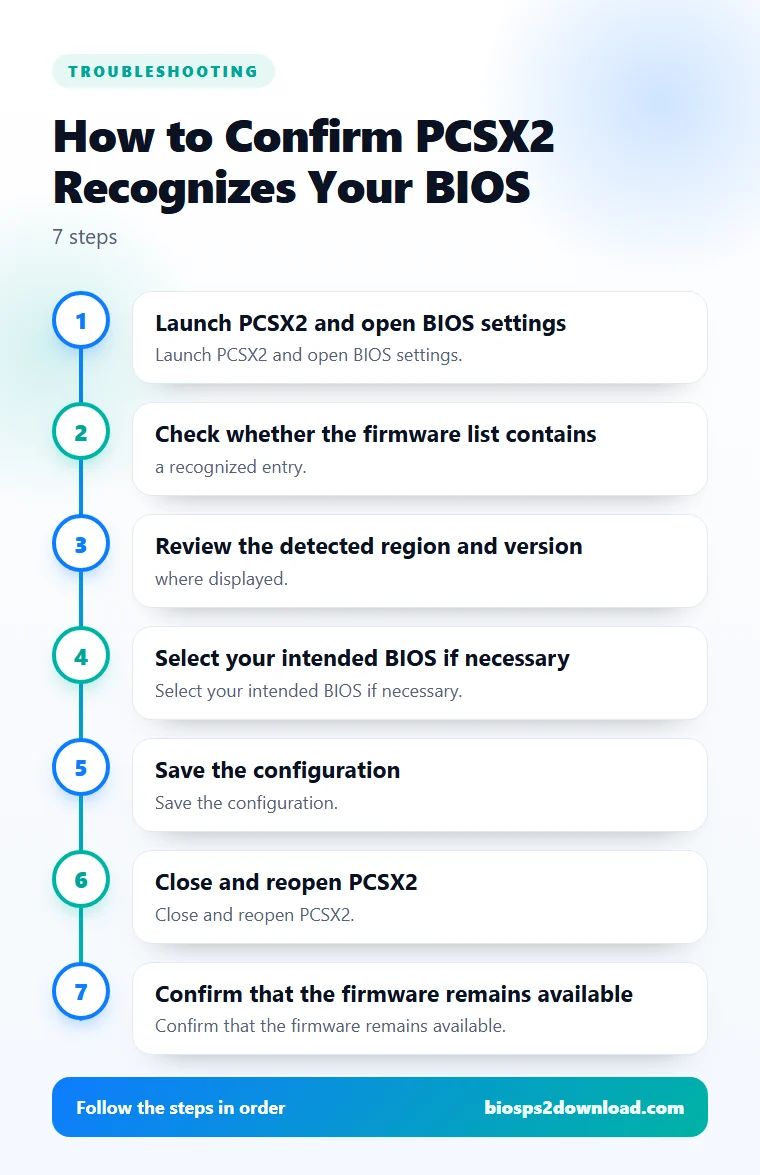
After applying the appropriate fix, verify that PCSX2 recognizes the firmware rather than assuming the problem is solved because an error message disappeared.
Follow these steps:
- Launch PCSX2 and open BIOS settings.
- Check whether the firmware list contains a recognized entry.
- Review the detected region and version where displayed.
- Select your intended BIOS if necessary.
- Save the configuration.
- Close and reopen PCSX2.
- Confirm that the firmware remains available.
If PCSX2 recognizes the BIOS but a game still fails to start, investigate the game image and emulator settings separately.
| Verification Result | Meaning |
|---|---|
| BIOS listed | Firmware detected |
| Version displayed | Firmware identified |
| Selection persists | Configuration saved |
| Game fails separately | Further diagnosis needed |
PCSX2 BIOS Still Not Found? Advanced Fixes
If the basic checks haven’t worked, a configuration conflict or application-level problem may be involved. I recommend testing these possibilities carefully before reinstalling the emulator.
Test Another Directory
Copy your original BIOS into a simple, user-accessible folder and point PCSX2 to that location. This can help identify whether the previous directory caused the problem.
Check Security Software
Review whether security software has blocked or quarantined a legitimate firmware file. Don’t disable protection broadly; investigate any alert before restoring access.
Review Emulator Logs
Open PCSX2’s logging or diagnostic output, where available. Look for messages about unreadable files, invalid firmware, or inaccessible directories.
Reset BIOS Configuration
If the firmware is valid but PCSX2 continues using an incorrect path, consider resetting the relevant BIOS configuration. Back up your settings before making changes.
Reinstall PCSX2 Carefully
Reinstallation should be your last option. Preserve your memory cards, save states, configuration files, and original BIOS backup before removing or replacing the application.

| Advanced Check | Purpose | Precaution |
|---|---|---|
| Alternate directory | Test path problems | Keep original backup |
| Security review | Identify blocked files | Don’t disable protection |
| Emulator logs | Find specific errors | Record messages |
| Settings reset | Remove bad configuration | Back up settings |
| Reinstallation | Address application issues | Preserve saves |
Frequently Asked Questions
Why Is PCSX2 BIOS Missing?
The firmware may be stored in the wrong directory, remain inside an archive, or contain invalid data. Start by checking the configured BIOS location.
Where Is PCSX2 BIOS Folder?
Its location depends on your operating system and installation method. Check the active BIOS directory in PCSX2 settings.
Why Is BIOS Not Showing?
PCSX2 may be unable to access or recognize the firmware. Check the file type, directory, and permissions.
Does PCSX2 Need BIOS?
Yes. PCSX2 requires a compatible PS2 BIOS image for its standard emulation workflow.
Can PCSX2 Read ZIP Files?
Don’t rely on a compressed ZIP archive as the BIOS source. Extract your firmware and import the supported image.
Can I Rename BIOS Files?
Renaming a backup copy is generally possible, but it won’t repair corrupted firmware or convert an unsupported file into a valid BIOS.
Why Does BIOS Import Fail?
Common causes include invalid firmware, incomplete extraction, unsupported file types, and folder access restrictions.
Will Reinstalling PCSX2 Fix BIOS?
Not necessarily. Reinstallation won’t repair an invalid BIOS or automatically correct every firmware path problem.
Conclusion
The PCSX2 BIOS not found error usually requires checking the firmware location, file integrity, and emulator configuration. I recommend starting with the BIOS directory, confirming that the main image is extracted, and checking whether PCSX2 has permission to read it. These steps can resolve many detection problems without unnecessary changes to your installation.
If your BIOS still isn’t recognized, verify the original dump, review emulator logs, and test a different accessible directory before considering reinstallation. Keep an untouched firmware backup and preserve your PCSX2 settings so future updates or configuration changes are easier to troubleshoot.