NetherSX2 APK for Android: Install, Configure & Play
Want to play your favorite PlayStation 2 games on Android but aren’t sure which NetherSX2 APK to install or how to configure it? You might have found several APK packages online, each claiming to be the latest version. Choosing the wrong build can lead to installation failures, missing BIOS errors, or games that refuse to start.
NetherSX2 APK is an Android PS2 emulator modification based on AetherSX2. It provides another way to run compatible PlayStation 2 games using your own BIOS and game backups. I’ll walk you through choosing an appropriate build, installing the application, configuring its essential settings, and getting your first game running without unnecessary complications.
Table of contents 14 sections
- What Is NetherSX2 APK and How Does It Work?
- NetherSX2 APK Requirements for Android
- How to Download NetherSX2 APK Safely
- How to Install NetherSX2 APK on Android
- How to Set Up NetherSX2 After Installation
- How to Install PS2 BIOS in NetherSX2
- How to Add and Play PS2 Games on NetherSX2
- Best NetherSX2 Settings for Smooth Gameplay
- How to Set Up Controllers in NetherSX2
- NetherSX2 Memory Cards, Save States and Game Saves
- NetherSX2 APK Not Working? Fix Common Errors
- Is NetherSX2 APK Safe and Legal?
- Frequently Asked Questions
- Conclusion
What Is NetherSX2 APK and How Does It Work?
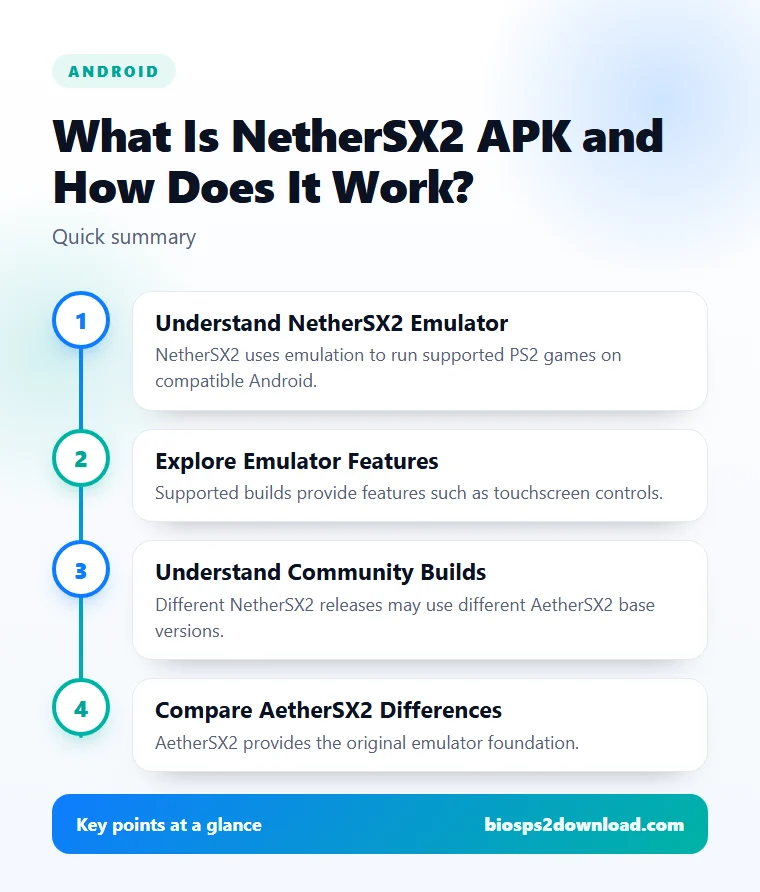
NetherSX2 is a community modification of AetherSX2, an Android emulator designed to reproduce PlayStation 2 hardware behavior through software. Rather than being an entirely independent emulator, NetherSX2 builds upon an existing AetherSX2 base and applies community-developed modifications.
Understand NetherSX2 Emulator
NetherSX2 uses emulation to run supported PS2 games on compatible Android devices. Its performance depends on your processor, graphics hardware, emulator configuration, and the game itself.
Explore Emulator Features
Supported builds provide features such as touchscreen controls, external gamepad support, graphics adjustments, memory cards, and save states. Available options can vary between builds.
Understand Community Builds
Different NetherSX2 releases may use different AetherSX2 base versions and patch sets. This means installation instructions, application behavior, and compatibility aren’t necessarily identical.
Compare AetherSX2 Differences
AetherSX2 provides the original emulator foundation, while NetherSX2 introduces community modifications. Neither option guarantees better performance in every game, so compatibility should guide your choice.
| Feature | NetherSX2 | AetherSX2 |
|---|---|---|
| Platform | Android | Android |
| Project type | Community modification | Original emulator |
| PS2 BIOS | Required | Required |
| Touch controls | Supported | Supported |
| Gamepad support | Supported | Supported |
| Development | Community-dependent | Original development discontinued |
NetherSX2 APK Requirements for Android
Before installing NetherSX2, I recommend checking your phone’s hardware and Android version. An emulator may install successfully but still struggle with demanding PS2 games.
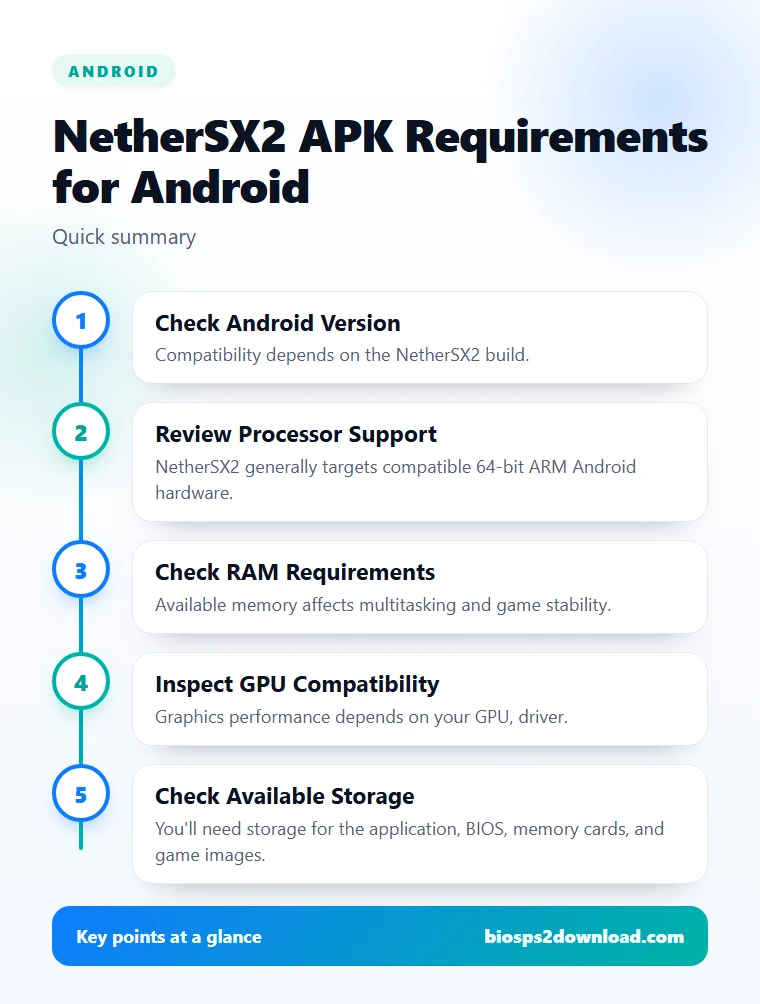
Check Android Version
Compatibility depends on the NetherSX2 build and its underlying AetherSX2 version. Review the build’s documented Android requirements rather than assuming every release supports every device.
Review Processor Support
NetherSX2 generally targets compatible 64-bit ARM Android hardware. A capable processor is important because PS2 emulation involves substantial CPU workloads.
Check RAM Requirements
Available memory affects multitasking and game stability. More RAM can help reduce memory pressure, but it cannot compensate for an unsupported processor or graphics feature.
Inspect GPU Compatibility
Graphics performance depends on your GPU, driver, and supported rendering backends. Vulkan and OpenGL may behave differently across devices.
Check Available Storage
You’ll need storage for the application, BIOS, memory cards, and game images. PS2 game backups can occupy considerably more space than the emulator itself.
| Component | What to Check | Why It Matters |
|---|---|---|
| Android | Supported OS version | Application compatibility |
| Processor | Compatible 64-bit ARM CPU | Emulation |
| RAM | Available memory | Stability |
| GPU | Supported graphics backend | Rendering |
| Storage | Space for files | Game loading |
How to Download NetherSX2 APK Safely
NetherSX2 APK download procedures can differ between community releases. Some distributions use patching tools that modify a compatible AetherSX2 base APK, while others may provide prepared packages. I recommend identifying the exact build before obtaining any installation files.
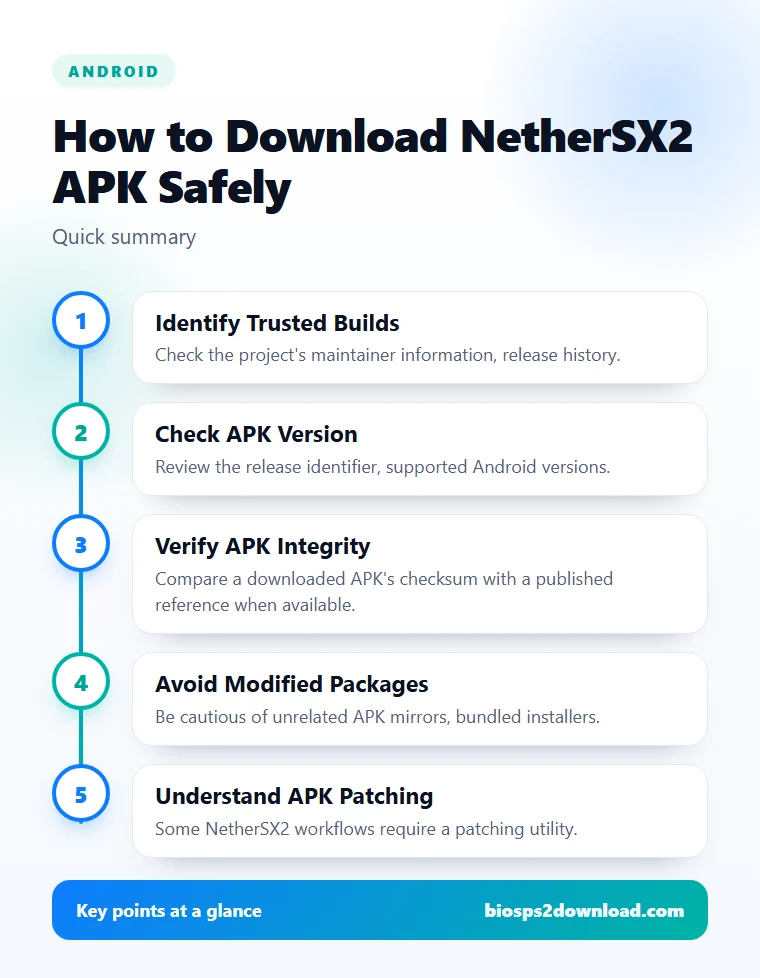
Identify Trusted Builds
Check the project’s maintainer information, release history, and build documentation. Avoid assuming that a website is trustworthy simply because it uses the NetherSX2 name.
Check APK Version
Review the release identifier, supported Android versions, and underlying AetherSX2 base. A package labeled “latest” isn’t necessarily the newest maintained or most compatible build.
Verify APK Integrity
Compare a downloaded APK’s checksum with a published reference when available. A matching checksum helps confirm file consistency, although it doesn’t independently prove that the software is safe.
Avoid Modified Packages
Be cautious of unrelated APK mirrors, bundled installers, and packages advertising unrealistic features. Unexpected permission requests or unexplained installation steps deserve investigation.
Understand APK Patching
Some NetherSX2 workflows require a patching utility and a compatible AetherSX2 APK. Follow the instructions for your chosen build rather than mixing files from unrelated releases.
| Safety Check | Recommended Action |
|---|---|
| Project identity | Confirm maintainer details |
| Build version | Review release information |
| File integrity | Compare available checksums |
| Installation method | Follow build instructions |
| Permissions | Investigate unusual requests |
| Unknown mirrors | Avoid unverified packages |
How to Install NetherSX2 APK on Android
Once you’ve prepared a compatible APK, installation usually follows Android’s normal package-installation process. Before proceeding, protect any existing emulator saves and settings.
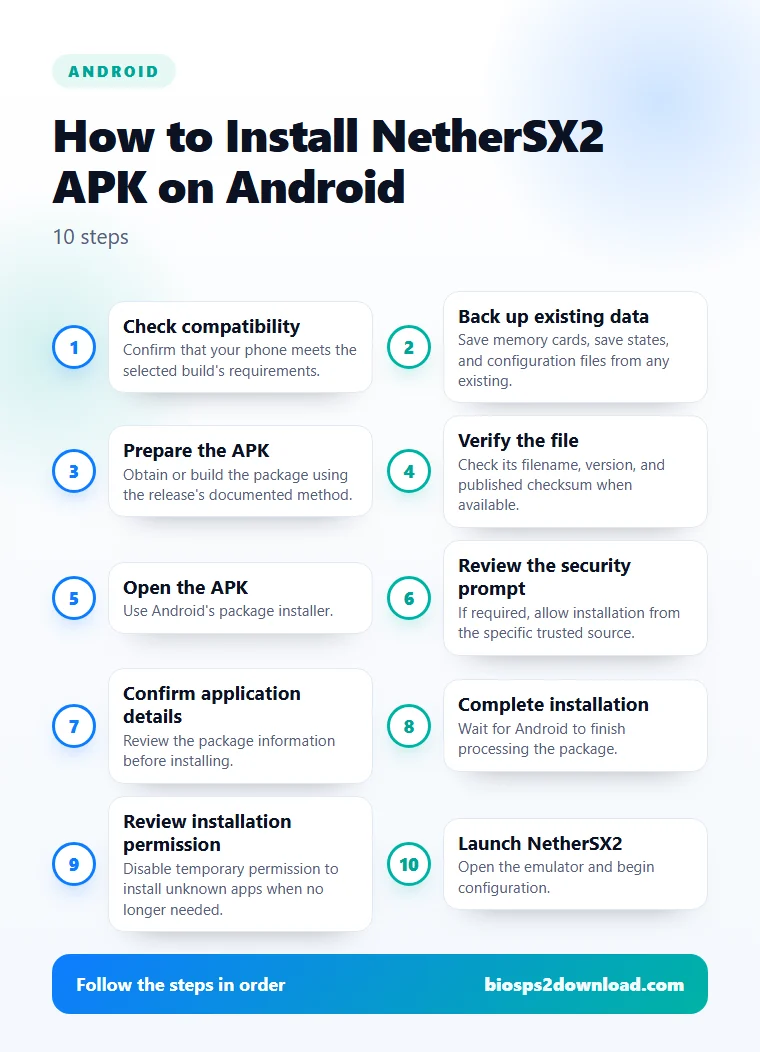
- Check compatibility. Confirm that your phone meets the selected build’s requirements.
- Back up existing data. Save memory cards, save states, and configuration files from any existing installation.
- Prepare the APK. Obtain or build the package using the release’s documented method.
- Verify the file. Check its filename, version, and published checksum when available.
- Open the APK. Use Android’s package installer.
- Review the security prompt. If required, allow installation from the specific trusted source.
- Confirm application details. Review the package information before installing.
- Complete installation. Wait for Android to finish processing the package.
- Review installation permission. Disable temporary permission to install unknown apps when no longer needed.
- Launch NetherSX2. Open the emulator and begin configuration.
If Android displays “App not installed,” check for signing-certificate conflicts, incompatible package versions, or installation restrictions. Installing over an existing AetherSX2 build isn’t guaranteed to work.
| Installation Problem | Possible Cause | First Fix |
|---|---|---|
| App not installed | Package conflict | Check build instructions |
| Invalid package | Damaged APK | Verify file |
| Installation blocked | Android restriction | Review source |
| Immediate crash | Incompatible build | Check requirements |
How to Set Up NetherSX2 After Installation
After opening NetherSX2, I recommend completing the initial setup using conservative settings. This gives you a reliable starting point before experimenting with performance adjustments.
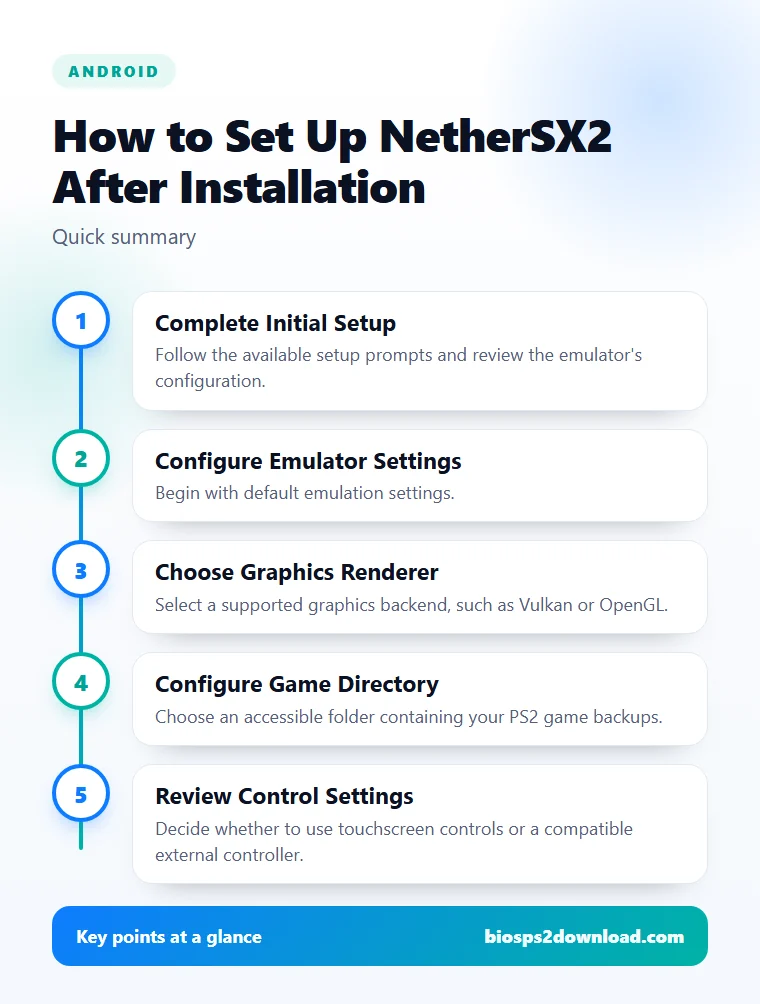
Complete Initial Setup
Follow the available setup prompts and review the emulator’s configuration options. The exact interface may differ depending on your installed build.
Configure Emulator Settings
Begin with default emulation settings. Avoid changing advanced speed hacks or compatibility options until you’ve tested a game.
Choose Graphics Renderer
Select a supported graphics backend, such as Vulkan or OpenGL. If one causes rendering problems, you can test the alternative later.
Configure Game Directory
Choose an accessible folder containing your PS2 game backups. Android may ask you to grant access through its system file picker.
Review Control Settings
Decide whether to use touchscreen controls or a compatible external controller. You can customize button mappings after launching a game.
| Setting | Recommended Starting Point |
|---|---|
| Emulation | Defaults |
| Graphics renderer | Supported backend |
| Internal resolution | Native |
| Game directory | Accessible local folder |
| Controls | Touch or gamepad |
How to Install PS2 BIOS in NetherSX2
NetherSX2 requires compatible PlayStation 2 firmware for normal emulation. I recommend using a BIOS image extracted from your own console and keeping an untouched backup.
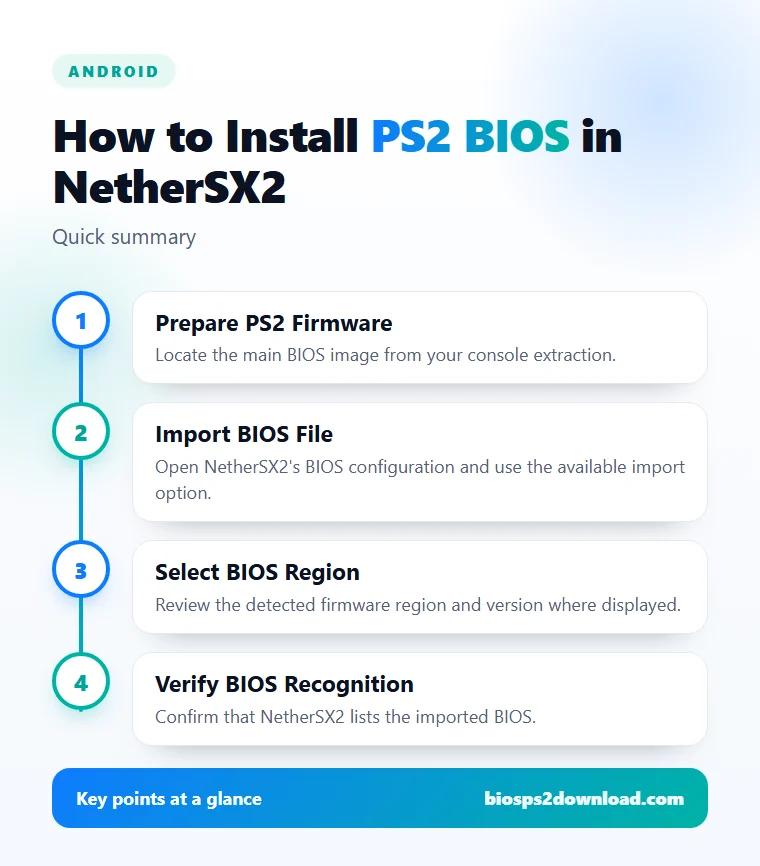
Prepare PS2 Firmware
Locate the main BIOS image from your console extraction. If it’s stored inside a compressed archive, extract the firmware before importing it.
Import BIOS File
Open NetherSX2’s BIOS configuration and use the available import option. Select the main firmware image through Android’s file picker.
Select BIOS Region
Review the detected firmware region and version where displayed. Region information can matter for certain behaviors, but not every game requires a matching BIOS region.
Verify BIOS Recognition
Confirm that NetherSX2 lists the imported BIOS and that it is selected where necessary. If the firmware is rejected, check its integrity rather than repeatedly renaming it.
| BIOS Problem | First Check |
|---|---|
| BIOS not detected | Import process |
| Invalid firmware | Original dump |
| File inaccessible | Android storage |
| Wrong file selected | Main BIOS image |
How to Add and Play PS2 Games on NetherSX2
Once your BIOS is configured, you can add supported PS2 game images to NetherSX2. I recommend starting with one verified game backup so you can confirm that the emulator works before importing a large library.
Follow these steps:
Organize Game Library
Keep your game backups in clearly named folders. Avoid moving or renaming files while the emulator is scanning them.
Launch First Game
Select a recognized game and begin a normal boot. If loading fails, verify the game image before changing your BIOS configuration.
- Prepare a backup of a PS2 game you own, where permitted.
- Confirm that its format is supported by your NetherSX2 build.
- Transfer the ISO or CHD image to your Android device.
- Open NetherSX2.
- Select the option to add a game directory.
- Navigate to the folder containing your game images.
- Grant folder access if Android requests it.
- Allow NetherSX2 to scan the directory.
- Select the game from your library.
- Start the game and check its performance.
| Format | Typical Purpose | Important Check |
|---|---|---|
| ISO | Disc image | Complete backup |
| CHD | Compressed image | Build compatibility |
| BIN/CUE | Disc tracks | Correct CUE references |
Best NetherSX2 Settings for Smooth Gameplay
There’s no universal NetherSX2 configuration that guarantees full-speed gameplay on every Android phone. I recommend starting with stability and adjusting settings according to your hardware.
Start With Defaults
Default settings provide a useful baseline. Test your game before enabling advanced modifications.
Adjust Internal Resolution
Begin at native resolution, particularly on lower-powered devices. Increase resolution gradually if your phone handles the game comfortably.
Compare Graphics Renderers
Try Vulkan and OpenGL where available. Performance and stability can vary by GPU, driver, and game.
Review Performance Options
Avoid blindly enabling aggressive speed hacks. Some changes may improve speed in one game while causing glitches or instability in another.
Save Game Profiles
Use per-game configuration options where supported. This prevents a setting intended for one title from affecting your entire library.
| Setting | Starting Recommendation |
|---|---|
| Internal resolution | Native |
| Renderer | Supported Vulkan or OpenGL |
| Advanced hacks | Defaults |
| Game-specific settings | Adjust individually |
| Graphics enhancements | Disabled initially |
How to Set Up Controllers in NetherSX2
NetherSX2 supports touchscreen input and compatible external controllers in supported builds. I recommend testing basic movement and buttons before customizing the layout.
Configure Touch Controls
Open touchscreen control settings and adjust the virtual button layout where available. Position important controls so they remain comfortable during gameplay.
Connect Bluetooth Controller
Pair your compatible gamepad through Android’s Bluetooth settings. Confirm that Android recognizes the device before configuring it in NetherSX2.
Map Controller Buttons
Open controller settings and assign the directional controls, analog sticks, face buttons, triggers, and Start button as needed.
Fix Controller Problems
If buttons don’t respond correctly, check the selected controller profile and input mappings. Reconnect the controller if Android stops detecting it.
| Controller | Setup Method | Common Issue |
|---|---|---|
| Touchscreen | Virtual controls | Layout |
| Bluetooth | Android pairing | Connection |
| USB | Supported USB connection | Detection |
| External gamepad | Button mapping | Incorrect inputs |
NetherSX2 Memory Cards, Save States and Game Saves
Saving progress is essential, especially if you plan to update NetherSX2 or experiment with different builds. I recommend understanding the difference between memory-card saves and emulator save states.
Understand Memory Cards
Virtual PS2 memory cards store progress through a game’s normal save system. They are generally preferable for preserving long-term progress.
Create Save States
Save states capture an emulator snapshot for quick continuation. However, they may become incompatible after emulator changes.
Restore Game Progress
Use the appropriate memory-card or save-state loading method. If an old save state fails, try booting normally and loading an in-game memory-card save.
Back Up Save Files
Copy important saves to a separate location before updating, patching, or reinstalling NetherSX2. Don’t assume Android will preserve application data during removal.
| Save Type | Purpose | Limitation |
|---|---|---|
| Memory-card save | In-game progress | Game-dependent |
| Save state | Emulator snapshot | Version compatibility |
| Backup copy | Recovery | Requires safe storage |
NetherSX2 APK Not Working? Fix Common Errors
If NetherSX2 isn’t working correctly, identify whether the problem occurs during installation, firmware configuration, or game loading. These issues require different solutions.
Fix Installation Errors
Check the APK’s compatibility, signing certificate, and package version. A conflicting installation may require following the build’s documented migration procedure.
Resolve BIOS Errors
Confirm that your main PS2 BIOS image is valid and recognized. Missing firmware can prevent normal game startup.
Fix Game Crashes
Test another verified game image and restore default settings. If crashes continue, try an alternative supported graphics renderer.
Resolve Black Screens
A black screen may involve graphics rendering or a damaged game image rather than firmware. Compare Vulkan and OpenGL where available.
Fix Slow Performance
Reduce internal resolution and unnecessary enhancements. Some games remain demanding even on otherwise compatible Android devices.
| Error | Possible Cause | First Fix |
|---|---|---|
| APK not installed | Package conflict | Check build |
| BIOS missing | Import incomplete | Verify firmware |
| Game crashes | Renderer or image | Test defaults |
| Black screen | Rendering issue | Change renderer |
| Low FPS | Hardware limitation | Lower resolution |
Is NetherSX2 APK Safe and Legal?
NetherSX2 is a community-modified emulator, so installation safety depends on the package you use and how it was prepared. I recommend treating APK integrity and firmware ownership as separate considerations.
Understand APK Safety
A recognizable project name doesn’t guarantee that every APK carrying it is trustworthy. Verify the build’s origin and avoid packages from unknown distributors.
Check App Permissions
Review the permissions requested during installation and use. Unexpected requests unrelated to emulator functionality deserve additional investigation.
Understand BIOS Ownership
Use firmware extracted from your own PlayStation 2 rather than assuming BIOS files distributed by third parties are authorized. Applicable copyright rules vary by jurisdiction.
Review Game Backups
Game images may contain copyrighted material. Owning a physical disc doesn’t automatically make every copying or distribution method lawful, so follow applicable local rules.
| Concern | Recommended Precaution |
|---|---|
| APK authenticity | Verify project source |
| Modified packages | Avoid unknown distributors |
| App permissions | Review unexpected access |
| BIOS firmware | Use own console extraction |
| Game backups | Follow applicable laws |
Frequently Asked Questions
Is NetherSX2 APK Free?
NetherSX2 is generally distributed as a community modification without a standard purchase requirement. Check the terms of the particular build.
Does NetherSX2 Need BIOS?
Yes. NetherSX2 requires compatible PS2 BIOS firmware for normal PlayStation 2 emulation.
Which Android Supports NetherSX2?
Compatibility depends on the build, Android version, processor architecture, and graphics capabilities.
Can NetherSX2 Run ISO?
Yes. Supported builds can load compatible PS2 ISO game images.
Does NetherSX2 Support Controllers?
Yes. Compatible touchscreen, Bluetooth, and USB controller options are available, depending on the build and device.
Is NetherSX2 Better Than AetherSX2?
Not universally. Performance and compatibility depend on the build, device, and game.
Why Is NetherSX2 Crashing?
Common causes include incompatible builds, graphics issues, damaged game images, and unstable settings.
Can I Update NetherSX2?
Updates depend on the particular community build. Back up your saves and follow its documented update procedure.
Is NetherSX2 Safe to Install?
Safety depends on the APK’s origin and integrity. Verify the build and review permissions before installation.
Conclusion
NetherSX2 APK provides an AetherSX2-based option for running compatible PlayStation 2 games on Android. Successful setup begins with choosing an appropriate build, checking device compatibility, installing the application carefully, and importing a valid PS2 BIOS. Once your firmware is recognized, you can add supported game backups, configure controls, and adjust graphics settings according to your phone’s capabilities.
I recommend beginning with default settings and testing one game before making advanced changes. Keep your original BIOS, game images, memory cards, and save states backed up, especially when changing NetherSX2 builds. With a careful setup process, you’ll be better prepared to troubleshoot problems without losing your progress.