Fix “PCSX2 Requires a PS2 BIOS to Run” Error
You’ve just installed PCSX2, selected your favorite PlayStation 2 game, and suddenly encountered the message “PCSX2 Requires a PS2 BIOS to Run.” You might think the emulator wasn’t installed correctly or that something is wrong with your computer. In most cases, however, this warning simply means PCSX2 hasn’t been configured with the console firmware it needs to start emulation.
I’ll help you fix the PCSX2 requires a PS2 BIOS to run error by completing the initial firmware setup and checking the settings that can cause this warning to return. Whether you’re using Windows, macOS, or Linux, you’ll learn how to add your BIOS, finish PCSX2 configuration, and confirm that the emulator is ready to launch your games.
Table of contents 11 sections
- What Does “PCSX2 Requires a PS2 BIOS to Run” Mean?
- Why Does PCSX2 Require a PS2 BIOS?
- What Do You Need Before Fixing the Error?
- How to Fix “PCSX2 Requires a PS2 BIOS to Run”
- How to Complete PCSX2 First-Time Setup
- PCSX2 Still Asks for BIOS After Setup?
- How to Fix BIOS Setup on Windows, Mac and Linux
- How to Confirm the PCSX2 BIOS Error Is Fixed
- Common Mistakes That Keep the BIOS Warning Appearing
- Frequently Asked Questions
- Conclusion
What Does “PCSX2 Requires a PS2 BIOS to Run” Mean?
This warning indicates that PCSX2 doesn’t currently have access to a usable PlayStation 2 BIOS for its normal emulation process. It doesn’t necessarily mean your emulator is damaged, and reinstalling PCSX2 usually isn’t the first solution you should try.
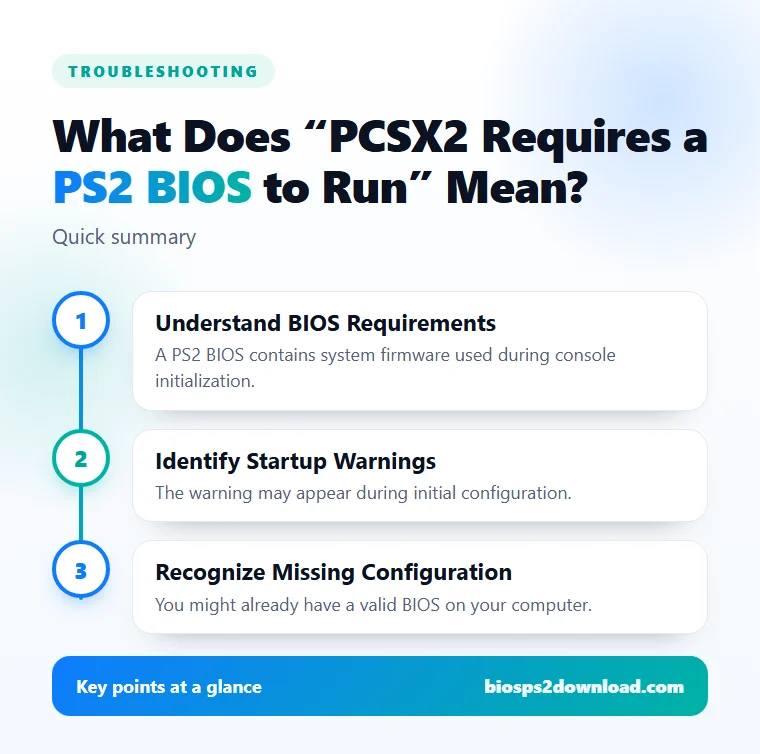
Understand BIOS Requirements
A PS2 BIOS contains system firmware used during console initialization. PCSX2 relies on compatible firmware to reproduce important parts of the PlayStation 2 startup environment.
Identify Startup Warnings
The warning may appear during initial configuration or when you attempt to start a game without selecting firmware. Its wording can vary between PCSX2 releases.
Recognize Missing Configuration
You might already have a valid BIOS on your computer, but PCSX2 won’t automatically know where you’ve stored it. The firmware must be available through the emulator’s supported BIOS configuration.
| Warning Situation | What It Means |
|---|---|
| No BIOS configured | Initial setup incomplete |
| BIOS unavailable | Firmware cannot be accessed |
| BIOS not selected | Selection may be incomplete |
| Invalid BIOS | Firmware cannot be recognized |
Why Does PCSX2 Require a PS2 BIOS?
PCSX2 emulates PlayStation 2 hardware, but the BIOS provides firmware functionality used by the original console. Understanding this distinction helps explain why installing the emulator alone isn’t enough.
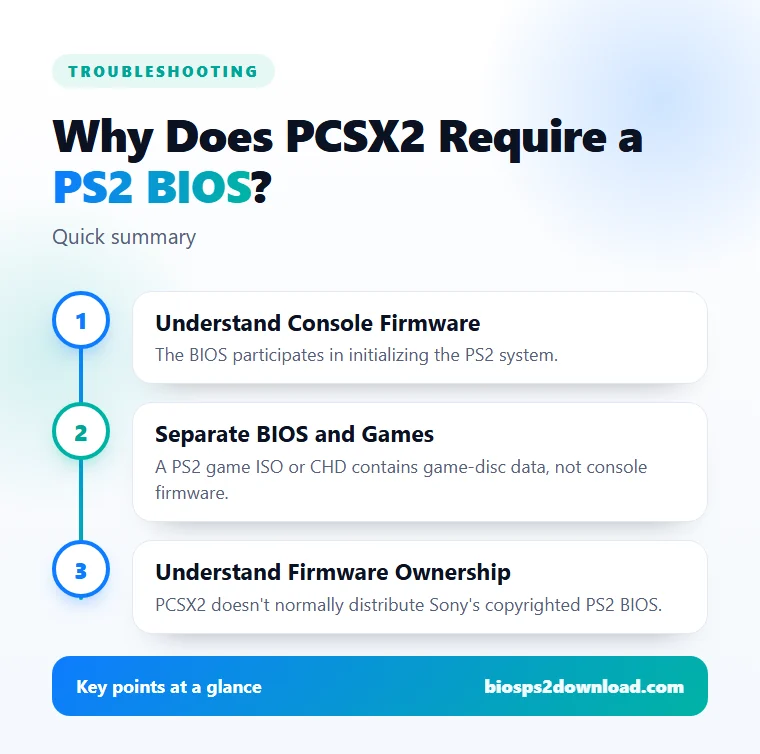
Understand Console Firmware
The BIOS participates in initializing the PS2 system and provides firmware services used during emulation. A compatible image helps PCSX2 reproduce the console’s expected operating environment.
Understand Firmware Ownership
PCSX2 doesn’t normally distribute Sony’s copyrighted PS2 BIOS. I recommend extracting firmware from your own console and checking the laws that apply to firmware copying in your location.
| File Type | Purpose | Replaces BIOS? |
|---|---|---|
| PS2 BIOS | Console firmware | Yes, when valid |
| Game ISO | Game-disc image | No |
| Game CHD | Compressed game image | No |
| Memory card | Saved game data | No |
What Do You Need Before Fixing the Error?
Before opening the BIOS configuration screen, prepare your firmware and choose a location where PCSX2 can access it consistently. This makes the setup process easier and helps prevent repeated startup warnings.
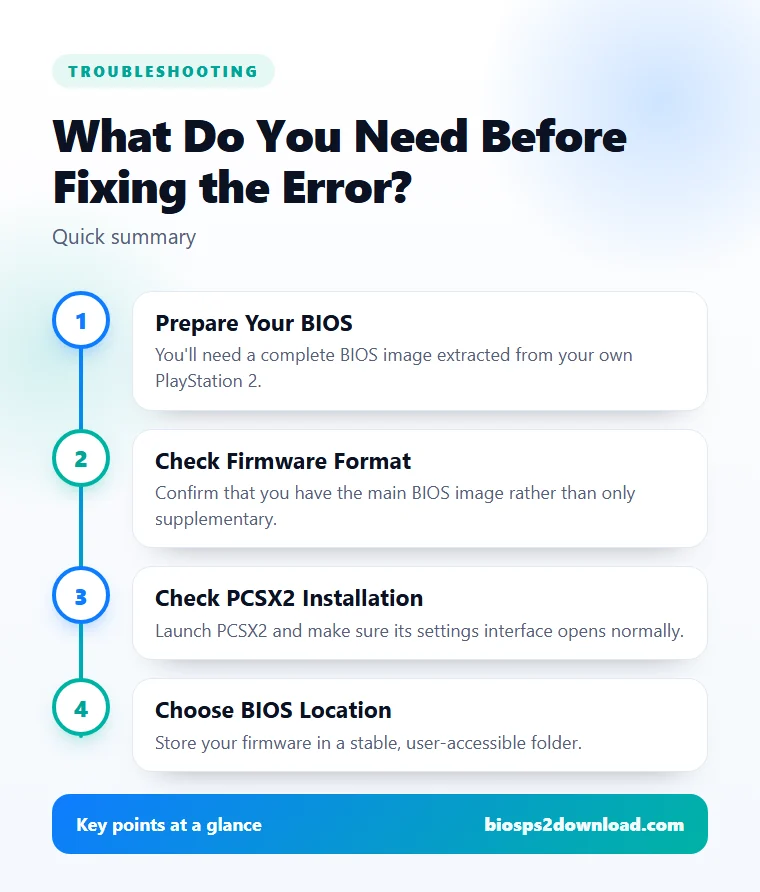
Prepare Your BIOS
You’ll need a complete BIOS image extracted from your own PlayStation 2. If you haven’t created a backup yet, use a suitable console firmware dumping method before continuing.
Check Firmware Format
Confirm that you have the main BIOS image rather than only supplementary files such as ROM0, ROM1, or NVM. Renaming an unrelated file to .bin won’t turn it into valid firmware.
Check PCSX2 Installation
Launch PCSX2 and make sure its settings interface opens normally. You don’t need to reinstall the application simply because it asks for a BIOS.
Choose BIOS Location
Store your firmware in a stable, user-accessible folder. Avoid temporary directories or removable drives that may be disconnected when you launch PCSX2.
| Requirement | Recommended Check |
|---|---|
| BIOS image | Complete original dump |
| File format | Supported firmware image |
| PCSX2 | Opens successfully |
| Storage folder | Accessible and persistent |
How to Fix “PCSX2 Requires a PS2 BIOS to Run”
Now that your firmware is ready, let’s complete the setup. The exact menu names may differ between PCSX2 versions, but the main process remains similar.
Follow these steps:
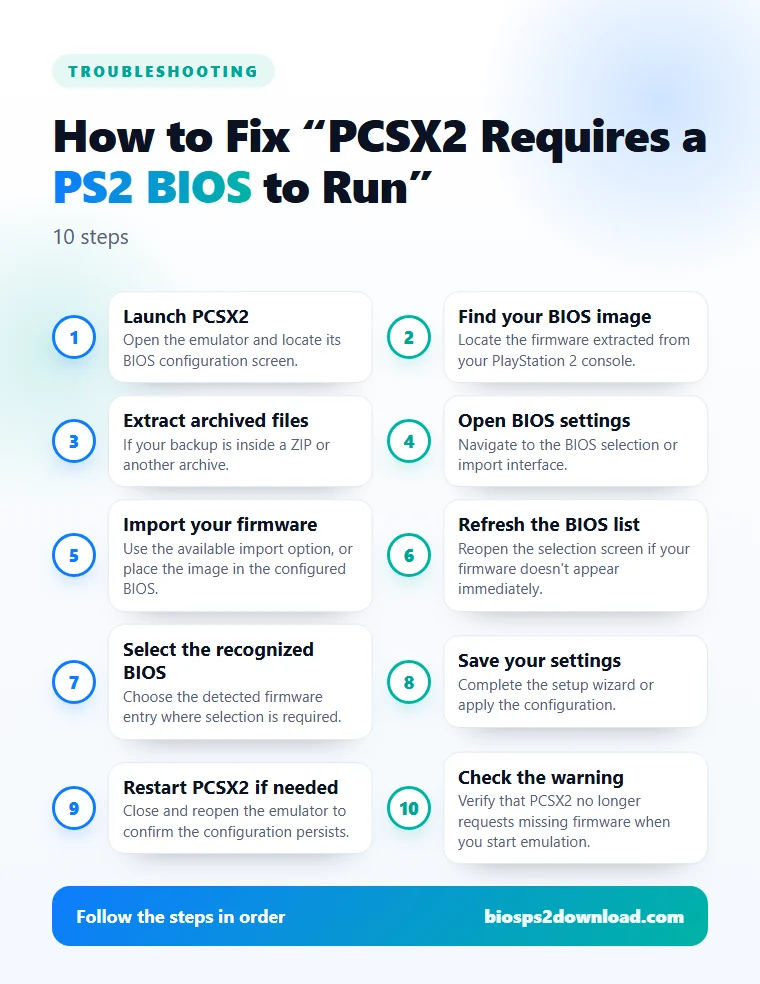
- Launch PCSX2. Open the emulator and locate its BIOS configuration screen or first-time setup wizard.
- Find your BIOS image. Locate the firmware extracted from your PlayStation 2 console.
- Extract archived files. If your backup is inside a ZIP or another archive, extract the firmware into a normal folder.
- Open BIOS settings. Navigate to the BIOS selection or import interface.
- Import your firmware. Use the available import option, or place the image in the configured BIOS directory.
- Refresh the BIOS list. Reopen the selection screen if your firmware doesn’t appear immediately.
- Select the recognized BIOS. Choose the detected firmware entry where selection is required.
- Save your settings. Complete the setup wizard or apply the configuration.
- Restart PCSX2 if needed. Close and reopen the emulator to confirm the configuration persists.
- Check the warning. Verify that PCSX2 no longer requests missing firmware when you start emulation.
I recommend confirming that PCSX2 recognizes your BIOS before changing graphics or controller settings. If the firmware doesn’t appear in the list, investigate its location and integrity rather than repeatedly reinstalling the emulator.
| Setup Check | Expected Result |
|---|---|
| BIOS imported | Firmware recognized |
| BIOS selected | Firmware available for use |
| Settings saved | Configuration persists |
| Emulator restarted | No repeated BIOS warning |
How to Complete PCSX2 First-Time Setup
Once PCSX2 recognizes your BIOS, you can finish the remaining configuration. I recommend starting with the emulator’s default settings and adjusting individual options only when necessary.
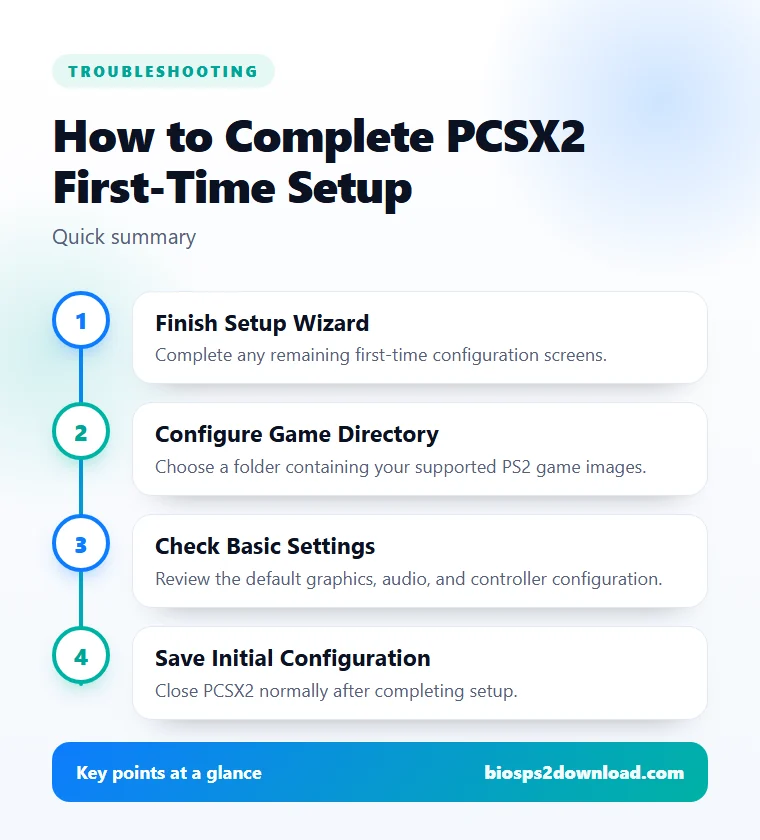
Finish Setup Wizard
Complete any remaining first-time configuration screens. Depending on your PCSX2 version, the wizard may ask about language, firmware, game folders, or other preferences.
Configure Game Directory
Choose a folder containing your supported PS2 game images. PCSX2 can scan configured directories and display recognized games in its library.
Check Basic Settings
Review the default graphics, audio, and controller configuration. You generally don’t need aggressive performance tweaks before testing your first game.
Save Initial Configuration
Close PCSX2 normally after completing setup. Reopen it to confirm that your preferences and BIOS configuration remain available.
| Setup Component | Recommended Starting Point |
|---|---|
| BIOS | Recognized firmware |
| Game directory | Dedicated PS2 games folder |
| Graphics | Default settings |
| Audio | Default settings |
| Controller | Configure connected gamepad |
PCSX2 Still Asks for BIOS After Setup?
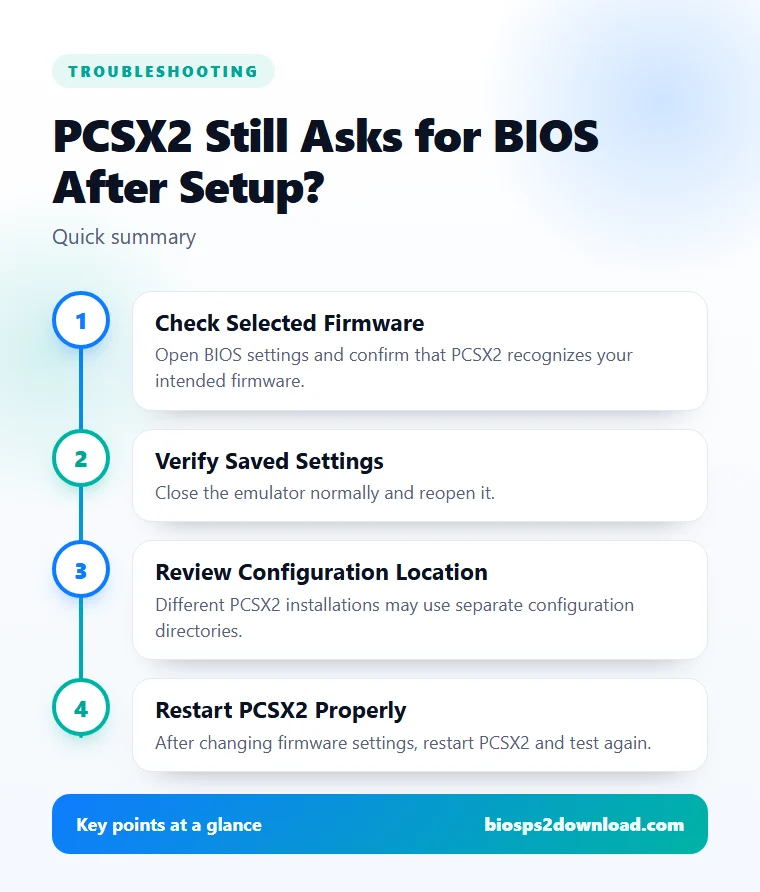
If the same warning appears every time you open PCSX2, the firmware may not be selected or your configuration may not be saved correctly. I recommend checking these possibilities before changing the BIOS file itself.
Check Selected Firmware
Open BIOS settings and confirm that PCSX2 recognizes your intended firmware. If a selection is required, make sure the correct entry is active.
Verify Saved Settings
Close the emulator normally and reopen it. If your BIOS selection disappears, investigate whether PCSX2 can save its configuration files.
Review Configuration Location
Different PCSX2 installations may use separate configuration directories. A portable installation, for example, may not share settings with a standard installation.
Restart PCSX2 Properly
After changing firmware settings, restart PCSX2 and test again. If the BIOS remains undetected, the issue may involve the file location or image itself.
| Repeated Warning | Possible Cause | Recommended Fix |
|---|---|---|
| BIOS not selected | Incomplete setup | Select firmware |
| Settings disappear | Configuration not saved | Check write access |
| Different installation | Separate settings folder | Review active configuration |
| BIOS list empty | Detection problem | Check BIOS directory |
How to Fix BIOS Setup on Windows, Mac and Linux
PCSX2 supports multiple desktop operating systems, but each platform handles application data and file permissions differently. If the general setup doesn’t work, these platform-specific checks can help.
Configure Windows BIOS
On Windows, confirm that PCSX2 can read the folder containing your firmware. User application-data directories and portable installations may use different locations.
Set Up macOS BIOS
On macOS, keep your BIOS in an accessible folder and check the application’s file-access permissions when necessary. Avoid assuming that the firmware belongs inside the application bundle.
Configure Linux BIOS
Linux installations may use standard user-data directories or sandbox-specific locations. If you’re using a Flatpak package, confirm that the application can access the folder containing your firmware.
Check Portable PCSX2
Portable installations may store settings near the executable. If you move the application folder, confirm that its BIOS path still points to a valid location.
| Platform | Main Setup Consideration |
|---|---|
| Windows | Application-data and folder permissions |
| macOS | Application file access |
| Linux | User-data paths and sandboxing |
| Portable | Relative paths and configuration location |
How to Confirm the PCSX2 BIOS Error Is Fixed
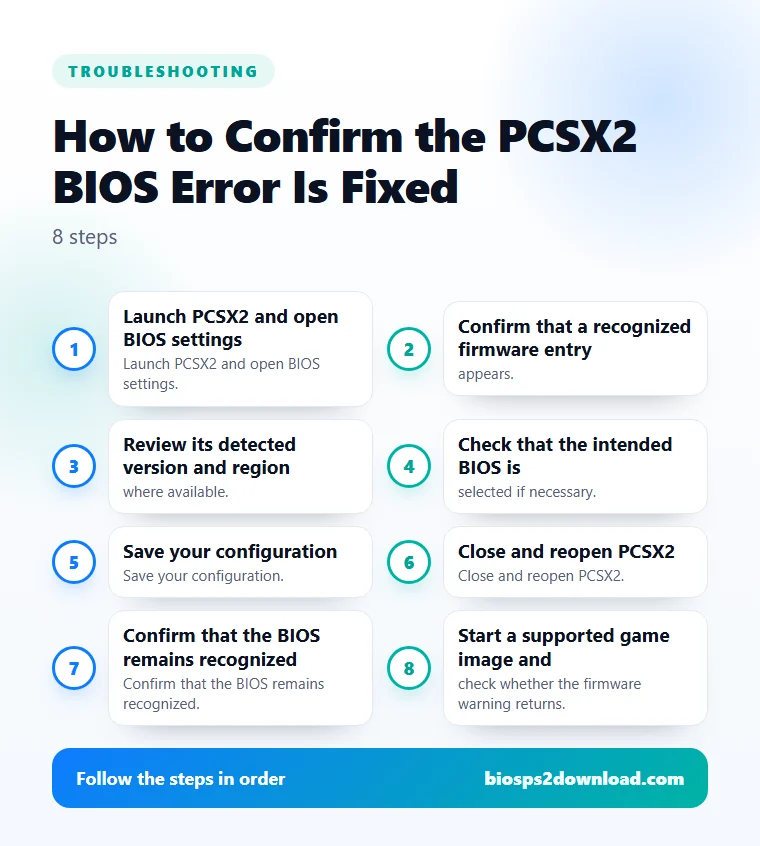
After completing setup, I recommend checking the result instead of assuming that the warning has disappeared permanently. A short verification process can prevent confusion later.
Follow these steps:
- Launch PCSX2 and open BIOS settings.
- Confirm that a recognized firmware entry appears.
- Review its detected version and region where available.
- Check that the intended BIOS is selected if necessary.
- Save your configuration.
- Close and reopen PCSX2.
- Confirm that the BIOS remains recognized.
- Start a supported game image and check whether the firmware warning returns.
If the game doesn’t start but the BIOS remains recognized, investigate the game image and emulator compatibility separately.
| Verification Result | Meaning |
|---|---|
| BIOS listed | Firmware detected |
| Version recognized | Firmware identified |
| Selection persists | Settings saved |
| Warning disappears | BIOS requirement satisfied |
| Game fails separately | Further troubleshooting needed |
Common Mistakes That Keep the BIOS Warning Appearing
Many beginners spend time reinstalling PCSX2 when the actual issue is a simple setup mistake. I recommend avoiding the following problems when configuring firmware.
Avoid Wrong Files
A game ISO, CHD, ZIP archive, or unrelated BIN file cannot replace a valid PS2 BIOS image. Confirm that you’re using the correct firmware before importing it.
Avoid Unstable Locations
Don’t rely on temporary folders or disconnected external storage. A stable BIOS location helps PCSX2 find the same firmware every time.
Preserve BIOS Backups
Keep an untouched copy of your original firmware dump. If you accidentally rename, move, or overwrite the working image, you’ll still have a reliable backup.
Avoid Unnecessary Reinstallation
Reinstalling PCSX2 won’t automatically create a BIOS or repair an invalid firmware image. Check the configuration and original dump before replacing the emulator.
| Common Mistake | Better Approach |
|---|---|
| Selecting game ISO as BIOS | Use actual firmware |
| Leaving BIOS archived | Extract supported image |
| Using temporary storage | Choose stable directory |
| Deleting original dump | Keep backup |
| Reinstalling immediately | Check configuration first |
Frequently Asked Questions
Why Does PCSX2 Require BIOS?
PCSX2 uses compatible PS2 firmware to reproduce essential console initialization and system functions during standard emulation.
Can PCSX2 Run Without BIOS?
PCSX2’s normal PS2 emulation workflow requires a compatible BIOS image. Installing the emulator alone doesn’t provide that firmware.
Where Do I Add BIOS?
Use the BIOS import or configuration interface in PCSX2. The exact folder depends on your operating system and installation method.
Why Does BIOS Warning Return?
The firmware may not be selected, the settings may not have been saved, or PCSX2 may no longer have access to the configured BIOS location.
Is BIOS Included With PCSX2?
No. PCSX2 doesn’t normally include Sony’s copyrighted PS2 BIOS firmware.
Can I Use PS2 ISO as BIOS?
No. An ISO contains game-disc data, while the BIOS contains console firmware. They serve different purposes.
Does Every Game Need BIOS?
PCSX2 generally requires a configured BIOS for its standard PS2 emulation workflow, rather than a separate BIOS for each game.
Will Updating PCSX2 Remove BIOS?
Not necessarily. Updates don’t inherently delete your firmware, although changing installation methods or configuration locations may affect detection.
Conclusion
The “PCSX2 Requires a PS2 BIOS to Run” warning usually means the emulator hasn’t been configured with usable PS2 firmware. You can often resolve it by preparing a valid BIOS image, importing or selecting it through PCSX2 settings, and saving the configuration. There’s usually no reason to reinstall the emulator before checking these steps.
I recommend keeping your original BIOS backup in a stable location and verifying that PCSX2 recognizes it after restarting. Once the firmware requirement is satisfied, you can finish configuring your game library and controller settings, then focus on getting your PS2 games running smoothly.