PS2 Emulator Crashing on Android? Fix Startup & Game Errors
You’ve installed AetherSX2 or NetherSX2 on your Android phone, selected your favorite PlayStation 2 game, and waited for it to load. Instead, the emulator suddenly closes, freezes on a black screen, or returns to your home screen. Sometimes the game starts normally but crashes after a few minutes, leaving you wondering whether your phone or emulator is responsible.
If your PS2 emulator keeps crashing on Android, the problem isn’t necessarily related to the BIOS. Graphics compatibility, damaged game images, insufficient memory, overheating, and incorrect settings can all affect stability. I’ll help you identify what’s causing the crash, apply practical fixes, and protect your saved games while troubleshooting.
Table of contents 13 sections
- Why Does Your PS2 Emulator Keep Crashing on Android?
- How to Fix PS2 Emulator Crashing on Android Step by Step
- AetherSX2 Crashing on Startup? Fix App Launch Errors
- NetherSX2 Crashing? Fix Android Game Errors
- PS2 Emulator Crashes When Loading ISO or CHD
- How to Fix PS2 Emulator Graphics Crashes
- PS2 Emulator Freezing or Crashing During Gameplay
- PS2 Emulator Crashing After Android Update?
- How to Fix PS2 Emulator Black Screen and Freezing
- Best Android Settings to Prevent PS2 Emulator Crashes
- PS2 Emulator Still Crashing? Advanced Troubleshooting
- Frequently Asked Questions
- Conclusion
Why Does Your PS2 Emulator Keep Crashing on Android?
Android PS2 emulation depends on your phone’s hardware, graphics drivers, game compatibility, and emulator configuration. A crash during application startup may have a completely different cause from one that occurs after several minutes of gameplay.
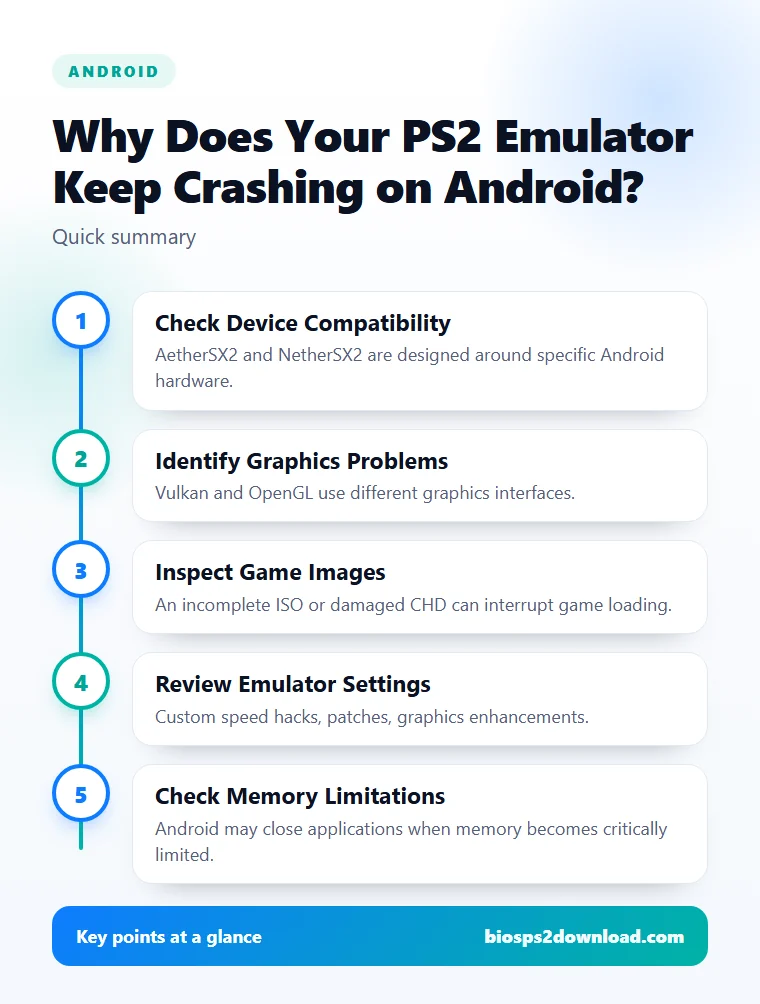
Check Device Compatibility
AetherSX2 and NetherSX2 are designed around specific Android hardware and software requirements. An incompatible processor architecture, unsupported graphics feature, or unsuitable application build can prevent reliable operation.
Identify Graphics Problems
Vulkan and OpenGL use different graphics interfaces. Driver bugs or unsupported rendering features may cause crashes when loading particular games or switching graphics settings.
Review Emulator Settings
Custom speed hacks, patches, graphics enhancements, and game-specific overrides may introduce instability. Returning to default settings helps isolate configuration problems.
Check Memory Limitations
Android may close applications when memory becomes critically limited. Heavy background activity can increase memory pressure, although not every unexpected closure is caused by insufficient RAM.
| Crash Symptom | Possible Cause | First Check |
|---|---|---|
| App closes immediately | Compatibility or installation | App build |
| Crash loading ISO | Image or settings | Test another game |
| Vulkan crash | Graphics driver | Try OpenGL |
| Crash after minutes | Heat or memory pressure | Device resources |
| One game crashes | Game-specific issue | Compatibility |
How to Fix PS2 Emulator Crashing on Android Step by Step
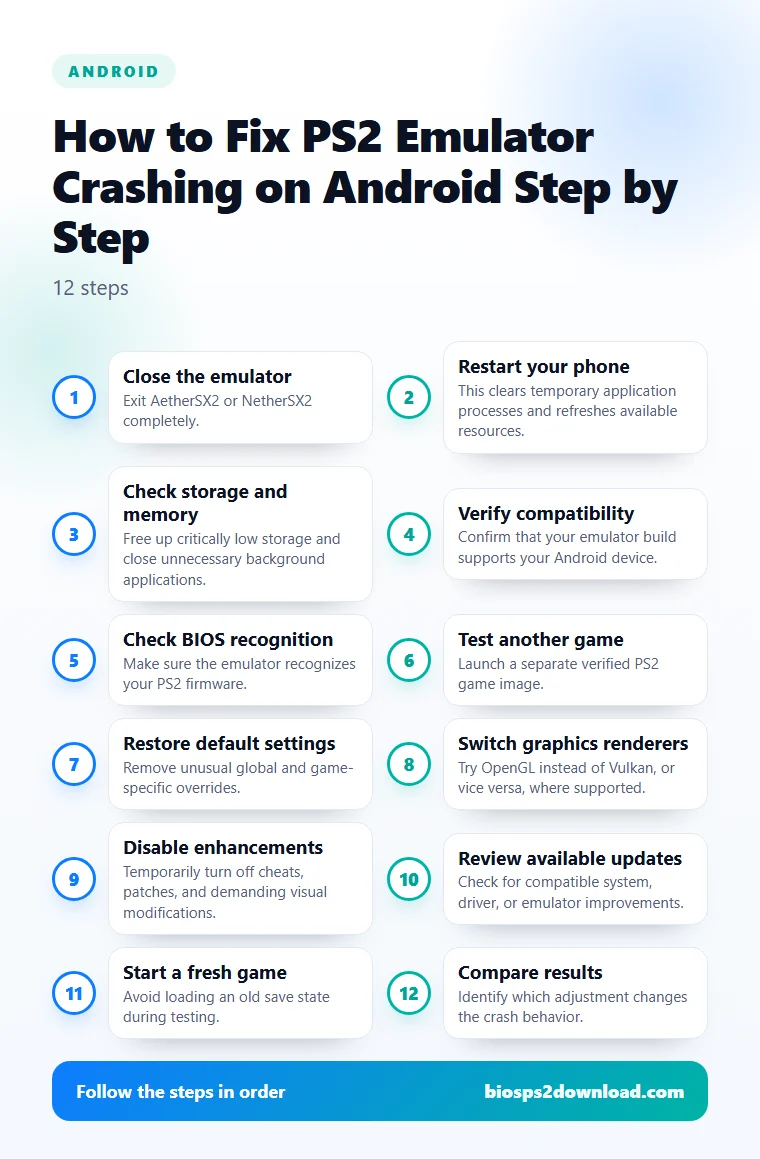
I recommend starting with simple troubleshooting rather than immediately reinstalling the emulator. Follow these steps in order, testing your game after each meaningful change.
- Close the emulator. Exit AetherSX2 or NetherSX2 completely.
- Restart your phone. This clears temporary application processes and refreshes available resources.
- Check storage and memory. Free up critically low storage and close unnecessary background applications.
- Verify compatibility. Confirm that your emulator build supports your Android device.
- Check BIOS recognition. Make sure the emulator recognizes your PS2 firmware.
- Test another game. Launch a separate verified PS2 game image.
- Restore default settings. Remove unusual global and game-specific overrides.
- Switch graphics renderers. Try OpenGL instead of Vulkan, or vice versa, where supported.
- Disable enhancements. Temporarily turn off cheats, patches, and demanding visual modifications.
- Review available updates. Check for compatible system, driver, or emulator improvements.
- Start a fresh game. Avoid loading an old save state during testing.
- Compare results. Identify which adjustment changes the crash behavior.
Change one setting at a time whenever possible. This makes it easier to identify the actual cause without introducing additional problems.
AetherSX2 Crashing on Startup? Fix App Launch Errors
If AetherSX2 closes immediately after opening, focus on the application and device before investigating individual games. A startup crash can occur before the emulator even attempts to load a BIOS or disc image.
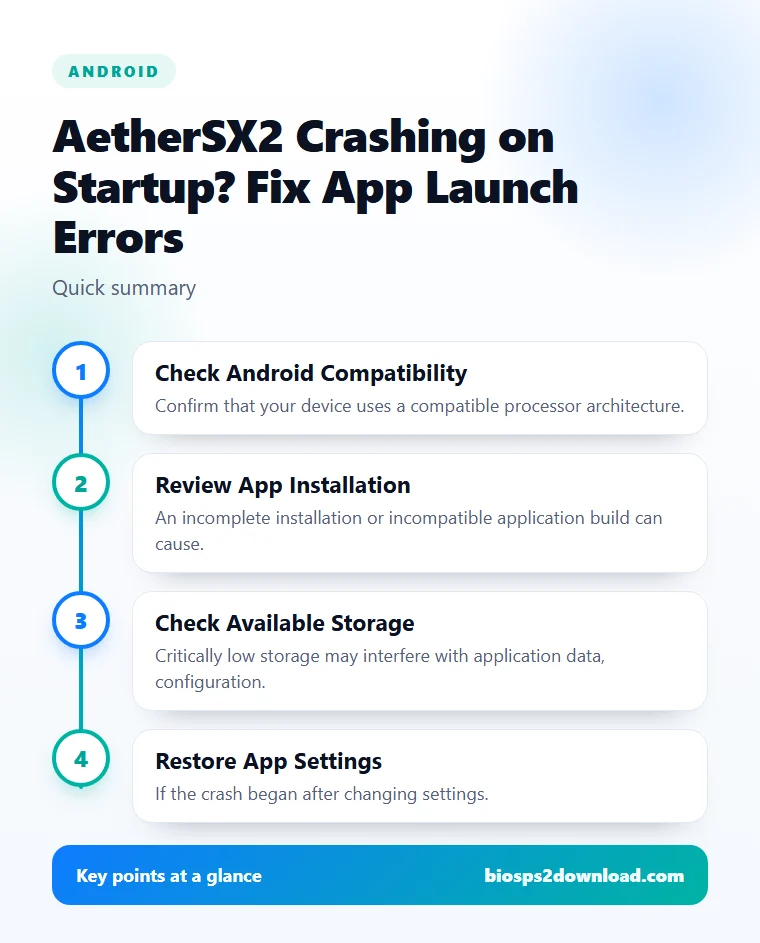
Check Android Compatibility
Confirm that your device uses a compatible processor architecture and Android environment. AetherSX2 primarily targets supported 64-bit ARM Android devices, so incompatible hardware may prevent normal operation.
Review App Installation
An incomplete installation or incompatible application build can cause startup failures. Identify the installed version and avoid mixing unknown modifications or application files.
Check Available Storage
Critically low storage may interfere with application data, configuration, and temporary files. Free some space if necessary, then restart the emulator.
Restore App Settings
If the crash began after changing settings, restore the relevant configuration where possible. Avoid clearing application storage before backing up memory cards, save states, and preferences.
| Startup Symptom | Recommended Check |
|---|---|
| Immediate closure | Device compatibility |
| Crash after installation | Application build |
| Storage warning | Available space |
| Crash after settings change | Configuration |
NetherSX2 Crashing? Fix Android Game Errors
NetherSX2 builds can behave differently depending on their base version and applied modifications. If NetherSX2 crashes while AetherSX2 previously worked, compare the application configuration before assuming your BIOS or game image is damaged.
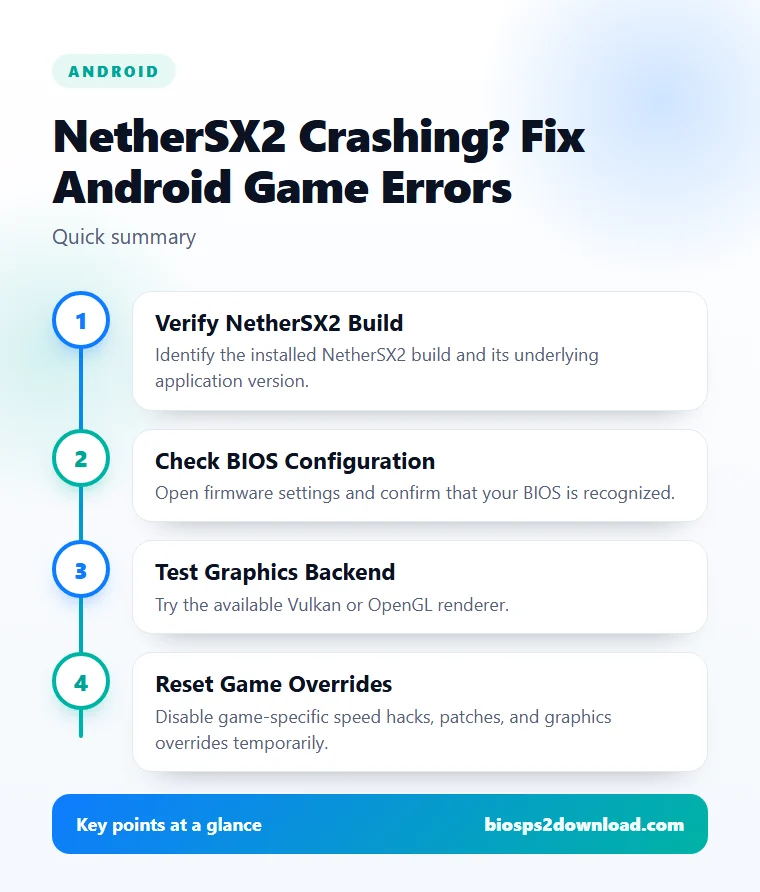
Verify NetherSX2 Build
Identify the installed NetherSX2 build and its underlying application version. Different builds may include changes that affect compatibility or performance.
Check BIOS Configuration
Open firmware settings and confirm that your BIOS is recognized. A missing BIOS can prevent normal game startup, although it doesn’t explain every application crash.
Test Graphics Backend
Try the available Vulkan or OpenGL renderer. If one backend crashes consistently, test the alternative without changing unrelated settings.
Reset Game Overrides
Disable game-specific speed hacks, patches, and graphics overrides temporarily. A problematic per-game configuration may affect one title while others remain stable.
| NetherSX2 Problem | Recommended Fix |
|---|---|
| Crash immediately | Check build compatibility |
| Game won’t start | Verify BIOS and image |
| Vulkan crash | Test OpenGL |
| One game affected | Reset game overrides |
PS2 Emulator Crashes When Loading ISO or CHD
If your emulator opens normally but closes after selecting a game, the disc image deserves attention. A working BIOS doesn’t guarantee that every ISO or CHD contains complete, readable game data.
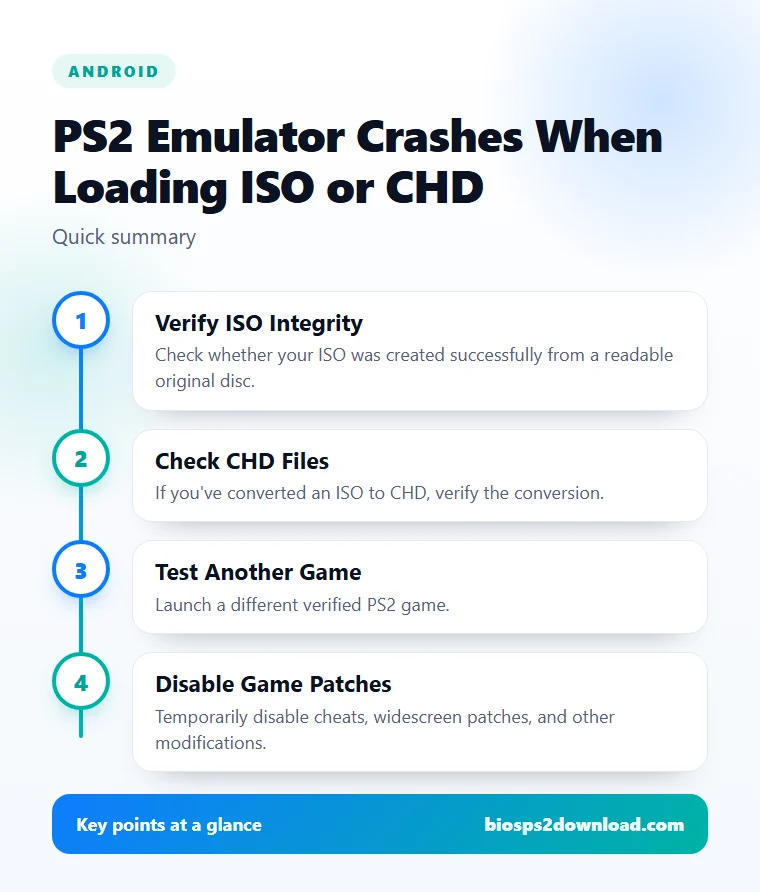
Verify ISO Integrity
Check whether your ISO was created successfully from a readable original disc. An interrupted extraction or unreadable disc sectors can leave an incomplete image.
Check CHD Files
If you’ve converted an ISO to CHD, verify the conversion and test the original image when available. This helps determine whether the problem appeared during compression.
Test Another Game
Launch a different verified PS2 game. If it works, the original title’s image or compatibility settings may be responsible.
Disable Game Patches
Temporarily disable cheats, widescreen patches, and other modifications. Some patches can interfere with game startup or cause unexpected behavior.
| File Type | Possible Issue | Recommended Check |
|---|---|---|
| ISO | Incomplete extraction | Verify disc backup |
| CHD | Conversion problem | Check original image |
| BIN/CUE | Missing track references | Inspect CUE file |
| Any format | Game-specific conflict | Disable patches |
How to Fix PS2 Emulator Graphics Crashes
Graphics rendering is one of the most useful areas to investigate when games crash during loading or display complex scenes. Android devices use different GPUs and drivers, so a setting that works on one phone may fail on another.
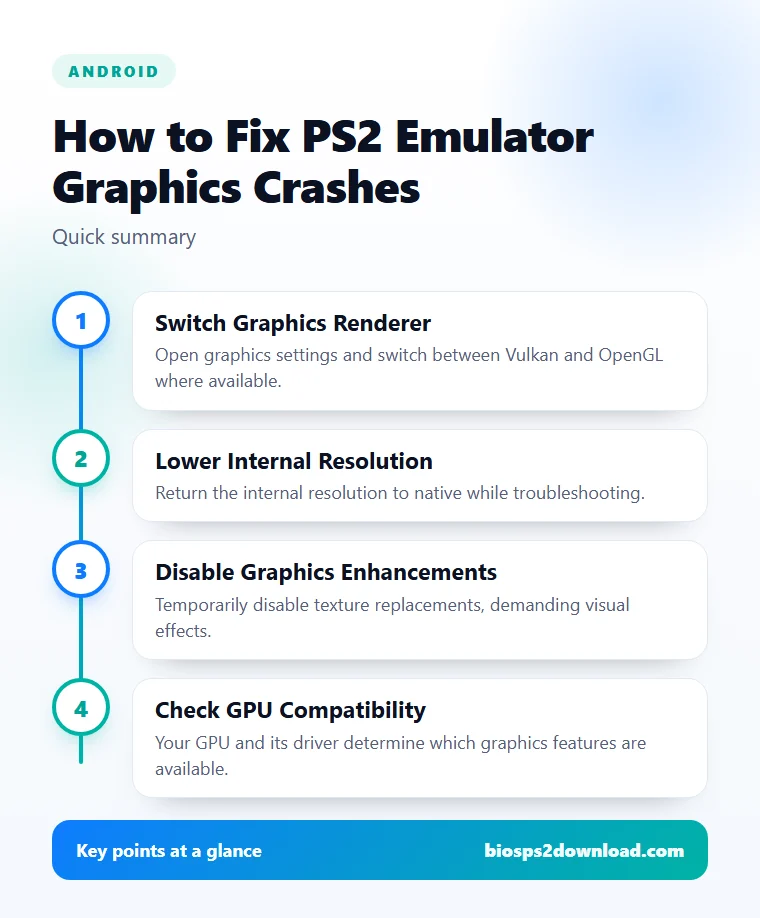
Switch Graphics Renderer
Open graphics settings and switch between Vulkan and OpenGL where available. Test the same game after each change to compare stability.
Lower Internal Resolution
Return the internal resolution to native while troubleshooting. Higher resolutions increase graphics workload and may worsen performance on limited hardware.
Disable Graphics Enhancements
Temporarily disable texture replacements, demanding visual effects, and unnecessary graphics overrides. Re-enable them individually after confirming the game runs reliably.
Check GPU Compatibility
Your GPU and its driver determine which graphics features are available. If a renderer repeatedly crashes, use a supported alternative rather than forcing incompatible settings.
| Graphics Setting | Troubleshooting Recommendation |
|---|---|
| Vulkan | Test if supported |
| OpenGL | Alternative renderer |
| Internal resolution | Native |
| Texture enhancements | Disabled |
| Advanced overrides | Defaults |
PS2 Emulator Freezing or Crashing During Gameplay
A game that runs for several minutes before crashing may be affected by resource pressure, heat, or game-specific emulation problems. I recommend checking when the failure occurs and whether it happens consistently in the same scene.
Check Device Temperature
Long gaming sessions can increase device temperature. Thermal throttling usually reduces performance, but severe heat-related instability may also affect application behavior.
Reduce Background Activity
Close unnecessary applications when memory pressure is high. Avoid aggressive memory-cleaning utilities that may interfere with running processes.
Review Game Settings
Return demanding graphics options and unusual emulation overrides to defaults. If crashes began after a particular change, reverse that adjustment first.
Test Fresh Save
Start the game normally instead of loading an old save state. Save states can become incompatible across emulator versions, while in-game memory-card saves provide a separate recovery option.
| Gameplay Symptom | Recommended Check |
|---|---|
| Crash after long session | Temperature and resources |
| Crash in one scene | Game compatibility |
| Crash after tweaks | Restore settings |
| Crash loading state | Try normal boot |
PS2 Emulator Crashing After Android Update?
Android updates can change application compatibility, file access, or system behavior. However, a newer Android version doesn’t automatically mean that AetherSX2 or NetherSX2 will stop working.
Check Android Changes
Identify whether the crash began immediately after a system update. Compare the behavior with your previous configuration and check whether your emulator build supports the updated environment.
Review Storage Access
Confirm that your BIOS and game images remain accessible. Changes in file-picker behavior or removable storage access may prevent files from loading correctly.
Verify App Permissions
Review relevant application permissions if the emulator can no longer access selected files. Android versions differ in how storage access is managed.
Protect Emulator Data
Don’t clear application storage or uninstall the emulator before backing up memory cards, save states, and configuration files. These may be stored within application-managed directories.
| Post-Update Problem | First Check |
|---|---|
| App won’t open | Build compatibility |
| Games missing | Storage access |
| File selection fails | File picker |
| Settings changed | Configuration backup |
How to Fix PS2 Emulator Black Screen and Freezing
A black screen isn’t always the same as an application crash. If the emulator remains open, the game may still be running even though video output has stopped.
Identify Black Screens
Check whether the emulator interface remains responsive. If you can open menus, the problem may involve rendering or game startup rather than an application-level crash.
Check Audio Activity
If music or sound effects continue while the display stays black, investigate the graphics renderer and display settings first.
Test Another Renderer
Switch between supported Vulkan and OpenGL backends. Restart the game after changing the renderer to evaluate the result.
Restore Default Configuration
Disable graphics modifications and game-specific overrides. Test a normal game boot before restoring custom settings.
| Symptom | Possible Cause | Next Action |
|---|---|---|
| Black screen with sound | Rendering issue | Change renderer |
| App completely closes | Application crash | Check compatibility |
| Game freezes | Emulation or resource issue | Restore defaults |
| Menus still respond | Display or game issue | Test another game |
Best Android Settings to Prevent PS2 Emulator Crashes
There isn’t one universal configuration that guarantees stable PS2 emulation on every Android phone. I recommend using conservative settings as a baseline, then adjusting them according to your hardware and the games you play.
Start With Defaults
Default settings provide a useful starting point for troubleshooting. Avoid applying several advanced modifications before confirming that the game runs normally.
Use Native Resolution
Native internal resolution reduces graphics workload compared with aggressive upscaling. Once the game is stable, increase resolution gradually if your device has sufficient performance.
Avoid Aggressive Tweaks
Unusual speed hacks, experimental overrides, and incompatible patches can cause instability. Change advanced settings only when they address a specific problem.
Manage Device Resources
Keep sufficient storage available, avoid unnecessary background activity, and monitor device temperature during extended sessions. Battery-saving modes may also restrict performance on some phones.
| Setting | Stability-First Recommendation |
|---|---|
| Graphics renderer | Supported backend |
| Internal resolution | Native |
| Game patches | Disabled during testing |
| Advanced overrides | Defaults |
| Save states | Test normal boot |
| Background activity | Reduce unnecessary load |
PS2 Emulator Still Crashing? Advanced Troubleshooting
If the basic fixes haven’t helped, investigate the exact failure rather than repeatedly changing settings. I recommend preserving your existing configuration before testing more advanced solutions.
Review Crash Messages
Record any visible error message and identify whether the emulator closes, freezes, or returns to the home screen. These symptoms can point toward different causes.
Test Clean Configuration
Back up your settings, then test a clean configuration where supported. If the game works afterward, an existing override may be responsible.
Compare Emulator Builds
Different AetherSX2 and NetherSX2 builds may behave differently on the same device. Compare known compatibility differences without installing unverified application packages.
Check Device Limitations
Older processors, limited memory, or unsupported graphics features may prevent reliable emulation. Some demanding games may remain unstable even with conservative settings.
Reinstall Emulator Carefully
Reinstallation should be your last option. Preserve memory cards, save states, BIOS backups, and configuration files before removing the application.
| Advanced Check | Purpose | Precaution |
|---|---|---|
| Crash messages | Identify failure | Record details |
| Clean configuration | Isolate settings | Back up first |
| Build comparison | Check compatibility | Avoid unverified packages |
| Hardware review | Identify limitations | Use realistic settings |
| Reinstallation | Address installation issues | Preserve saves |
Frequently Asked Questions
Why Does AetherSX2 Crash?
AetherSX2 may crash because of incompatible hardware, graphics drivers, damaged game images, or unstable emulator settings.
Why Does NetherSX2 Crash?
Possible causes include build compatibility, graphics renderer problems, game-specific settings, and corrupted game images.
Can BIOS Cause Crashes?
An invalid or missing BIOS can prevent normal startup. However, crashes during gameplay may involve unrelated graphics or compatibility problems.
Does Vulkan Cause Crashes?
Vulkan may trigger crashes on certain devices or games because of driver or rendering issues. Try OpenGL to compare stability.
Why Does ISO Crash?
An incomplete or damaged ISO can cause loading failures. Verify the original disc image and test another game.
Can Low RAM Cause Crashes?
Yes. Severe memory pressure can cause Android to terminate applications, although crashes can have other causes.
Why Does Emulator Freeze?
Freezing may result from game compatibility issues, graphics problems, demanding settings, or resource limitations.
Will Reinstalling Fix Crashes?
Not necessarily. Reinstallation won’t repair damaged game images or unsupported hardware. Back up saved games before attempting it.
Conclusion
A PS2 emulator crashing on Android can involve device compatibility, graphics rendering, damaged game images, memory pressure, or incorrect configuration. I recommend starting with a phone restart, verifying your BIOS and game files, restoring default settings, and testing an alternative graphics renderer. These checks help identify the cause without making unnecessary changes.
If AetherSX2 or NetherSX2 continues crashing, investigate game-specific compatibility, application builds, and device limitations before considering reinstallation. Keep your original BIOS, game backups, and saved progress protected throughout the process. This makes troubleshooting safer and helps you return to your games without losing important data.