AetherSX2 BIOS Not Working? Fix Android Import Errors

You’ve installed AetherSX2 on your Android phone, selected your PlayStation 2 BIOS file, and tried to complete the setup. But instead of recognizing the firmware, the emulator displays an import error, refuses to show your BIOS, or keeps asking you to configure it again. I know how confusing this can be, especially when the same file appears perfectly normal in your phone’s file manager.
An AetherSX2 BIOS not working error doesn’t always mean the emulator is broken. The problem could involve an incomplete firmware image, Android storage restrictions, an unsupported file, or an unsuccessful import. I’ll help you identify the cause, fix BIOS import errors, and confirm that AetherSX2 recognizes your firmware before you start playing.
Table of contents 13 sections
- Why Is AetherSX2 BIOS Not Working?
- How to Fix AetherSX2 BIOS Not Working Step by Step
- How to Fix AetherSX2 BIOS Import Failed Error
- AetherSX2 BIOS Not Detected? Fix Missing Firmware
- How to Fix Invalid AetherSX2 BIOS Files
- How to Fix AetherSX2 BIOS Storage Permission Problems
- AetherSX2 Black Screen After BIOS? Fix Startup
- AetherSX2 BIOS Not Working After Android Update?
- How to Confirm AetherSX2 Recognizes Your BIOS
- Common AetherSX2 BIOS Mistakes to Avoid
- AetherSX2 BIOS Still Not Working? Advanced Fixes
- Frequently Asked Questions
- Conclusion
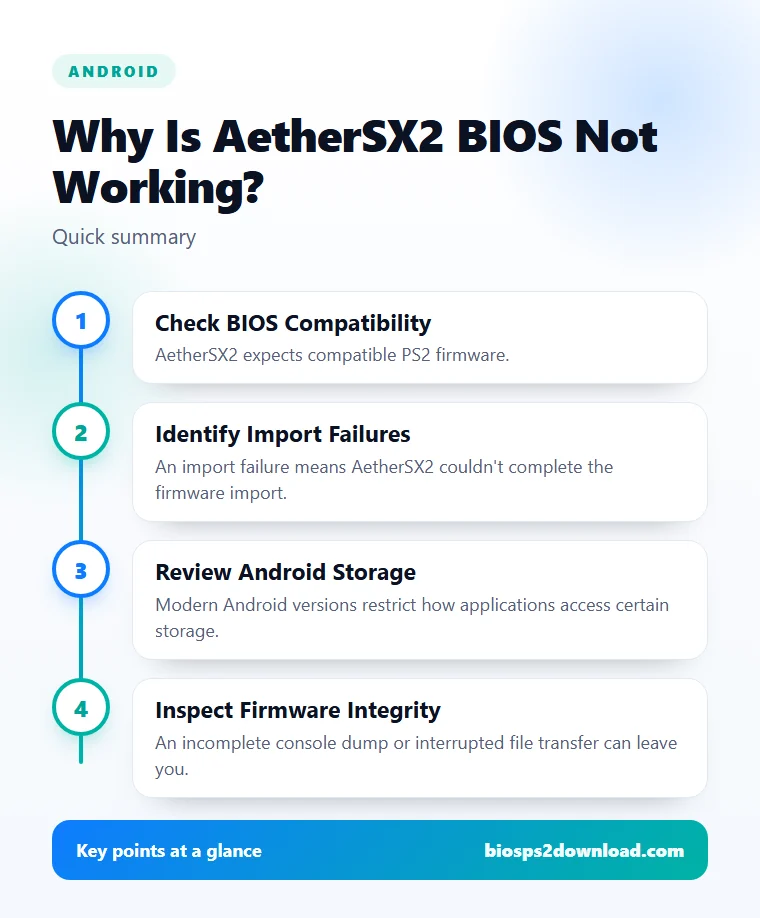
Why Is AetherSX2 BIOS Not Working?
AetherSX2 needs a recognizable PlayStation 2 BIOS image for its normal emulation process. Even when the firmware is stored on your phone, the application may fail to import it because of file-access restrictions, incorrect selection, or damaged data.
Check BIOS Compatibility
AetherSX2 expects compatible PS2 firmware, not an arbitrary file with a .bin extension. If you’ve selected a game ISO, supplementary ROM file, or unrelated firmware image, the emulator may reject it.
Identify Import Failures
An import failure means AetherSX2 couldn’t complete the firmware import. This may happen because the selected file is unreadable, unsupported, or inaccessible through Android’s file picker.
Review Android Storage
Modern Android versions restrict how applications access certain storage locations. A BIOS stored inside a protected application folder or inaccessible cloud location may be difficult to select.
Inspect Firmware Integrity
An incomplete console dump or interrupted file transfer can leave you with a BIOS that exists but cannot be recognized. Comparing the Android copy with your original extraction helps identify this problem.
| Problem | Possible Cause | First Check |
|---|---|---|
| BIOS import failed | Invalid or unreadable image | File integrity |
| BIOS not detected | Incomplete import | BIOS settings |
| File unavailable | Android storage restriction | File location |
| Invalid BIOS | Wrong firmware data | Original dump |
| BIOS stopped working | Changed configuration | Existing settings |
How to Fix AetherSX2 BIOS Not Working Step by Step
Before reinstalling AetherSX2 or deleting its data, I recommend checking the BIOS import process. Most basic setup problems can be investigated without touching your saved games.
Follow these steps:
- Close the running game. Return to AetherSX2’s main interface before changing firmware settings.
- Open BIOS settings. Find the BIOS configuration or firmware management option.
- Locate your original dump. Use the firmware extracted from your own PlayStation 2 console.
- Check the archive. If your BIOS is inside a ZIP or 7z file, extract the main firmware image.
- Identify the correct file. Select the primary PS2 BIOS rather than ROM1, NVM, or a game ISO.
- Move it locally. Copy the image into an accessible folder, such as a dedicated folder in internal storage.
- Start BIOS import. Use AetherSX2’s supported BIOS import option.
- Select the firmware. Navigate to the file using Android’s system file picker.
- Confirm recognition. Check whether the imported BIOS appears in the emulator’s firmware list.
- Select the BIOS. Choose the recognized image if the application requires manual selection.
- Save your settings. Finish the configuration without clearing application data.
- Test the emulator. Restart AetherSX2 and launch a verified PS2 game image.
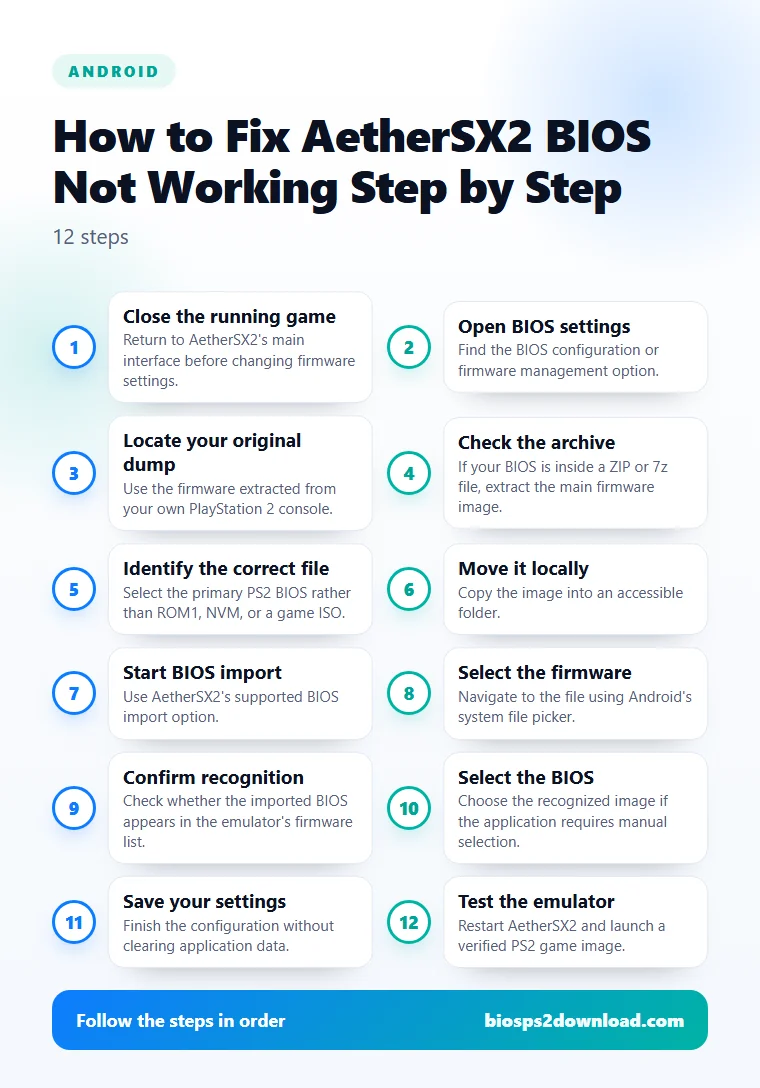
The exact menu labels may vary between AetherSX2 builds and Android versions. If the import still fails, the next step is determining whether the problem involves the file or Android storage access.
How to Fix AetherSX2 BIOS Import Failed Error
When AetherSX2 displays a BIOS import error, repeatedly selecting the same file usually won’t help until you identify the underlying cause. I recommend checking the selected image and its storage location first.
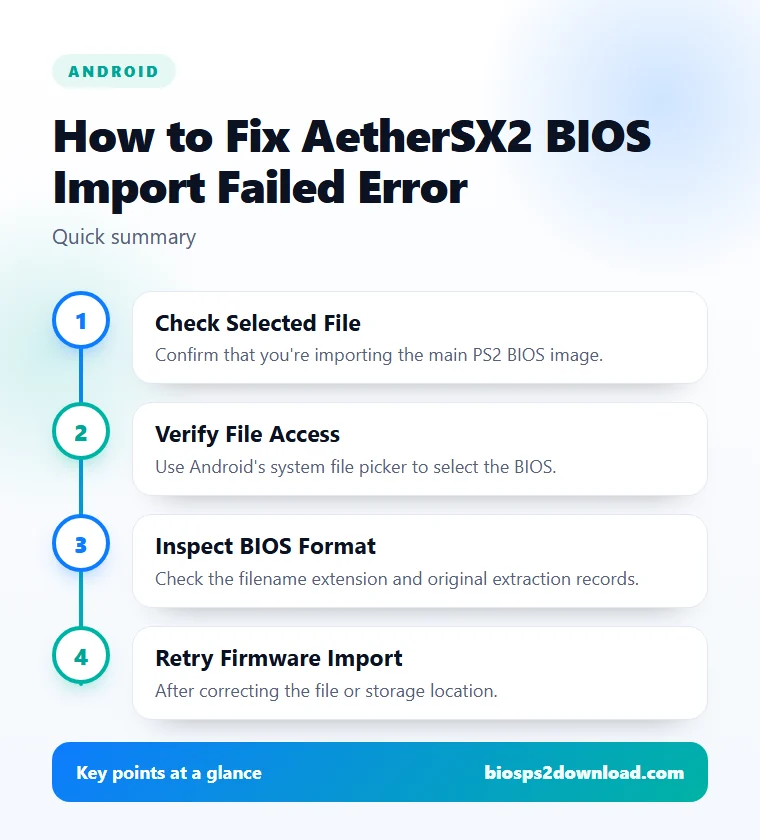
Check Selected File
Confirm that you’re importing the main PS2 BIOS image. A compressed archive, game ISO, memory-card file, or supplementary ROM cannot automatically replace the primary firmware.
Verify File Access
Use Android’s system file picker to select the BIOS. If the file isn’t visible or cannot be opened, move a copy into an accessible local folder and try again.
Inspect BIOS Format
Check the filename extension and original extraction records. Remember that renaming an unsupported file to .bin doesn’t change its contents or make it compatible.
Retry Firmware Import
After correcting the file or storage location, reopen AetherSX2’s BIOS settings and repeat the import. If the emulator still rejects the image, verify the original firmware.
| Import Symptom | Likely Cause | Recommended Fix |
|---|---|---|
| File not selectable | Storage restriction | Move file locally |
| Import rejected | Incorrect file | Select main BIOS |
| Import stops | Unreadable image | Verify original |
| Import succeeds but BIOS missing | Selection issue | Review BIOS list |
AetherSX2 BIOS Not Detected? Fix Missing Firmware
Sometimes the BIOS import appears successful, but AetherSX2 still doesn’t show usable firmware. In this situation, I recommend checking the application’s BIOS list before copying files into random Android directories.
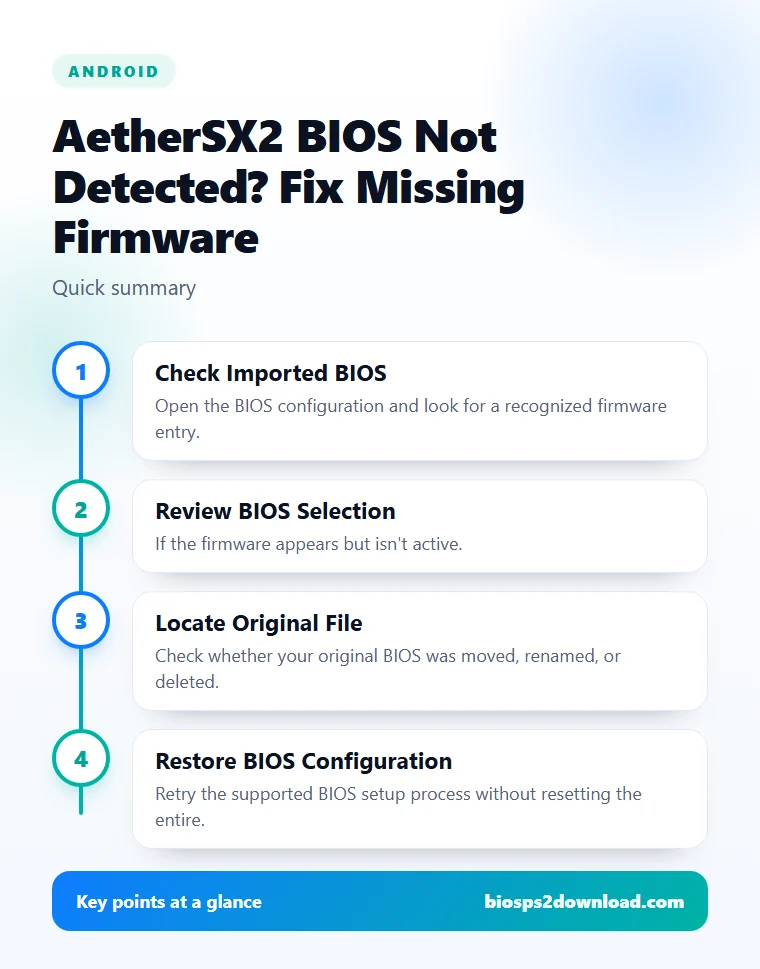
Check Imported BIOS
Open the BIOS configuration and look for a recognized firmware entry. If the list is empty, the previous import may not have completed successfully.
Review BIOS Selection
If the firmware appears but isn’t active, select it using the available configuration option. Imported firmware and selected firmware aren’t necessarily the same thing.
Locate Original File
Check whether your original BIOS was moved, renamed, or deleted. If necessary, repeat the import using an untouched backup.
Restore BIOS Configuration
Retry the supported BIOS setup process without resetting the entire application. Avoid clearing AetherSX2 data because doing so may remove locally stored settings and saved games.
| Symptom | Recommended Check |
|---|---|
| Empty BIOS list | Repeat import |
| BIOS listed but inactive | Select firmware |
| Original file missing | Restore backup |
| BIOS warning returns | Review saved settings |
How to Fix Invalid AetherSX2 BIOS Files
If Android can access the file but AetherSX2 rejects it, the firmware itself deserves closer inspection. I recommend comparing the phone’s copy with your original console extraction before attempting another import.
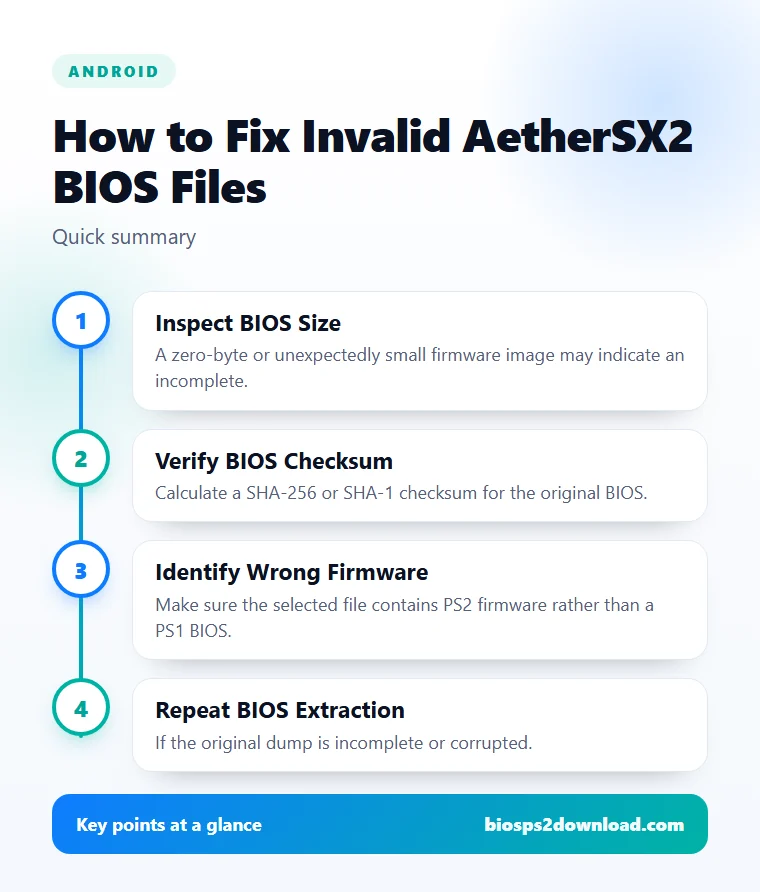
Inspect BIOS Size
A zero-byte or unexpectedly small firmware image may indicate an incomplete extraction. Many common main PS2 BIOS images are approximately 4 MiB, although file size alone doesn’t establish validity.
Verify BIOS Checksum
Calculate a SHA-256 or SHA-1 checksum for the original BIOS and compare it with the Android copy using the same algorithm. Different hashes indicate that the files contain different data.
Identify Wrong Firmware
Make sure the selected file contains PS2 firmware rather than a PS1 BIOS, game image, or supplementary ROM file. Similar filenames and extensions can be misleading.
Repeat BIOS Extraction
If the original dump is incomplete or corrupted, create a fresh extraction from your own PlayStation 2. Changing the file extension won’t repair missing firmware data.
| File Issue | Why It Matters | Recommended Action |
|---|---|---|
| Incomplete dump | Missing firmware data | Extract again |
| Wrong file type | Not main PS2 BIOS | Identify correct image |
| Checksum mismatch | Copy differs | Transfer again |
| Unrecognized firmware | Invalid image | Verify original |
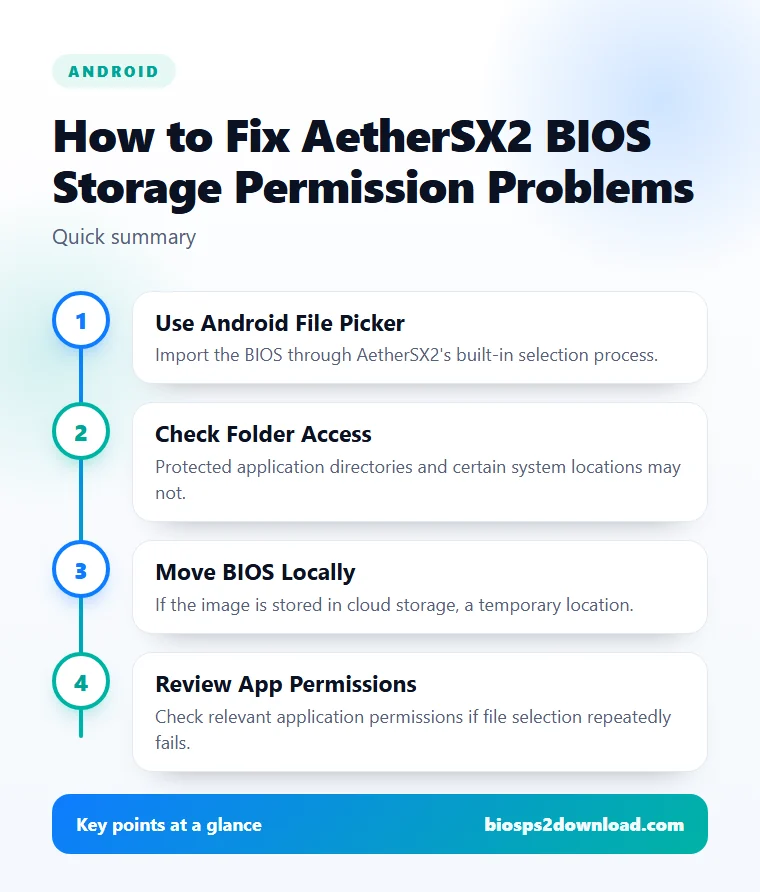
How to Fix AetherSX2 BIOS Storage Permission Problems
Android storage access is one of the main differences between troubleshooting AetherSX2 and desktop PCSX2. A firmware file may be valid but unavailable to the emulator because of its storage location or the document provider handling it.
Use Android File Picker
Import the BIOS through AetherSX2’s built-in selection process and Android’s system file picker. This allows the application to request access to the chosen document through the supported Android interface.
Check Folder Access
Protected application directories and certain system locations may not be accessible through normal file selection. Avoid placing your firmware inside restricted folders.
Move BIOS Locally
If the image is stored in cloud storage, a temporary location, or removable media, copy it into a stable folder in your phone’s internal storage. Then select the local copy during import.
Review App Permissions
Check relevant application permissions if file selection repeatedly fails. Android versions differ in how storage access is managed, and not every device provides a broad storage permission toggle.
| Storage Situation | Possible Problem | Recommended Fix |
|---|---|---|
| Protected Android folder | Restricted access | Use accessible folder |
| Cloud-only file | File not available locally | Download your copy |
| Removable storage | Unavailable location | Copy internally |
| File picker cannot open image | Provider or access issue | Try local file picker location |
AetherSX2 Black Screen After BIOS? Fix Startup
If AetherSX2 recognizes your BIOS but a game displays a black screen, the problem may no longer involve firmware. I recommend checking the game image and graphics configuration before replacing a working BIOS.
Confirm BIOS Recognition
Open BIOS settings and verify that the firmware remains recognized. If the BIOS is available, continue investigating game startup rather than assuming the import failed.
Check Game Image
Confirm that your ISO or supported game image was created successfully. A damaged disc backup can prevent startup even when the BIOS is valid.
Change Graphics Renderer
Where available, switch between Vulkan and OpenGL to test rendering compatibility. Results depend on your Android device, graphics drivers, and the game.
Restore Default Settings
Temporarily disable unusual graphics overrides, patches, or cheats. Test a fresh game boot before restoring your preferred enhancements.

| Black Screen Symptom | First Check |
|---|---|
| BIOS warning appears | Firmware selection |
| Game fails after import | Game image |
| Audio works, video black | Graphics renderer |
| Problem after customization | Restore defaults |
AetherSX2 BIOS Not Working After Android Update?
An Android system update or application change may affect file access, settings, or emulator behavior. However, an update doesn’t automatically mean your BIOS was deleted or corrupted.
Check Storage Changes
Confirm that the firmware’s original storage location remains accessible. Files stored on removable media or managed by another application may no longer be available.
Verify App Settings
Open AetherSX2 and check whether the imported BIOS remains listed and selected. If it does, investigate other startup settings before importing again.
Review File Permissions
If file selection behaves differently after an Android update, retry the import through the system document picker using an accessible local copy.
Avoid Data Deletion
Don’t clear AetherSX2’s storage simply to troubleshoot a BIOS error. Back up memory cards, save states, and configuration first because application-data deletion may permanently remove them.
| Post-Update Symptom | Recommended Check |
|---|---|
| BIOS missing | Firmware configuration |
| File picker fails | Storage access |
| Game won’t start | BIOS and game settings |
| Settings changed | Existing configuration |
How to Confirm AetherSX2 Recognizes Your BIOS
After applying the appropriate fix, verify that AetherSX2 has actually recognized the firmware. This final check helps distinguish a successful BIOS import from unrelated game performance problems.
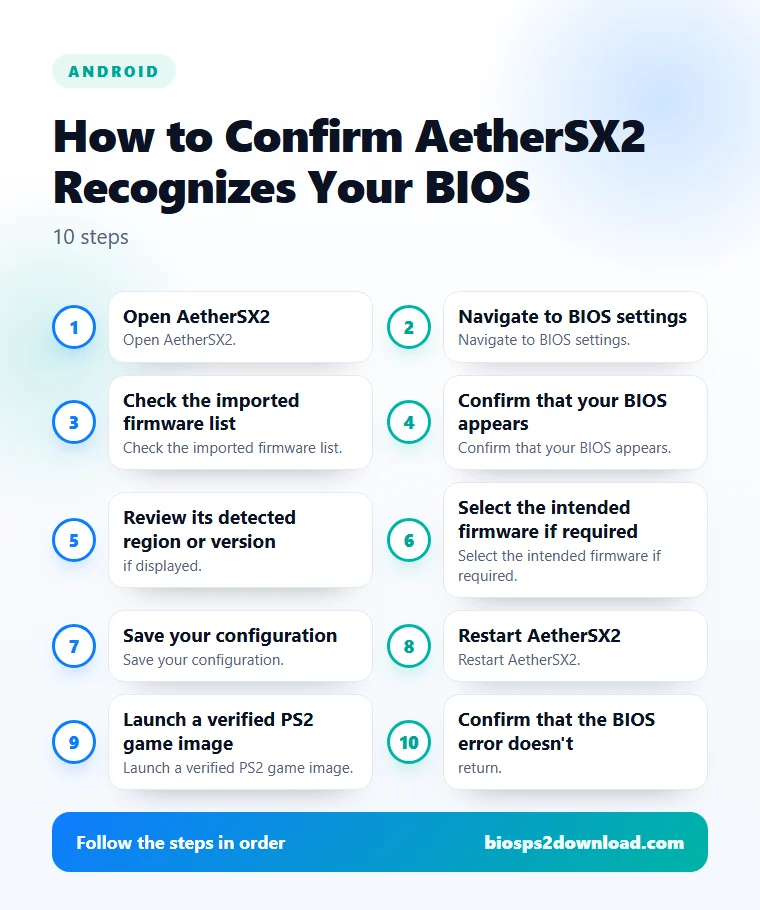
Follow these steps:
- Open AetherSX2.
- Navigate to BIOS settings.
- Check the imported firmware list.
- Confirm that your BIOS appears.
- Review its detected region or version if displayed.
- Select the intended firmware if required.
- Save your configuration.
- Restart AetherSX2.
- Launch a verified PS2 game image.
- Confirm that the BIOS error doesn’t return.
Successful firmware recognition means the BIOS setup is working, but it doesn’t guarantee every PS2 game will run smoothly on your Android device.
| Verification Result | Meaning |
|---|---|
| BIOS appears | Firmware recognized |
| Firmware selected | BIOS configured |
| Selection persists | Settings retained |
| Game launches | Startup successful |
| Game runs slowly | Separate performance issue |
Common AetherSX2 BIOS Mistakes to Avoid
Once you’ve resolved the import error, a few simple precautions can help prevent the same problem from returning. I recommend keeping firmware backups separate from experimental emulator settings.
Avoid Renaming Files
Don’t rename a ZIP, ISO, or unrelated BIN file to make it look like a PS2 BIOS. File extensions cannot change the underlying firmware contents.
Keep Original Backups
Preserve an untouched copy of your original console dump outside AetherSX2. This gives you a reliable source if the imported firmware becomes unavailable.
Avoid Restricted Folders
Store firmware copies in stable, accessible locations. Protected Android directories can complicate selection and make troubleshooting unnecessarily difficult.
Protect Saved Games
Before uninstalling AetherSX2 or clearing application data, back up your memory cards and save states. A BIOS problem shouldn’t cost you your game progress.
| Common Mistake | Better Practice |
|---|---|
| Renaming unrelated files | Verify actual firmware |
| Losing original dump | Keep separate backup |
| Using restricted folders | Choose accessible storage |
| Clearing app data | Back up saves first |
AetherSX2 BIOS Still Not Working? Advanced Fixes
If you’ve checked firmware integrity, Android storage access, and BIOS selection but the problem remains, it’s time to investigate the emulator configuration more carefully.
Test Another File
Try a separately verified copy of the BIOS extracted from your own console. This helps determine whether the working file was damaged during transfer.
Check Emulator Version
AetherSX2 builds can differ in their interfaces and behavior. Identify your installed version before following instructions intended for another release.
Review Error Messages
Pay attention to whether the error concerns invalid firmware, file access, or game startup. These problems require different solutions, even when they appear during the same setup process.
Reset BIOS Configuration
If the application provides a way to repeat BIOS selection, try that before resetting unrelated settings. Preserve your existing memory cards and configuration.
Reinstall AetherSX2 Carefully
Treat reinstallation as a last resort. First back up your saved games and settings, and remember that reinstalling won’t repair an invalid BIOS image.
| Advanced Check | Purpose | Precaution |
|---|---|---|
| Verified BIOS copy | Test file integrity | Preserve original |
| Emulator version | Identify build differences | Record version |
| Error messages | Isolate cause | Note exact wording |
| BIOS reconfiguration | Fix selection | Avoid full reset |
| Reinstallation | Address app issues | Back up saves |
Frequently Asked Questions
Why Is AetherSX2 BIOS Invalid?
The selected image may be incomplete, corrupted, or unrelated to PS2 firmware. Check the original dump and file integrity.
How Do I Import BIOS?
Open AetherSX2’s BIOS configuration, choose its import option, and select your extracted firmware using Android’s file picker.
Where Is AetherSX2 BIOS Stored?
AetherSX2 manages imported firmware within its application configuration or storage. The exact internal location can vary by build and Android version.
Why Is BIOS Not Detected?
The import may have failed, the file may be invalid, or the firmware may not be selected. Review the BIOS list first.
Can AetherSX2 Read ZIP Files?
For reliable setup, extract your BIOS from the ZIP archive before importing the firmware image.
Does AetherSX2 Need BIOS?
Yes. AetherSX2 requires compatible PS2 BIOS firmware for its normal PlayStation 2 emulation workflow.
Why Does BIOS Import Fail?
Common causes include incorrect files, damaged firmware, inaccessible storage, and unsuccessful file selection.
Will Reinstalling AetherSX2 Help?
Sometimes an application problem may require reinstallation, but it won’t repair invalid firmware. Back up your saves before trying it.
Conclusion
An AetherSX2 BIOS not working error can result from several different problems, including invalid firmware, Android storage restrictions, incomplete imports, and incorrect BIOS selection. I recommend starting with the original PS2 BIOS image, moving a verified copy into accessible local storage, and importing it through Android’s supported file picker. Once the firmware appears in AetherSX2’s BIOS list, confirm that it remains selected after restarting.
If the error continues, compare your firmware copies, review the exact import message, and repeat extraction when the original dump is incomplete. Keep your BIOS backup and saved games protected throughout troubleshooting. This approach helps you resolve firmware problems without unnecessarily resetting your emulator or losing progress.