PCSX2 Black Screen Fix: BIOS, ISO and Graphics Solutions

You’ve configured PCSX2, selected your favorite PlayStation 2 game, and clicked Play, but the screen stays completely black. Sometimes you can hear the game’s music or sound effects, while other times the emulator appears frozen. I know how frustrating this can be, especially when you’ve already installed your BIOS and expected everything to work.
A PCSX2 black screen doesn’t always mean your BIOS is missing or your computer cannot run the game. The problem could involve a damaged ISO, incompatible graphics renderer, incorrect boot settings, or game-specific issues. I’ll help you identify the cause, apply the right fix, and get your game displaying correctly without changing unnecessary settings.
Table of contents 12 sections
- Why Does PCSX2 Show a Black Screen?
- How to Fix PCSX2 Black Screen Step by Step
- How to Fix PCSX2 Black Screen After Loading ISO
- PCSX2 Black Screen With Sound? Fix Graphics
- How to Fix PCSX2 Black Screen After BIOS
- How to Fix PCSX2 Black Screen on Windows 10 and 11
- PCSX2 Black Screen on Low-End PCs
- How to Fix Game-Specific PCSX2 Black Screens
- PCSX2 Black Screen After Update? Restore Settings
- PCSX2 Still Shows Black Screen? Advanced Fixes
- Frequently Asked Questions
- Conclusion
Why Does PCSX2 Show a Black Screen?
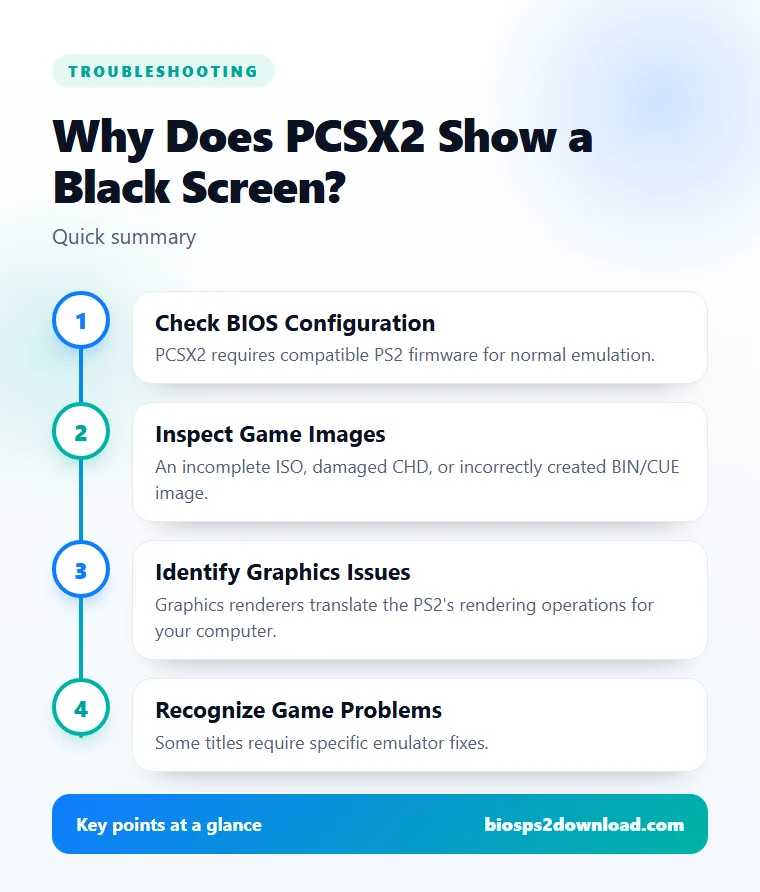
Before changing your emulator configuration, identify when the black screen appears. A game that produces audio without video may need a different fix from one that never reaches the PlayStation 2 startup screen.
Check BIOS Configuration
PCSX2 requires compatible PS2 firmware for normal emulation. If the BIOS isn’t recognized or configured correctly, startup may fail. Check the firmware selection before investigating graphics settings.
Inspect Game Images
An incomplete ISO, damaged CHD, or incorrectly created BIN/CUE image can prevent a game from loading. I recommend checking the original extraction or conversion results when the problem begins immediately after selecting a game.
Identify Graphics Issues
Graphics renderers translate the PS2’s rendering operations for your computer. Driver incompatibilities, unsupported settings, or rendering bugs can sometimes produce a black screen even when the game continues running.
Recognize Game Problems
Some titles require specific emulator fixes or behave differently between PCSX2 versions. If only one game fails, investigate that title before changing your entire configuration.
| Symptom | Possible Cause | First Check |
|---|---|---|
| Black screen immediately | Startup or BIOS issue | Firmware settings |
| Black after loading ISO | Image or compatibility | Verify image |
| Black screen with sound | Graphics rendering | Change renderer |
| Black after settings change | Configuration conflict | Restore defaults |
| One game affected | Game-specific issue | Test another title |
How to Fix PCSX2 Black Screen Step by Step
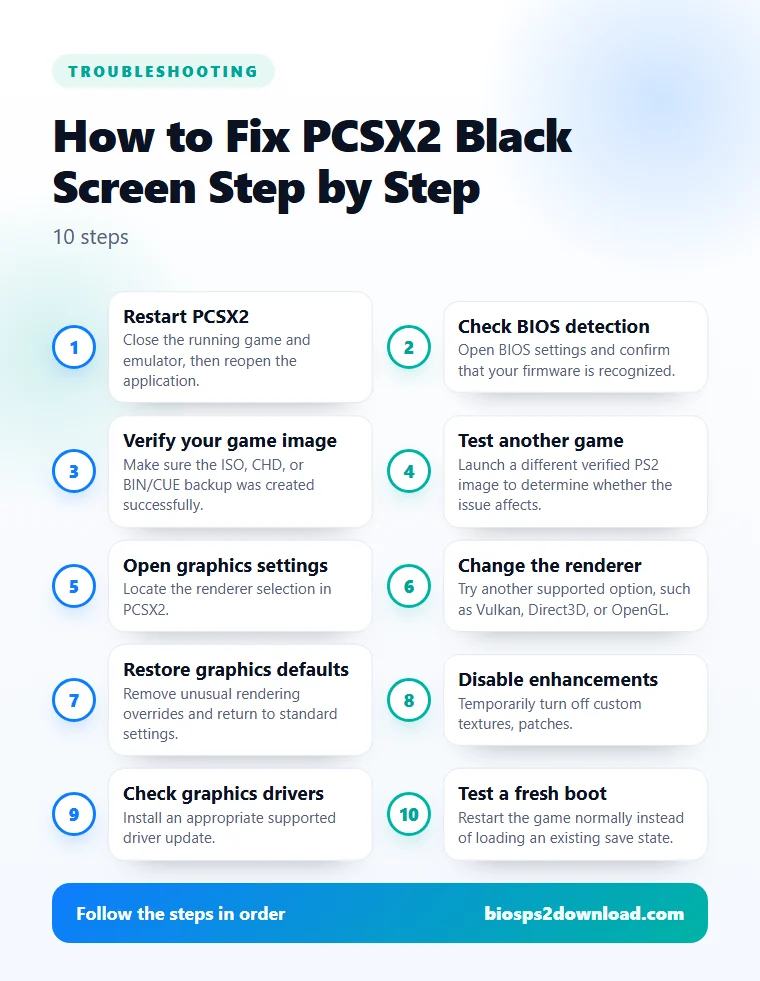
I recommend starting with simple checks rather than immediately reinstalling PCSX2. Follow these steps in order, and test your game after each meaningful change.
- Restart PCSX2. Close the running game and emulator, then reopen the application.
- Check BIOS detection. Open BIOS settings and confirm that your firmware is recognized.
- Verify your game image. Make sure the ISO, CHD, or BIN/CUE backup was created successfully.
- Test another game. Launch a different verified PS2 image to determine whether the issue affects one title.
- Open graphics settings. Locate the renderer selection in PCSX2.
- Change the renderer. Try another supported option, such as Vulkan, Direct3D, or OpenGL.
- Restore graphics defaults. Remove unusual rendering overrides and return to standard settings.
- Disable enhancements. Temporarily turn off custom textures, patches, and unnecessary visual modifications.
- Check graphics drivers. Install an appropriate supported driver update if your current driver is outdated.
- Test a fresh boot. Restart the game normally instead of loading an existing save state.
Change one setting at a time whenever possible. This helps you identify which adjustment actually resolves the black screen.
How to Fix PCSX2 Black Screen After Loading ISO
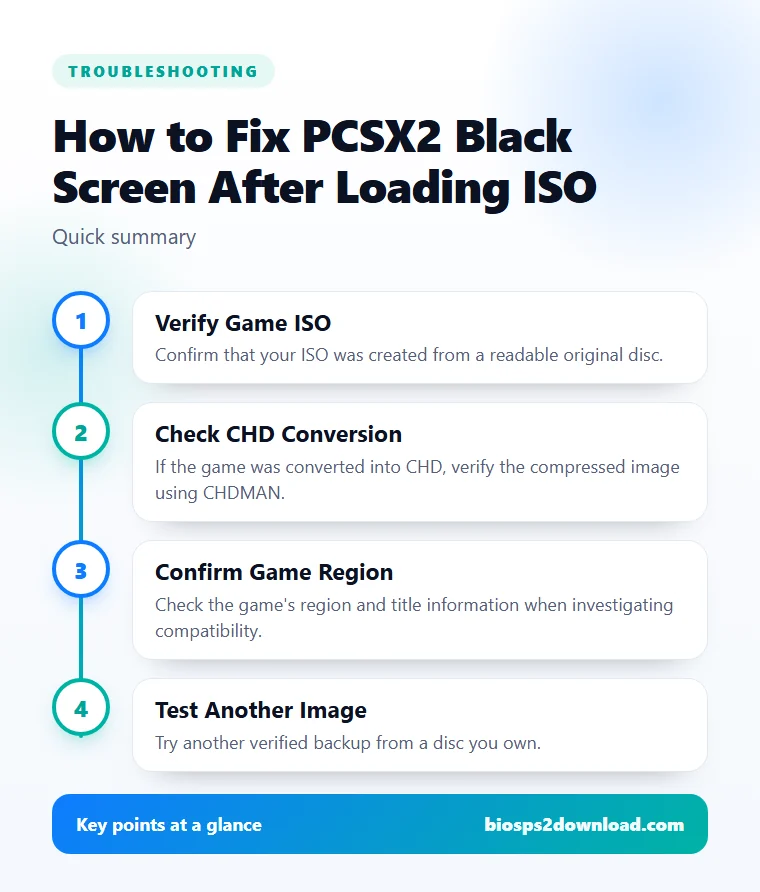
If PCSX2 opens normally but the screen turns black after loading a game image, start by checking the image itself. A valid BIOS cannot compensate for missing or unreadable game data.
Verify Game ISO
Confirm that your ISO was created from a readable original disc and that the imaging software completed without unresolved errors. A file’s existence alone doesn’t prove that its contents are complete.
Check CHD Conversion
If the game was converted into CHD, verify the compressed image using CHDMAN. You can also test the original ISO to determine whether the problem appeared during conversion.
Confirm Game Region
Check the game’s region and title information when investigating compatibility. However, don’t assume every PS2 game requires a BIOS from the same region to run in PCSX2.
Test Another Image
Try another verified backup from a disc you own. If other games work normally, the original image or game-specific settings deserve closer inspection.
| Image Format | Possible Issue | Recommended Fix |
|---|---|---|
| ISO | Incomplete disc extraction | Verify original rip |
| CHD | Conversion or source error | Verify CHD |
| BIN/CUE | Missing track information | Check CUE references |
| Any format | Unsupported or damaged data | Test verified image |
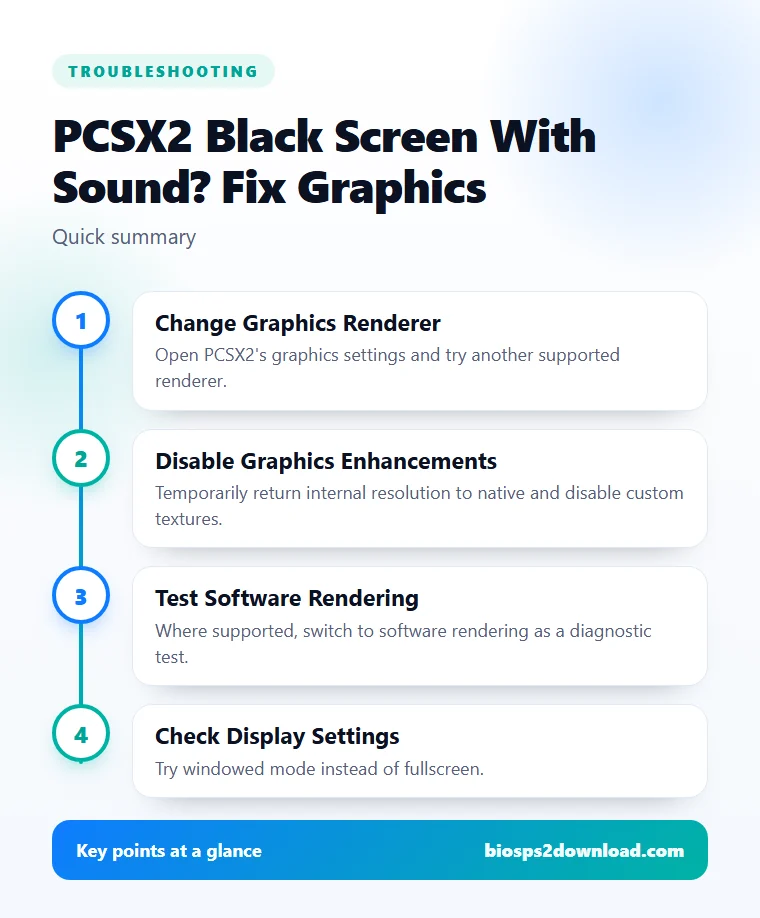
PCSX2 Black Screen With Sound? Fix Graphics
If you can hear music or gameplay sounds but the display remains black, graphics rendering is a useful place to investigate. The game may still be running while PCSX2 fails to present its video correctly.
Change Graphics Renderer
Open PCSX2’s graphics settings and try another supported renderer. Vulkan, Direct3D, and OpenGL availability depends on your operating system, graphics hardware, and emulator version.
Disable Graphics Enhancements
Temporarily return internal resolution to native and disable custom textures, shaders, or other visual modifications. This helps determine whether an enhancement is interfering with rendering.
Test Software Rendering
Where supported, switch to software rendering as a diagnostic test. If the game displays correctly, the issue may involve hardware rendering or a graphics-specific setting. Software rendering can be significantly slower.
Check Display Settings
Try windowed mode instead of fullscreen. Also review your display resolution, monitor selection, and any unusual scaling configuration.
| Renderer | Typical Availability | Diagnostic Purpose |
|---|---|---|
| Vulkan | Supported systems | Alternative GPU backend |
| Direct3D | Windows | Windows rendering |
| OpenGL | Supported systems | Alternative GPU backend |
| Software | Supported builds | Isolate hardware rendering |
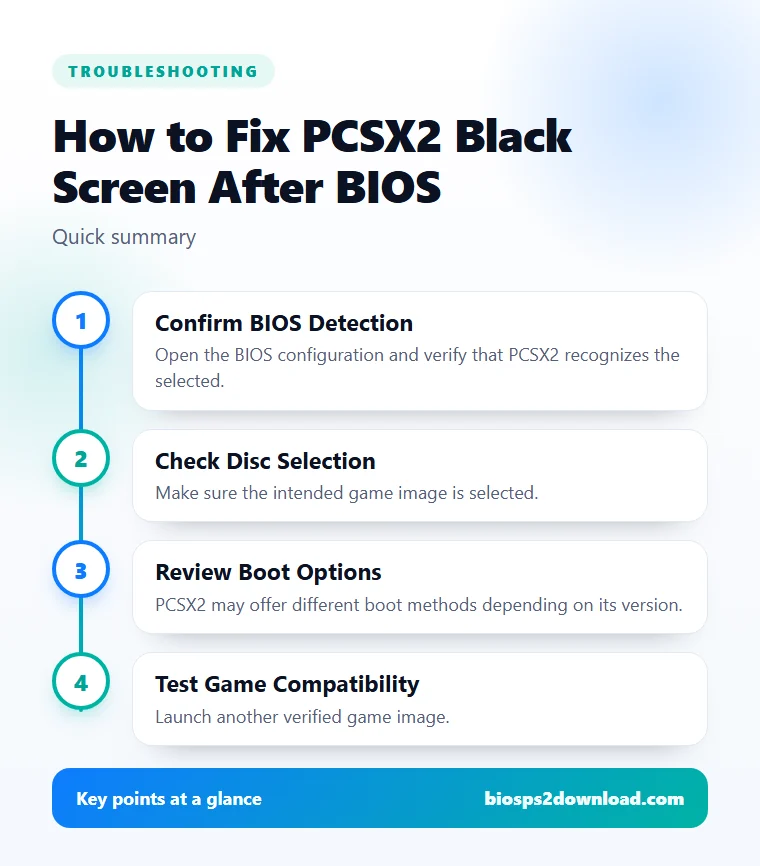
How to Fix PCSX2 Black Screen After BIOS
Sometimes the PlayStation 2 startup animation appears correctly, but the game never begins. This suggests the emulator reached firmware startup, so I recommend checking disc selection and boot behavior next.
Confirm BIOS Detection
Open the BIOS configuration and verify that PCSX2 recognizes the selected firmware. If the BIOS animation already runs, don’t assume the firmware is missing simply because the game fails afterward.
Check Disc Selection
Make sure the intended game image is selected. Starting the emulator without a mounted game image may lead to the PS2 system interface instead of your game.
Review Boot Options
PCSX2 may offer different boot methods depending on its version. Try a normal game boot and avoid unusual startup overrides while diagnosing the problem.
Test Game Compatibility
Launch another verified game image. If it works, focus on the affected game’s compatibility and image integrity rather than changing the BIOS repeatedly.
| Startup Behavior | Recommended Check |
|---|---|
| BIOS starts, game doesn’t | Disc selection |
| BIOS warning appears | Firmware configuration |
| Disc not recognized | Game image |
| Startup freezes | Compatibility or settings |
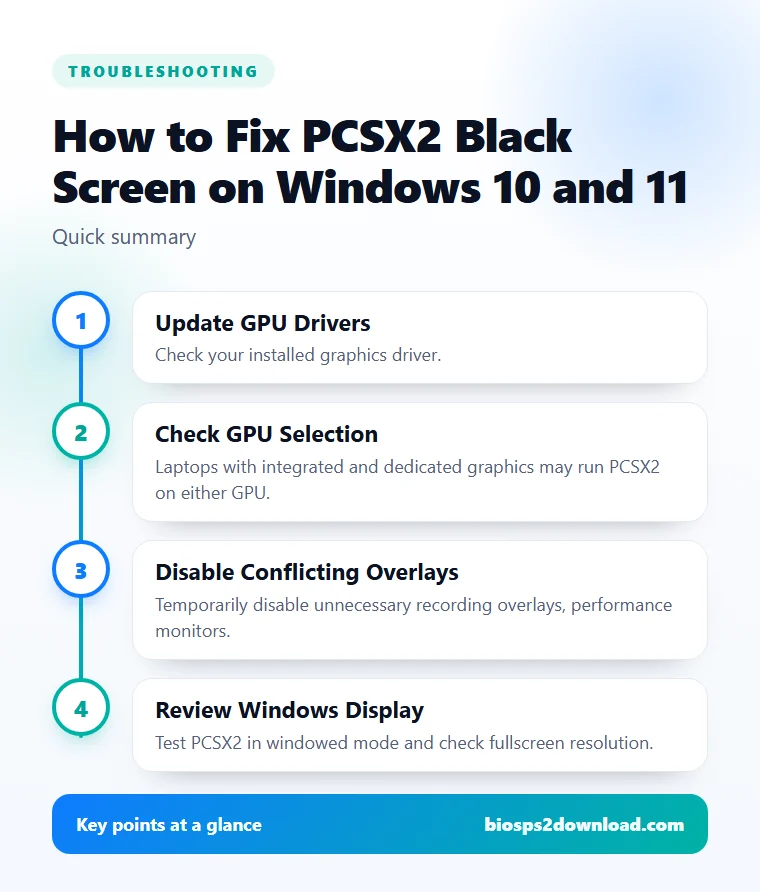
How to Fix PCSX2 Black Screen on Windows 10 and 11
Windows users may encounter black screens caused by graphics drivers, GPU selection, or display-related software. These checks are especially useful when PCSX2 worked previously but stopped displaying games correctly.
Update GPU Drivers
Check your installed graphics driver and update it when a compatible newer version is available. An outdated or faulty driver can affect Vulkan or Direct3D rendering.
Check GPU Selection
Laptops with integrated and dedicated graphics may run PCSX2 on either GPU. Check Windows graphics preferences and test the appropriate processor for your hardware.
Disable Conflicting Overlays
Temporarily disable unnecessary recording overlays, performance monitors, or graphics utilities. If the display returns, re-enable them individually to identify the conflict.
Review Windows Display
Test PCSX2 in windowed mode and check fullscreen resolution or multi-monitor settings. Display configuration problems can sometimes resemble emulator rendering failures.
| Windows Symptom | Recommended Check |
|---|---|
| Black after driver change | Graphics driver |
| Laptop rendering issue | GPU selection |
| Black with overlays | Disable overlay temporarily |
| Fullscreen-only issue | Windowed mode |
PCSX2 Black Screen on Low-End PCs
Older computers may struggle with demanding PS2 games, particularly when graphics enhancements are enabled. However, poor performance and a permanent black screen aren’t necessarily the same problem.
Lower Internal Resolution
Set PCSX2’s internal rendering resolution to native while troubleshooting. This reduces GPU workload and removes upscaling as a possible cause.
Disable Heavy Enhancements
Turn off custom texture packs, expensive post-processing effects, and unnecessary graphics modifications. Start with default settings before adding enhancements again.
Choose Suitable Renderer
Test supported renderers individually. Vulkan isn’t automatically faster or more compatible on every computer, so compare results using the same game.
Check Hardware Limitations
Monitor whether the emulator is running extremely slowly rather than completely frozen. A weak CPU or unsupported GPU feature can affect emulation, but persistent black screens still require diagnosis.
| Setting | Troubleshooting Recommendation |
|---|---|
| Internal resolution | Native |
| Custom textures | Disabled |
| Graphics enhancements | Defaults |
| Renderer | Test supported options |
| Performance | Check actual emulation speed |
How to Fix Game-Specific PCSX2 Black Screens
If most games run correctly but one title displays a black screen, the issue may involve game-specific compatibility, patches, or settings. I recommend isolating that game before modifying your global emulator configuration.
Check Game Compatibility
Review the affected title’s known compatibility information for your PCSX2 version. Some games have documented rendering limitations or recommended fixes.
Disable Game Patches
Temporarily turn off widescreen patches, cheats, and other game modifications. An incompatible patch can interfere with startup or rendering.
Reset Game Settings
Restore the game’s individual graphics and emulation overrides to defaults. This helps identify whether a custom setting introduced the problem.
Test Clean Boot
Start the game normally instead of loading an old save state. If a fresh boot works, the issue may involve the saved state rather than the disc image.
| Game-Specific Issue | Recommended Fix |
|---|---|
| Only one title affected | Check compatibility |
| Black after patch | Disable modification |
| Custom settings active | Restore defaults |
| Save state fails | Try fresh boot |
PCSX2 Black Screen After Update? Restore Settings
If the problem began after updating PCSX2, avoid assuming the new version is defective. An old configuration, incompatible save state, or changed rendering behavior may be responsible.
Review Recent Changes
Identify which emulator version, graphics settings, or modifications changed before the black screen appeared. This helps narrow the investigation.
Restore Graphics Defaults
Reset custom graphics overrides and test the game again. Keep your existing configuration backed up so you can restore preferred settings later.
Check Save States
Save states may not behave consistently across emulator versions. If loading a state produces a black screen, start the game normally and load an in-game memory-card save instead.
Test Fresh Startup
Launch the game without patches or save-state loading. If it works, reintroduce your previous settings individually.

| Update Symptom | Recommended Action |
|---|---|
| Black after graphics changes | Restore defaults |
| Old state won’t load | Use normal boot |
| One game affected | Check game overrides |
| Multiple games affected | Review global settings |
PCSX2 Still Shows Black Screen? Advanced Fixes
If the basic troubleshooting steps haven’t resolved the issue, investigate emulator diagnostics and configuration problems. I recommend preserving your working files before making larger changes.
Review Emulator Logs
Check PCSX2’s available logs or diagnostic output for graphics initialization, firmware, or disc-reading errors. Record any specific message before changing settings.
Check Driver Compatibility
Confirm that your GPU supports the renderer you’re trying to use. Unsupported graphics features may prevent a backend from initializing correctly.
Test Clean Configuration
Back up your existing PCSX2 settings, then test with a clean configuration. This helps identify whether a persistent override or corrupted setting is responsible.
Reinstall PCSX2 Carefully
Consider reinstalling only after verifying the game image, BIOS, graphics driver, and configuration. Preserve your memory cards, save states, BIOS backup, and settings first.
| Advanced Fix | Purpose | Precaution |
|---|---|---|
| Review logs | Identify failure | Record errors |
| Check GPU support | Confirm renderer compatibility | Use supported backend |
| Clean configuration | Isolate settings | Back up files |
| Reinstall PCSX2 | Address installation issues | Preserve saves |
Frequently Asked Questions
Why Is PCSX2 Screen Black?
Common causes include damaged game images, graphics renderer problems, incorrect settings, and game-specific compatibility issues.
Why Is PCSX2 Black With Sound?
Audio without video may indicate a rendering or display problem. Try another graphics renderer and disable enhancements.
Can BIOS Cause Black Screen?
Yes, firmware configuration problems can prevent normal startup. However, a black screen after a game begins may have another cause.
Does Vulkan Fix Black Screen?
Sometimes. Vulkan can resolve certain rendering issues, but compatibility depends on your GPU, drivers, and game.
Why Does ISO Show Black Screen?
The image may be incomplete, incorrectly created, or affected by emulator compatibility. Verify the original disc backup.
Can Low-End PCs Run PCSX2?
Some low-end systems can run less demanding PS2 games, but performance depends on CPU, GPU, and game requirements.
Why Does One Game Stay Black?
A single affected game may have compatibility problems, a damaged image, or conflicting game-specific settings.
Will Reinstalling PCSX2 Fix It?
Not necessarily. Reinstallation won’t repair a damaged game image or automatically resolve every graphics driver problem.
Conclusion
A PCSX2 black screen can result from several different problems, including firmware configuration, damaged game images, graphics rendering, and game-specific compatibility. I recommend starting with the simplest checks: confirm your BIOS, test another verified game, restore default settings, and try a different graphics renderer. These steps often help identify the actual source of the failure.
If the screen remains black, investigate game-specific settings, driver compatibility, and emulator logs before considering reinstallation. Change one setting at a time and keep your original game images and configuration backups safe. This approach makes troubleshooting easier and helps prevent new problems while fixing the original one.