PS2 BIOS File Formats Explained: BIN, ROM0, ROM1 & NVM
You’ve extracted your PS2 BIOS, opened the folder, and found several files with different extensions. One ends in .bin, another says .rom0, and there might also be .rom1 or .nvm files. Now you’re wondering which file PCSX2 actually needs, whether you should import everything, or if a missing companion file means your BIOS dump is incomplete.
I know these filenames can be confusing, especially when you’re setting up a PS2 emulator for the first time. Let me explain the PS2 BIOS file formats, what each component does, how to identify a valid firmware image, and which files you should preserve. I’ll also show you how to avoid common format errors without modifying your original BIOS dump.
Table of contents 13 sections
- What Is a PS2 BIOS File Format?
- What Is a PS2 BIOS BIN File?
- What Is the PS2 ROM0 File?
- What Is the PS2 ROM1 File?
- What Is the PS2 NVM File?
- PS2 BIOS BIN vs ROM0 vs ROM1 vs NVM: What's Different?
- Which PS2 BIOS Files Does PCSX2 Actually Need?
- Do AetherSX2, NetherSX2 and RetroArch Use the Same BIOS Format?
- How to Identify a Valid PS2 BIOS File
- Where Should You Store PS2 BIOS Files?
- PS2 BIOS File Not Recognized? Fix Format Errors
- Frequently Asked Questions
- Conclusion
What Is a PS2 BIOS File Format?
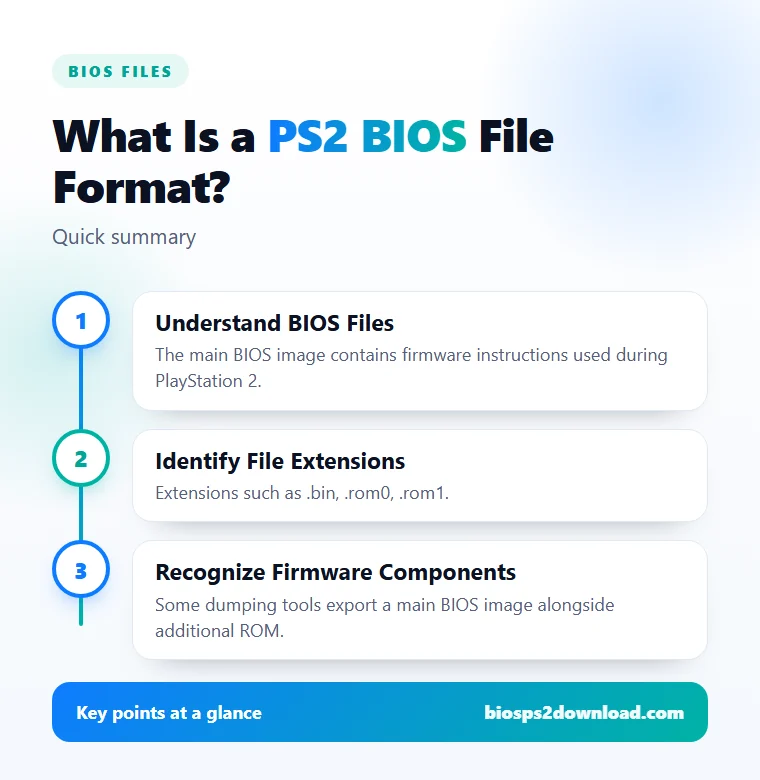
A PS2 BIOS file format describes how firmware or related system data is stored. When you extract firmware from your PlayStation 2, the dumping utility may save different components as separate files. Their extensions help distinguish them, but the actual contents determine what each file does.
Understand BIOS Files
The main BIOS image contains firmware instructions used during PlayStation 2 system initialization. Compatible emulators read this firmware to reproduce important console functions. It’s different from a game ISO, which contains game data rather than system software.
Identify File Extensions
Extensions such as .bin, .rom0, .rom1, and .nvm help identify different parts of a firmware dump. However, filenames aren’t proof of authenticity. Renaming an unrelated file to .bin won’t turn it into a valid BIOS.
Recognize Firmware Components
Some dumping tools export a main BIOS image alongside additional ROM and configuration data. Not every console or extraction method produces an identical set of files. I recommend preserving the complete output until you’ve confirmed which components your emulator recognizes.
| Extension | General Purpose |
|---|---|
.bin | Common main BIOS image |
.rom0 | Additional ROM component |
.rom1 | Additional ROM component |
.nvm | Nonvolatile configuration data |
What Is a PS2 BIOS BIN File?
The .bin extension is commonly associated with the main PS2 BIOS image. This is usually the file you’ll identify first when configuring PCSX2 or importing firmware into a compatible Android emulator.
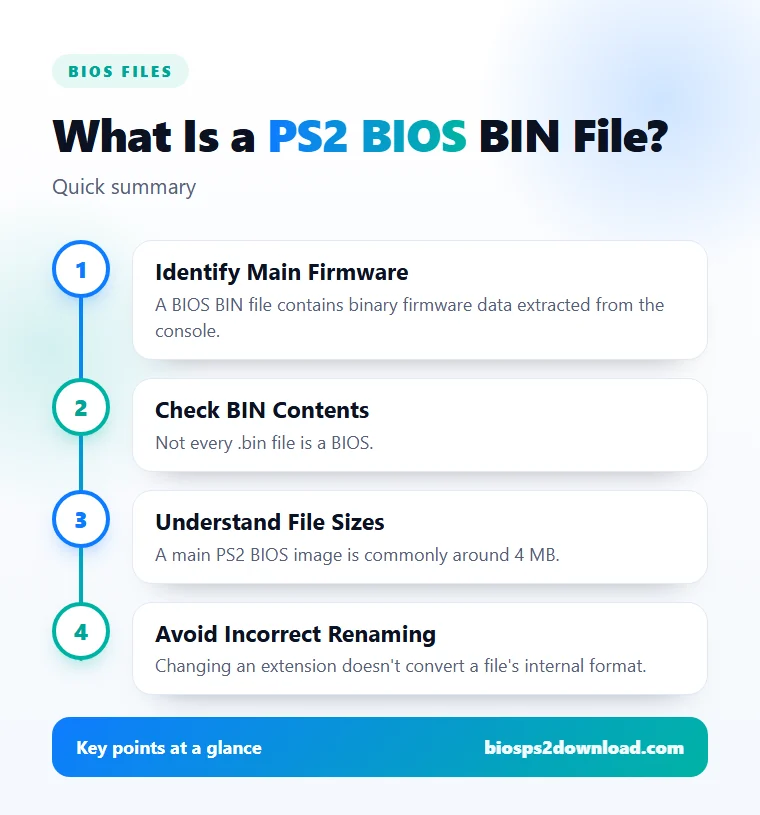
Identify Main Firmware
A BIOS BIN file contains binary firmware data extracted from the console. Its filename may include a model identifier or firmware revision, helping you distinguish it from other dumps. The emulator must recognize its contents before it can use the file.
Check BIN Contents
Not every .bin file is a BIOS. PS2 game backups can also contain BIN files, particularly when paired with CUE sheets. I recommend keeping firmware and game images in separate folders to avoid selecting the wrong file.
Understand File Sizes
A main PS2 BIOS image is commonly around 4 MB, although actual dump sizes and layouts vary. If your supposed BIOS is empty or unexpectedly small, inspect the extraction results before importing it.
Avoid Incorrect Renaming
Changing an extension doesn’t convert a file’s internal format. If your emulator rejects a BIOS image, check the original dump and its integrity rather than experimenting with arbitrary filenames.
| BIN File | Purpose | Emulator Handling |
|---|---|---|
PS2 BIOS .bin | Console firmware | Select when recognized |
Game disc .bin | Game data | Load as supported game content |
Renamed archive .bin | Still compressed data | Extract properly |
Corrupted .bin | Incomplete or damaged data | Repeat extraction |
What Is the PS2 ROM0 File?
ROM0 is an additional firmware-related component that may appear in a PlayStation 2 BIOS dump. It isn’t simply another name for the main BIOS image, and you shouldn’t treat it as an interchangeable replacement.
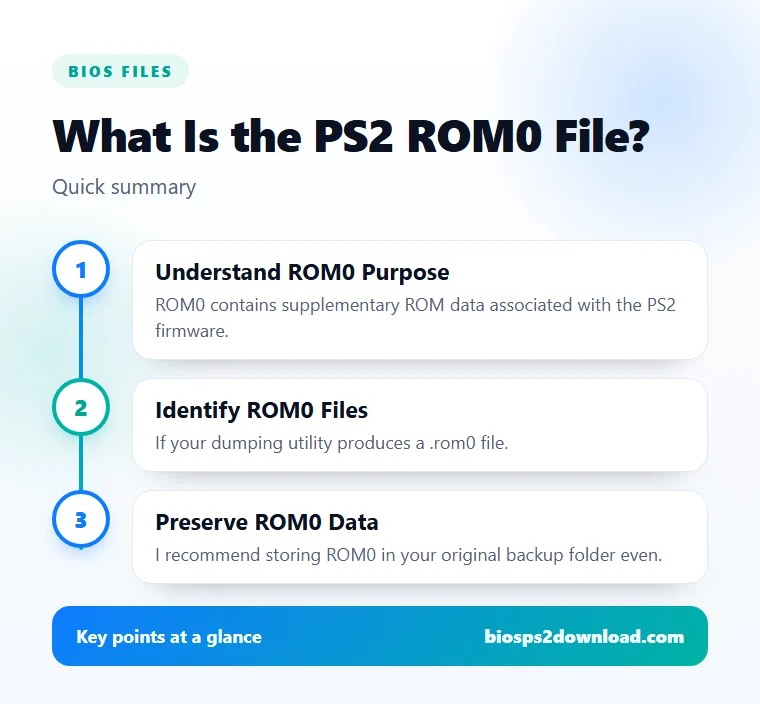
Understand ROM0 Purpose
ROM0 contains supplementary ROM data associated with the PS2 firmware environment. Its exact role and contents depend on the console’s hardware and firmware arrangement.
Identify ROM0 Files
If your dumping utility produces a .rom0 file, keep it alongside the main firmware image. Some tools or emulators may handle these components differently, so don’t assume every installation requires a separate ROM0 import.
Preserve ROM0 Data
I recommend storing ROM0 in your original backup folder even when your current emulator doesn’t request it. Keeping all extracted components together makes later verification and troubleshooting easier.
| Component | Main Role | Recommendation |
|---|---|---|
BIOS .bin | Primary firmware image | Verify with emulator |
.rom0 | Supplementary ROM data | Preserve when present |
What Is the PS2 ROM1 File?
ROM1 is another possible companion file in a PS2 firmware dump. Its presence depends on the console revision and extraction process, so you shouldn’t assume every BIOS folder must contain one.
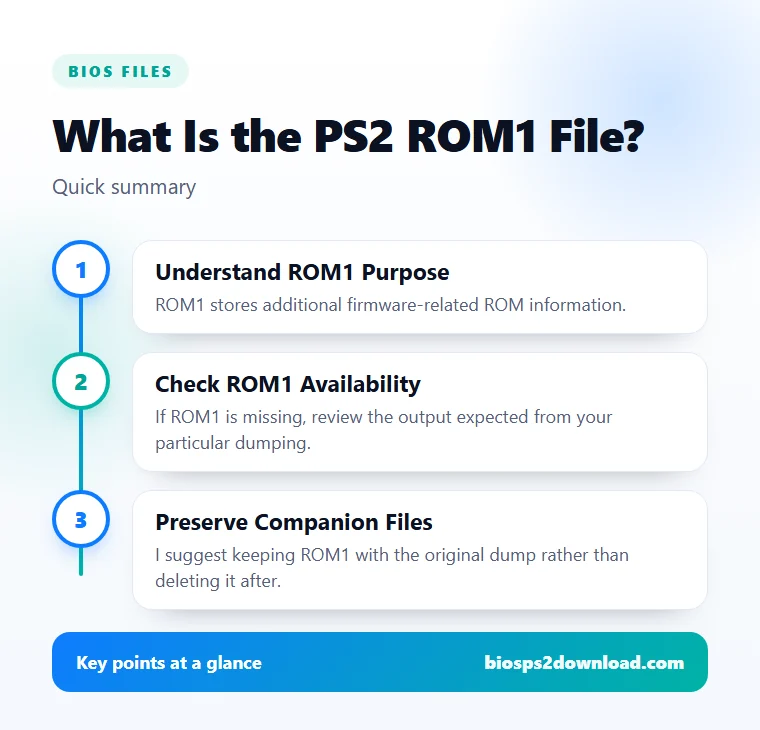
Understand ROM1 Purpose
ROM1 stores additional firmware-related ROM information. It serves a different purpose from the main BIOS image and shouldn’t be selected as a substitute when an emulator asks for the primary BIOS.
Check ROM1 Availability
If ROM1 is missing, review the output expected from your particular dumping utility. A missing ROM1 file doesn’t automatically prove that the main BIOS image is invalid.
Preserve Companion Files
I suggest keeping ROM1 with the original dump rather than deleting it after your first successful emulator setup. That way, you retain the complete extraction for future use.
| Feature | ROM0 | ROM1 |
|---|---|---|
| Type | Supplementary ROM | Supplementary ROM |
| Always exported? | No | No |
| Main BIOS replacement? | No | No |
| Recommended handling | Preserve | Preserve |
What Is the PS2 NVM File?
NVM stands for nonvolatile memory. In PS2 emulation, NVM data can represent configuration information associated with the console’s firmware environment. Unlike the main BIOS image, it isn’t primarily a collection of executable firmware instructions.
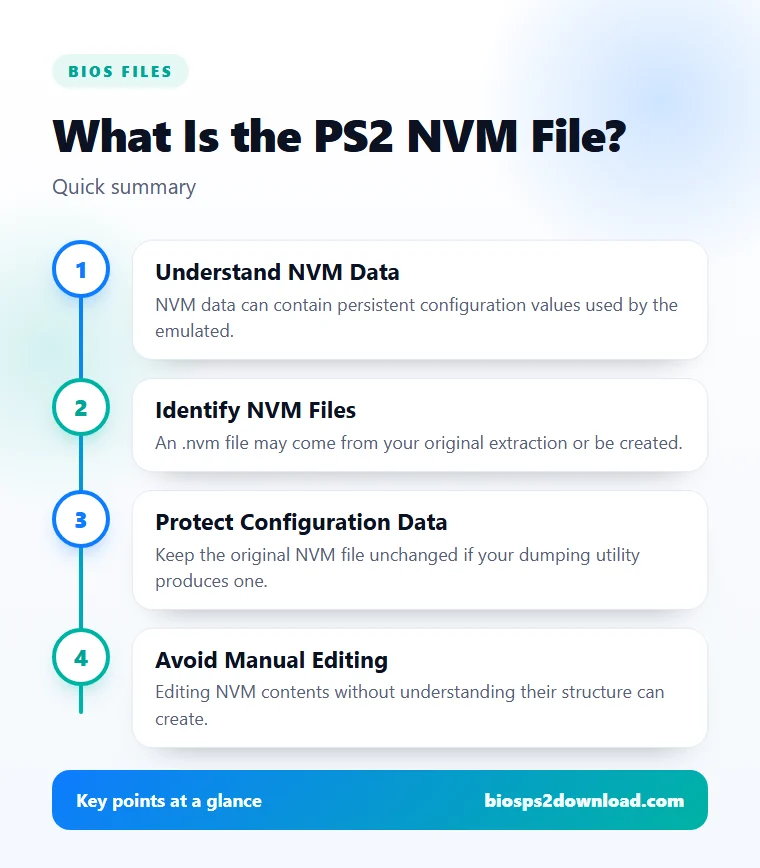
Understand NVM Data
NVM data can contain persistent configuration values used by the emulated system. Emulators may manage this information differently depending on their implementation.
Identify NVM Files
An .nvm file may come from your original extraction or be created and maintained by an emulator. I recommend identifying its source before copying it into another installation.
Protect Configuration Data
Keep the original NVM file unchanged if your dumping utility produces one. An emulator-generated NVM file shouldn’t automatically be considered identical to data extracted from physical hardware.
Avoid Manual Editing
Editing NVM contents without understanding their structure can create configuration problems. If your emulator reports an NVM issue, investigate its requirements instead of changing the file with a text editor.
| File | Data Type | Main Purpose |
|---|---|---|
.bin | Firmware code and data | System initialization |
.rom0 / .rom1 | Additional ROM data | Supplementary firmware functions |
.nvm | Persistent configuration data | System configuration |
PS2 BIOS BIN vs ROM0 vs ROM1 vs NVM: What’s Different?
The easiest way to understand these files is to separate the primary firmware image from its supporting components. They may appear together because the dumping utility extracted several parts of the console’s system environment.
Compare File Purposes
The main BIOS image provides the core firmware. ROM0 and ROM1 may contain additional ROM components, while NVM represents configuration data. Each serves a different role.
Identify Required Components
I recommend starting with the main BIOS image when an emulator asks you to select firmware. Preserve the companion files, but check your emulator’s actual requirements before assuming every component must be imported separately.
Understand Emulator Usage
PCSX2 and Android emulators may use different firmware selection interfaces. Some recognize the main BIOS image directly, while other configurations expect files in particular directories.
Preserve Complete Dumps
Keep an untouched copy of every file extracted from your console. This prevents accidental mixing, deletion, or modification of components that may become useful later.
| File | Main Function | Select as Main BIOS? |
|---|---|---|
.bin | Primary firmware | Usually, if valid |
.rom0 | Supplementary ROM | No |
.rom1 | Supplementary ROM | No |
.nvm | Configuration data | No |
Which PS2 BIOS Files Does PCSX2 Actually Need?
PCSX2 normally requires a valid PlayStation 2 BIOS image to initialize the emulated console. You don’t need to manually select every companion file simply because it appears in your extraction folder.
Select Main BIOS
Open PCSX2’s BIOS configuration and use its supported firmware selection workflow. Choose a recognized main BIOS image from your original dump.
Check Firmware Detection
PCSX2 can identify supported BIOS images and display information such as region or revision. I recommend checking these details before attempting to launch a game.
Handle Companion Files
Keep additional ROM files together in your backup. Whether they are used separately depends on the firmware dump and emulator version, so follow the requirements of your installed PCSX2 release.
Confirm BIOS Compatibility
If PCSX2 rejects the image, check whether you selected the correct file and whether the extraction completed successfully. Don’t attempt to repair a damaged BIOS by renaming it.
| File Scenario | Recommended Action |
|---|---|
| Valid main BIOS image | Select in PCSX2 |
| ROM0 or ROM1 only | Locate the main BIOS |
| NVM file only | Don’t select as BIOS |
| Damaged BIOS image | Verify or repeat extraction |
Do AetherSX2, NetherSX2 and RetroArch Use the Same BIOS Format?
Many PS2 emulators can work with compatible firmware extracted from the same original console. However, their import methods and directory requirements aren’t identical.
Check AetherSX2 Support
AetherSX2 uses a BIOS import interface on Android. Select your valid main BIOS image through the application and confirm that it recognizes the firmware.
Check NetherSX2 Support
NetherSX2 follows a similar Android BIOS import approach, although menus can vary between builds. I recommend checking the firmware list after importing your file.
Check RetroArch Requirements
RetroArch needs a compatible PS2 core such as LRPS2 where available. Its firmware files may need to be placed inside a specific directory beneath RetroArch’s configured system folder.
Reuse Existing Dumps
You generally don’t need to dump the BIOS again for every emulator. Keep the original files backed up and import copies wherever the emulator supports your firmware.

| Emulator | Typical BIOS Setup |
|---|---|
| PCSX2 | Firmware selection interface |
| AetherSX2 | Android BIOS import |
| NetherSX2 | Android BIOS import |
| RetroArch LRPS2 | Core-specific system directory |
How to Identify a Valid PS2 BIOS File
Before importing firmware, I recommend performing a few basic checks. These won’t independently prove authenticity, but they can reveal incomplete files, incorrect extensions, and transfer errors.
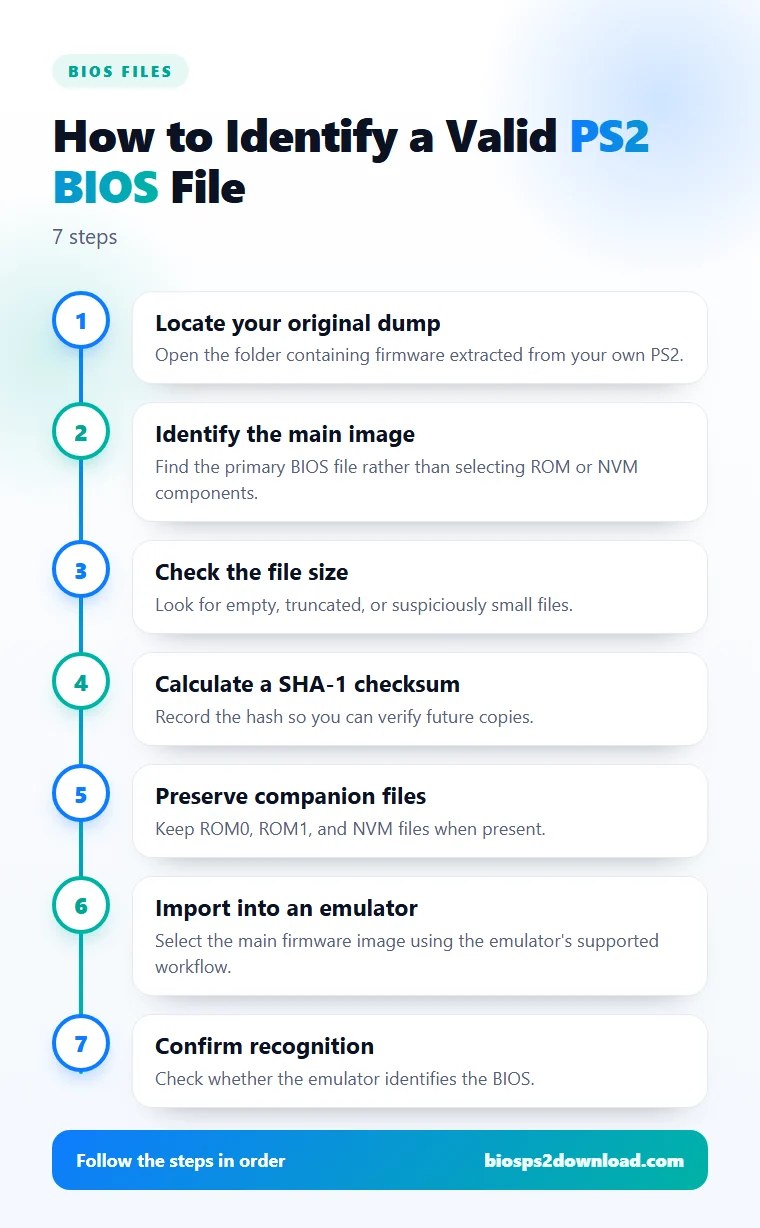
Follow these steps:
- Locate your original dump. Open the folder containing firmware extracted from your own PS2.
- Identify the main image. Find the primary BIOS file rather than selecting ROM or NVM components.
- Check the file size. Look for empty, truncated, or suspiciously small files.
- Calculate a SHA-1 checksum. Record the hash so you can verify future copies.
- Preserve companion files. Keep ROM0, ROM1, and NVM files when present.
- Import into an emulator. Select the main firmware image using the emulator’s supported workflow.
- Confirm recognition. Check whether the emulator identifies the BIOS and can initialize its system environment.
| Verification | Warning Sign |
|---|---|
| File exists | Missing firmware |
| File size is plausible | Empty or truncated file |
| SHA-1 matches your original copy | Unexpected file changes |
| Emulator identifies firmware | Invalid BIOS warning |
Where Should You Store PS2 BIOS Files?
I recommend separating your original firmware backup from the copies used by emulators. This makes it easier to change settings, troubleshoot errors, and move between devices without modifying the original dump.
Organize BIOS Folder
Create a dedicated backup folder containing the complete extraction. Label it with your console model or another useful identifier so you can distinguish it from future dumps.
Separate Game Files
Don’t mix BIOS components with PS2 game ISOs. Keeping them separate reduces the chance of importing a game image as firmware or accidentally deleting important files.
Back Up Firmware
Maintain an additional copy on reliable storage. I suggest recording checksums alongside the backup so you can detect unexpected changes later.
Avoid Duplicate Paths
Different emulators may store firmware in different locations. Check the active BIOS directory instead of assuming every emulator searches the same folder.
| Storage Location | Recommended Use |
|---|---|
| Original backup folder | Preserve complete dump |
| PCSX2 BIOS location | Emulator firmware |
| Android accessible storage | Firmware import |
| RetroArch system directory | Core-specific firmware |
PS2 BIOS File Not Recognized? Fix Format Errors
A BIOS recognition error doesn’t always mean your firmware is unusable. Incorrect paths, damaged files, or selecting the wrong component can produce similar messages. I recommend checking these possibilities before repeating the entire extraction.
Fix Invalid BIN
Confirm that your .bin file contains the main BIOS image rather than game data or a renamed archive. If the file is genuinely corrupted, repeat the extraction from your console.
Restore Missing ROM
Check whether the missing ROM component was included in the original dump. If your emulator specifically requires it, use the corresponding file from the same extraction rather than mixing unrelated firmware components.
Resolve NVM Errors
Determine whether the problem involves original configuration data or a file generated by the emulator. Keep your original NVM backup untouched while investigating.
Fix Wrong Extensions
Restore original filenames if they were changed accidentally. Remember that renaming a file doesn’t convert its internal format.
Repair Incomplete Dumps
Compare file sizes and checksums with your original extraction. If the source dump is incomplete, run the dumping utility again using reliable storage.
Correct BIOS Paths
Check the emulator’s configured firmware directory or import location. A valid BIOS stored in the wrong folder may appear missing.
| Problem | Recommended Fix |
|---|---|
| Invalid BIN | Verify firmware contents |
| Missing ROM component | Check original extraction |
| NVM error | Inspect emulator configuration |
| Incorrect extension | Restore original filename |
| Incomplete dump | Repeat extraction |
| BIOS not found | Correct import path |
Frequently Asked Questions
Is PS2 BIOS Always BIN?
No. The main BIOS image commonly uses .bin, but firmware dumps can also include ROM and NVM components. The extension depends on how the data was extracted and stored.
Do I Need ROM0 and ROM1?
Not necessarily as separate files. Requirements vary by emulator and dump format. I recommend preserving them when your extraction produces them.
Can PCSX2 Read NVM Files?
PCSX2 uses NVM-related data as part of its emulated system environment, but an .nvm file isn’t a replacement for the main BIOS image.
Can I Rename BIOS Files?
You can change filenames in some circumstances, but renaming doesn’t change the file’s contents. I recommend preserving original names for easier identification.
What Size Is PS2 BIOS?
A main PS2 BIOS image is commonly around 4 MB. Actual output can vary, so use emulator detection and integrity checks rather than size alone.
Can I Delete Companion Files?
I don’t recommend deleting files from your original dump. Even if your current emulator doesn’t need them, preserving the complete extraction is safer.
Are BIOS and ISO Files Different?
Yes. BIOS files contain console firmware, while ISO files usually contain disc-image data from games. They serve completely different purposes.
Can I Reuse BIOS Across Emulators?
Yes, a valid original BIOS dump can generally be reused with compatible emulators. You’ll still need to follow each application’s firmware import requirements.
Conclusion
Understanding PS2 BIOS file formats makes emulator setup much easier. The main .bin image commonly contains the primary firmware, while .rom0, .rom1, and .nvm files represent additional ROM or configuration components. I recommend identifying the main BIOS correctly, preserving every file from your original extraction, and verifying firmware through a compatible emulator instead of relying only on filenames.
If your BIOS isn’t recognized, start by checking the file contents, integrity, and storage location. Don’t rename unrelated files or delete companion components in an attempt to fix errors. A complete, untouched backup from your own PlayStation 2 will make future PCSX2, Android, and RetroArch configurations much easier to manage.