PS2 BIOS for iOS, iPhone, iPad & Mac: Setup Guide
Imagine getting ready to play God of War, Tekken 5, or GTA San Andreas on your iPhone, iPad, or MacBook, only to discover that your emulator needs a PS2 BIOS file. You might also be wondering whether PCSX2 works on iOS, which emulator supports your Apple device, or why some PS2 games refuse to start even after importing the firmware. These problems can make the setup confusing, especially when different Apple devices require different emulators.
Don’t worry! I’ll help you understand how PS2 BIOS for iOS works and what you actually need to play compatible PlayStation 2 games. We’ll cover BIOS requirements, iPhone and iPad installation, MacBook setup, emulator compatibility, graphics settings, and common errors. I’ll also explain the important differences between iOS, iPadOS, and macOS so you don’t waste time installing software that isn’t compatible with your device.
Table of contents 15 sections
- PS2 BIOS for iOS: File Information and Compatibility
- What Is PS2 BIOS for iOS and How Does It Work?
- Key Features of PS2 BIOS for iOS and Apple Devices
- PS2 BIOS Requirements for iPhone, iPad and MacBook
- Best PS2 Emulators for iOS, iPadOS and macOS
- How to Prepare PS2 BIOS for Apple Devices
- How to Install PS2 BIOS on iPhone
- How to Install PS2 BIOS on iPad
- How to Install PS2 BIOS on MacBook Using PCSX2
- How to Play PS2 Games on iPhone, iPad and Mac
- Best PS2 Emulator Settings for Apple Devices
- PS2 BIOS Not Working on iOS? Common Errors and Fixes
- Is PS2 BIOS for iOS Safe and Legal?
- Frequently Asked Questions
- Conclusion
PS2 BIOS for iOS: File Information and Compatibility
Before choosing an emulator, I recommend checking the basic firmware requirements. Sony didn’t release a special PS2 BIOS for iPhone, iPad, or MacBook. These devices use compatible firmware extracted from an original PlayStation 2, while the emulator handles the differences between Apple’s operating systems.
| Specification | Details |
|---|---|
| File Name | PlayStation 2 BIOS |
| Developer | Sony Computer Entertainment |
| Main File Format | .bin, .rom0 |
| Typical Main BIOS Size | Approximately 4 MB |
| Supported Devices | Compatible iPhone, iPad, MacBook |
| Operating Systems | iOS, iPadOS, macOS |
| Mac Emulator | PCSX2 |
| Mobile Emulators | ARMSX2, compatible iPSX2 builds |
| BIOS Regions | USA, Europe, Japan |
| Firmware Source | Your own PlayStation 2 |
| Verification | Emulator detection and checksum |
What Is PS2 BIOS for iOS and How Does It Work?
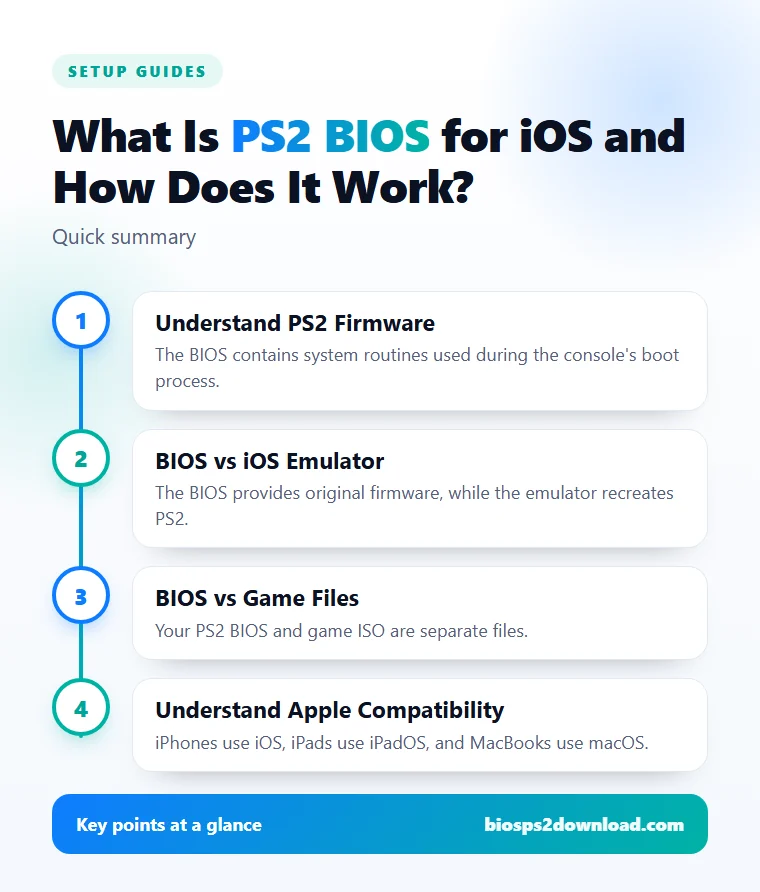
PS2 BIOS is the original firmware responsible for essential PlayStation 2 startup and system functions. On Apple devices, compatible emulators use this firmware to reproduce parts of the console’s original environment. However, importing a BIOS alone doesn’t make an iPhone or MacBook capable of running PS2 games.
Understand PS2 Firmware
The BIOS contains system routines used during the console’s boot process. A compatible emulator can load this firmware to initialize the virtual PS2 environment and access supported system functions.
BIOS vs iOS Emulator
The BIOS provides original firmware, while the emulator recreates PS2 hardware through software. On iPhone and iPad, applications such as ARMSX2 and certain iPSX2 builds provide emulation functionality. MacBook users can use PCSX2.
BIOS vs Game Files
Your PS2 BIOS and game ISO are separate files. The BIOS provides system firmware, while an ISO contains game data copied from a disc. Neither file replaces the emulator.
Understand Apple Compatibility
iPhones use iOS, iPads use iPadOS, and MacBooks use macOS. These systems have different application requirements, installation methods, and performance limitations.
| Component | Purpose |
|---|---|
| PS2 BIOS | Original console firmware |
| PS2 emulator | Recreates PS2 hardware |
| Game ISO | Contains game data |
| Apple operating system | Runs compatible emulator software |
Key Features of PS2 BIOS for iOS and Apple Devices
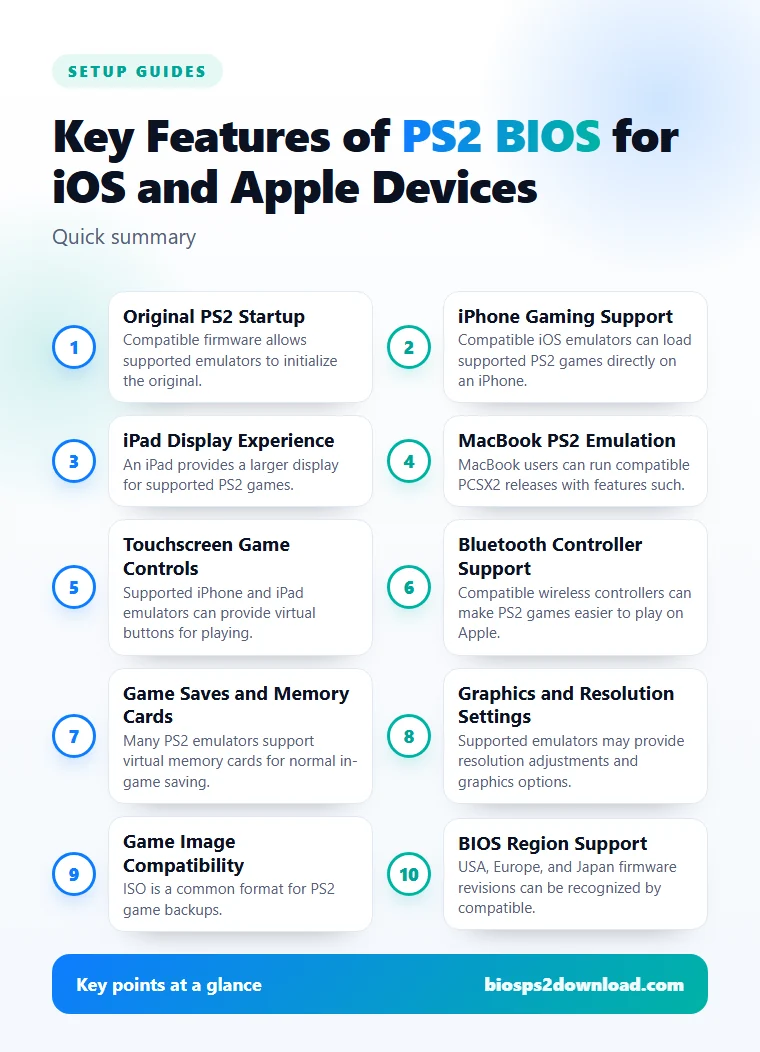
Once you’ve selected a compatible emulator, you can explore several features that make PS2 gaming possible on Apple hardware. Some functions come from the original BIOS, while graphics enhancements, touchscreen controls, and save states are provided by the emulator. Let me explain the most useful differences.
Original PS2 Startup
Compatible firmware allows supported emulators to initialize the original PlayStation 2 system environment. Depending on the emulator, you may also be able to access the familiar PS2 startup interface and system menus.
iPhone Gaming Support
Compatible iOS emulators can load supported PS2 games directly on an iPhone. However, performance varies considerably between devices, and some builds require additional JIT configuration for practical gameplay.
iPad Display Experience
An iPad provides a larger display for supported PS2 games, making touchscreen controls easier to position. A larger screen doesn’t automatically improve FPS, but it can make gameplay more comfortable.
MacBook PS2 Emulation
MacBook users can run compatible PCSX2 releases with features such as graphics upscaling, controller configuration, virtual memory cards, and game-specific settings. Performance depends on the Mac model and emulator version.
Touchscreen Game Controls
Supported iPhone and iPad emulators can provide virtual buttons for playing without a physical controller. You may be able to adjust their layout and visibility depending on the application.
Bluetooth Controller Support
Compatible wireless controllers can make PS2 games easier to play on Apple devices. I recommend checking controller support and button mapping within your selected emulator.
Game Saves and Memory Cards
Many PS2 emulators support virtual memory cards for normal in-game saving. Some also offer save states, although compatibility can vary between emulator versions.
Graphics and Resolution Settings
Supported emulators may provide resolution adjustments and graphics options. MacBook users generally have more mature desktop configuration choices through PCSX2.
Game Image Compatibility
ISO is a common format for PS2 game backups. Some emulators also support CHD, but you should verify the formats accepted by your installed build.
BIOS Region Support
USA, Europe, and Japan firmware revisions can be recognized by compatible emulators. A different BIOS region doesn’t automatically improve graphics, FPS, or game compatibility.
| Key Feature | Platform | Provided By |
|---|---|---|
| PS2 startup | Compatible Apple devices | BIOS + emulator |
| Touch controls | iPhone, iPad | Emulator |
| Bluetooth controllers | Supported devices | Emulator + OS |
| Graphics upscaling | Supported builds | Emulator |
| Virtual memory cards | Supported builds | Emulator |
| Save states | Supported builds | Emulator |
| Game image loading | Supported builds | Emulator |
| BIOS region identification | Supported builds | Emulator |
PS2 BIOS Requirements for iPhone, iPad and MacBook
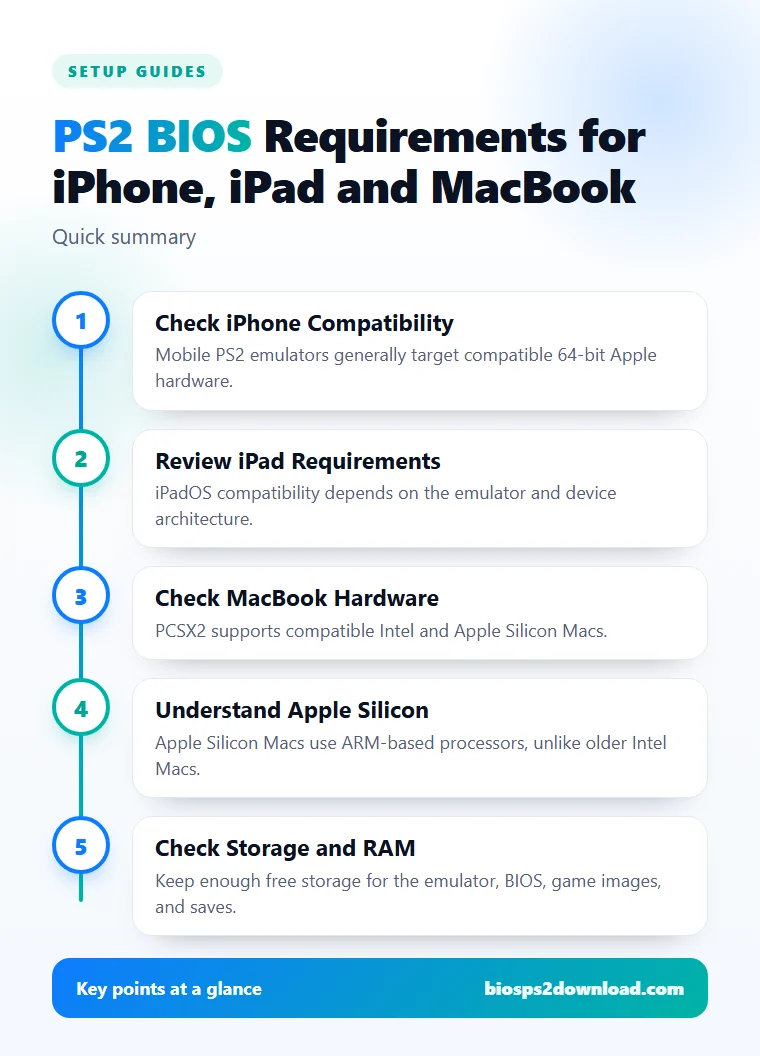
A PS2 BIOS file requires very little storage, but emulating PlayStation 2 hardware is demanding. I suggest checking your Apple device and selected emulator before importing firmware, especially if you’re planning to play graphically intensive games.
Check iPhone Compatibility
Mobile PS2 emulators generally target compatible 64-bit Apple hardware. Requirements differ by project; for example, ARMSX2’s iOS distribution specifies iOS 17 or later, while certain iPSX2 builds require iOS 18 or later.
Review iPad Requirements
iPadOS compatibility depends on the emulator and device architecture. A supported iPad can provide a larger gaming display, but processor performance and JIT availability remain important.
Check MacBook Hardware
PCSX2 supports compatible Intel and Apple Silicon Macs. I recommend checking the requirements for your installed release, including the macOS version, available memory, and graphics support.
Understand Apple Silicon
Apple Silicon Macs use ARM-based processors, unlike older Intel Macs. PCSX2’s architecture and translation requirements can differ, so choose a release compatible with your Mac.
Check Storage and RAM
Keep enough free storage for the emulator, BIOS, game images, and saves. Individual PS2 game backups can occupy several gigabytes.
| Device | Main Requirement |
|---|---|
| iPhone | Compatible iOS emulator and hardware |
| iPad | Compatible iPadOS emulator |
| Intel MacBook | Supported PCSX2 and macOS release |
| Apple Silicon MacBook | Compatible PCSX2 build |
| All devices | Sufficient storage |
| BIOS-dependent emulators | Valid PS2 firmware |
Best PS2 Emulators for iOS, iPadOS and macOS
Choosing the correct emulator matters more than collecting multiple BIOS versions. Some projects target iPhone and iPad, while others are designed for desktop operating systems. I recommend identifying your device first and then checking the emulator’s current installation requirements.
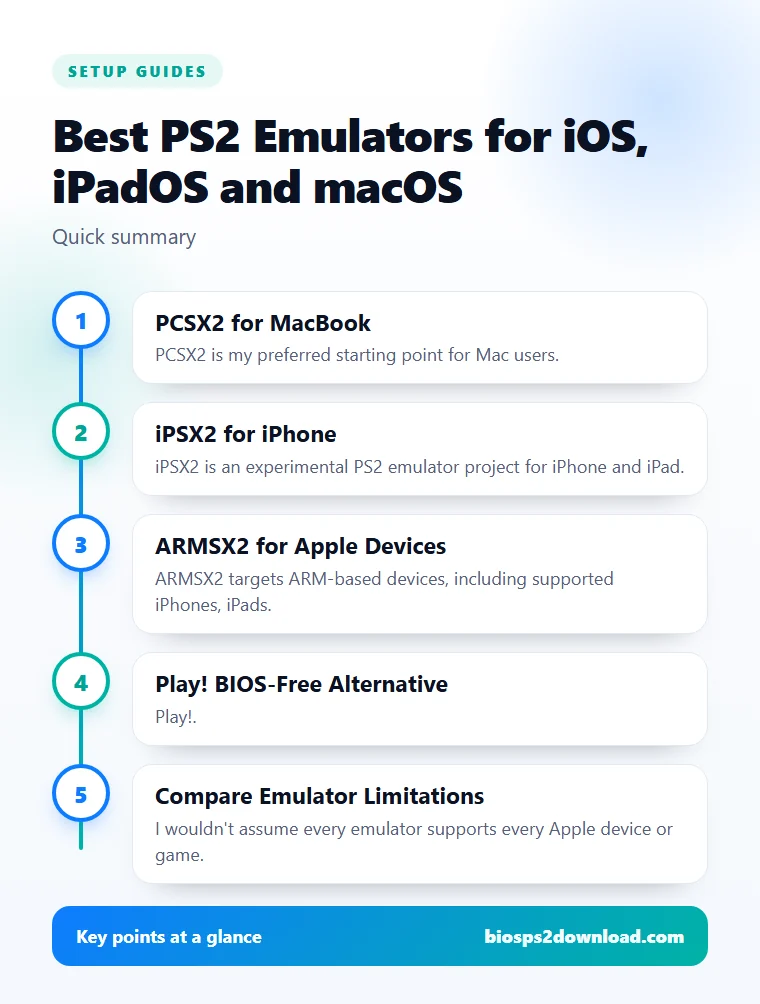
PCSX2 for MacBook
PCSX2 is my preferred starting point for Mac users because it provides established PS2 emulation features, graphics customization, controller support, and virtual memory cards. It requires compatible BIOS firmware.
iPSX2 for iPhone
iPSX2 is an experimental PS2 emulator project for iPhone and iPad. Different distributions and builds can have different requirements, including JIT configuration or performance limitations. Check the specific release before installation.
ARMSX2 for Apple Devices
ARMSX2 targets ARM-based devices, including supported iPhones, iPads, and Apple Silicon Macs. Its iOS builds require original BIOS firmware, and JIT availability is important for usable performance in many games.
Play! BIOS-Free Alternative
Play! uses an approach that doesn’t require importing an external PS2 BIOS. However, its game compatibility, platform availability, and performance differ from BIOS-dependent emulators.
Compare Emulator Limitations
I wouldn’t assume every emulator supports every Apple device or game. Check the operating system, release architecture, installation method, and game compatibility before choosing.
| Emulator | Platform | External BIOS |
|---|---|---|
| PCSX2 | macOS | Required |
| iPSX2 | Compatible iOS/iPadOS builds | Required for normal PS2 firmware-based operation |
| ARMSX2 | Supported Apple ARM devices | Required |
| Play! | Supported platform builds | Not required |
How to Prepare PS2 BIOS for Apple Devices
Before installing firmware, I recommend creating a clean backup from your own PlayStation 2. The preparation process is broadly similar whether you eventually use the files on an iPhone, iPad, or MacBook.
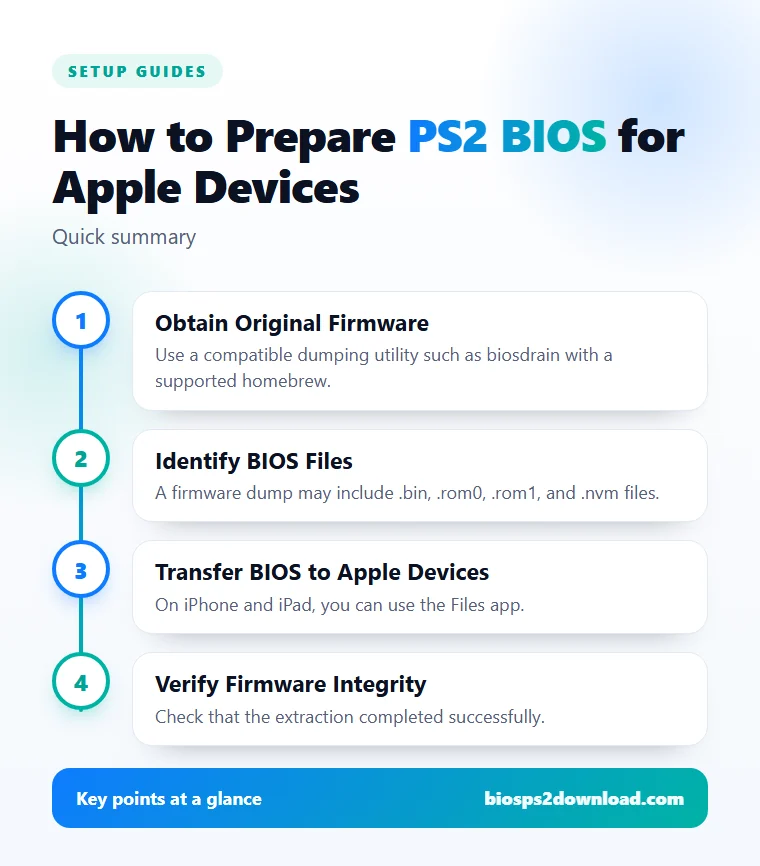
Obtain Original Firmware
Use a compatible dumping utility such as biosdrain with a supported homebrew launching method on your own PS2 console. Keep the extracted files together.
Identify BIOS Files
A firmware dump may include .bin, .rom0, .rom1, and .nvm files. The main BIOS image is usually approximately 4 MB, while companion files serve different purposes.
Transfer BIOS to Apple Devices
On iPhone and iPad, you can use the Files app or another supported transfer method. On MacBook, copy the firmware into a dedicated folder accessible to PCSX2.
Verify Firmware Integrity
Check that the extraction completed successfully and verify the checksum against a reliable reference when available. Don’t rename unrelated files to make them appear compatible.
| File | Recommended Action |
|---|---|
.bin | Import when supported |
.rom0 | Preserve original image |
.rom1 | Keep companion data |
.nvm | Preserve configuration data |
| ZIP / 7z | Extract before importing |
.ipa | Emulator application package, not BIOS |
How to Install PS2 BIOS on iPhone
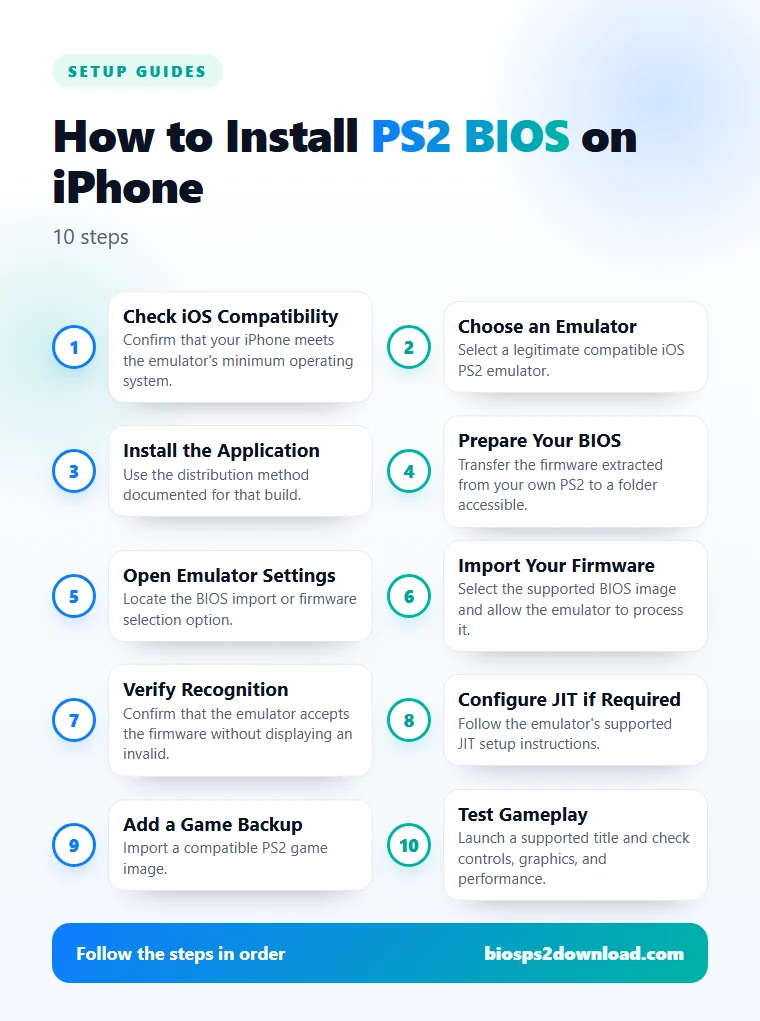
Installing PS2 BIOS on an iPhone requires a compatible emulator and a supported application installation method. Unlike MacBook setup, some iOS emulator builds also depend on JIT permissions or signing arrangements. I recommend following the requirements of your selected build instead of assuming every iPhone supports the same procedure.
- Check iOS Compatibility: Confirm that your iPhone meets the emulator’s minimum operating system and hardware requirements.
- Choose an Emulator: Select a legitimate compatible iOS PS2 emulator, such as a supported ARMSX2 or iPSX2 release.
- Install the Application: Use the distribution method documented for that build, such as a supported App Store release or an authorized sideloading workflow.
- Prepare Your BIOS: Transfer the firmware extracted from your own PS2 to a folder accessible through Files.
- Open Emulator Settings: Locate the BIOS import or firmware selection option.
- Import Your Firmware: Select the supported BIOS image and allow the emulator to process it.
- Verify Recognition: Confirm that the emulator accepts the firmware without displaying an invalid BIOS error.
- Configure JIT if Required: Follow the emulator’s supported JIT setup instructions. Availability depends on the iOS version and installation method.
- Add a Game Backup: Import a compatible PS2 game image.
- Test Gameplay: Launch a supported title and check controls, graphics, and performance.
| iPhone Problem | Recommended Check |
|---|---|
| App won’t install | iOS version and distribution method |
| BIOS import fails | Firmware format and integrity |
| Game extremely slow | JIT and hardware limitations |
| Game not listed | Supported file format |
| Touch controls missing | Emulator input settings |
How to Install PS2 BIOS on iPad
The iPad setup process is similar to iPhone installation, but iPadOS provides a larger interface and can be more comfortable for controller-based gaming. I recommend checking the emulator’s iPad support rather than assuming every iOS application works identically on tablets.
Check iPadOS Compatibility
Confirm that your iPad meets the selected emulator’s system requirements. Older models may lack the performance or operating system support needed by newer builds.
Install Compatible Emulator
Choose an emulator with documented iPadOS compatibility and install it through its supported distribution method.
Import BIOS Files
Transfer your original BIOS dump through Files, open the emulator’s firmware settings, and select the compatible image.
Configure Touch Controls
Adjust the on-screen buttons where supported, or connect a compatible Bluetooth controller for more comfortable gameplay.
Test Game Compatibility
Start with a supported game and default settings. If performance is poor, check JIT availability and device limitations before changing BIOS firmware.
| iPad Setup Task | What to Check |
|---|---|
| Emulator installation | iPadOS compatibility |
| BIOS import | Recognized firmware |
| Game loading | Supported image |
| Touch controls | Layout configuration |
| Bluetooth controller | Pairing and mapping |
| Performance | JIT and hardware |
How to Install PS2 BIOS on MacBook Using PCSX2
If you’re using a MacBook Air or MacBook Pro, PCSX2 provides a more established desktop PS2 emulation experience. You can configure BIOS firmware, manage game libraries, customize graphics, and connect supported controllers without following an iPhone-style installation workflow.
Check Mac Compatibility
Identify whether your Mac uses an Intel processor or Apple Silicon. Confirm that your macOS version meets the requirements of the PCSX2 release you intend to use.
Install PCSX2
Obtain the compatible macOS release from the PCSX2 project and install it according to the provided instructions.
Configure BIOS Folder
Create a dedicated folder for your PS2 firmware. Keep the original dump and companion files organized.
Import PS2 Firmware
Open PCSX2 and follow its BIOS setup process. Select the directory containing your firmware and confirm that PCSX2 recognizes it.
Launch PS2 Games
After completing the initial setup, add a folder containing supported game backups, configure your controller, and launch a game from the library.
| MacBook Setup | Recommendation |
|---|---|
| Intel Mac | Check compatible PCSX2 release |
| Apple Silicon Mac | Review architecture requirements |
| BIOS folder | Dedicated firmware directory |
| Game library | Separate game backup folder |
| Controller | Configure within PCSX2 |
| Graphics | Start with default settings |
How to Play PS2 Games on iPhone, iPad and Mac
Once your emulator recognizes the BIOS, you’re ready to configure a game. I suggest starting with one verified backup so you can identify compatibility problems before importing a large collection.
Prepare Game Backups
Create a supported disc image from a game you own, where permitted by applicable law. ISO is a common format, while CHD support depends on the emulator.
Add Supported Game Files
On iPhone and iPad, import the game through the emulator’s file selection workflow. MacBook users can add game directories through PCSX2.
Configure Game Controls
Check touchscreen buttons or map your external controller. Some games require analog inputs, so verify those controls before playing.
Launch Your First Game
Select the game from your emulator library and begin a normal boot. If it fails, confirm the BIOS and game image separately.
Save Game Progress
Create or assign a virtual memory card where supported. Back up important saves and avoid relying entirely on save states.
| Device | Game Loading Method |
|---|---|
| iPhone | Emulator file import |
| iPad | Emulator file import |
| MacBook | PCSX2 game directory |
| All devices | Compatible game image required |
Best PS2 Emulator Settings for Apple Devices
Good performance depends on the emulator, game, and hardware. I recommend beginning with default settings and making adjustments only after confirming that a game launches successfully.
Adjust Graphics Resolution
Use native internal resolution as your starting point. Higher resolutions can improve visual clarity but increase graphics workload, especially on mobile devices.
Configure Game Controllers
Check touchscreen layouts on iPhone and iPad, or configure a compatible external controller. MacBook users can adjust input mappings through PCSX2.
Manage Memory Cards
Create virtual memory cards and keep backups of important saves. Save states can be convenient, but they may not transfer reliably between emulator versions.
Understand JIT Restrictions
JIT, or just-in-time compilation, can significantly improve emulation performance. Certain iOS PS2 emulators require JIT to run demanding games at practical speeds, and enabling it may involve additional platform-specific steps.
Reduce Lag and Crashes
Restore default settings, lower internal resolution, and check game compatibility. If an iPhone emulator is running without required JIT support, graphics adjustments alone may not solve severe performance problems.
| Device | Recommended Starting Point |
|---|---|
| iPhone | Default graphics, verify JIT |
| iPad | Native resolution, verify JIT |
| MacBook | Default PCSX2 configuration |
| All devices | Compatible controller settings |
| All devices | Backed-up memory cards |
PS2 BIOS Not Working on iOS? Common Errors and Fixes
Even with valid firmware, PS2 emulators can encounter problems caused by operating system restrictions, file access, game compatibility, or graphics settings. Let me help you identify the most common issues without repeatedly replacing your BIOS.
Fix BIOS Not Found
Confirm that the emulator has access to the firmware file and that you’ve selected the correct location. Check whether the BIOS remains inside a compressed archive.
Resolve BIOS Import Errors
Verify the main firmware image and its checksum. An incomplete extraction or unsupported file format may prevent recognition.
Fix Emulator Installation
Check your iOS or iPadOS version, application signing requirements, and supported distribution method. MacBook users should verify macOS and processor compatibility.
Troubleshoot Black Screens
Test whether the emulator recognizes your BIOS, then verify the game image. Restore default graphics settings before experimenting with other options.
Resolve Game Crashes
Check whether the selected game is supported by your emulator build. Remove unnecessary overrides and review available diagnostic messages.
Fix Slow Gameplay
Lower demanding graphics settings and investigate JIT availability on iOS. On MacBook, review CPU and GPU limitations.
Check Unsupported Devices
Some older Apple devices may not meet the emulator’s minimum requirements. A different BIOS region cannot overcome missing hardware or operating system support.
| Common Problem | Possible Cause | Recommended Solution |
|---|---|---|
| BIOS missing | Incorrect file location | Recheck firmware path |
| Invalid BIOS | Damaged dump | Verify file integrity |
| App installation fails | OS or signing restriction | Check build requirements |
| Black screen | Game compatibility | Restore default settings |
| Game crashes | Unsupported configuration | Review compatibility |
| Low FPS | Hardware or JIT limitation | Check device requirements |
| Controller not working | Input configuration | Remap controls |
Is PS2 BIOS for iOS Safe and Legal?
Before installing PS2 firmware or an emulator on your Apple device, I want you to understand the difference between legitimate emulation software and copyrighted console files. A PS2 emulator doesn’t automatically include permission to download Sony’s firmware or commercial games.
Understand BIOS Copyright
Sony’s PlayStation 2 BIOS is copyrighted software. I recommend extracting firmware from a console you own and checking applicable laws, since ownership doesn’t automatically authorize every copying or distribution method.
Avoid Fake iOS Downloads
Be cautious of websites advertising universal PS2 BIOS installers, guaranteed full-speed emulation, or special iPhone BIOS packages. These claims don’t establish authenticity or compatibility.
Verify Emulator Authenticity
Check the project’s identity, release documentation, and available integrity information. Avoid installing unfamiliar packages simply because they advertise newer features.
Protect Apple Device Security
Use supported installation methods and avoid unnecessary permissions, configuration profiles, or account credentials requested by untrusted distributors.
| Safety Concern | Recommended Precaution |
|---|---|
| Copyrighted BIOS | Extract from your own PS2 |
| Fake emulator packages | Verify project identity |
| Unknown profiles | Avoid untrusted installation methods |
| Corrupted firmware | Check file integrity |
| Game compatibility claims | Verify actual support |
Frequently Asked Questions
Can I Use PS2 BIOS on iPhone?
Yes, a compatible iPhone PS2 emulator can use original PlayStation 2 BIOS firmware. The emulator and device must meet the required specifications.
Does PS2 BIOS Work on iPad?
Yes, supported iPadOS PS2 emulators can import compatible BIOS firmware. Performance depends on the iPad model and emulator.
Can I Install PCSX2 on MacBook?
Yes. PCSX2 supports compatible macOS systems, including supported Intel and Apple Silicon Macs.
Is There a PS2 Emulator for iOS?
Yes. Projects such as ARMSX2 and iPSX2 provide experimental PS2 emulation options for supported iPhones and iPads.
Can I Play PS2 Games Without Jailbreak?
Some emulator installation methods don’t require jailbreaking. However, signing, sideloading, and JIT requirements depend on the application and iOS version.
Does PS2 Emulation Require JIT on iPhone?
Some emulators can run without JIT using slower execution methods, but practical performance for many games may depend heavily on JIT availability.
Which PS2 BIOS Is Best for iOS?
I recommend using a valid BIOS extracted from your own PS2 that your selected emulator recognizes. A particular region doesn’t guarantee better FPS.
Can I Use the Same BIOS on Mac and iPhone?
A compatible original BIOS dump can generally be used with multiple BIOS-dependent emulators, although import procedures may differ.
Can iPhone Run PS2 ISO Games?
Compatible iOS PS2 emulators can load supported ISO images. Actual game compatibility and performance vary.
Is PS2 BIOS Free to Download?
The BIOS is Sony’s copyrighted firmware. I recommend obtaining it through a compatible extraction process from your own console rather than relying on unauthorized downloads.
Conclusion
Setting up PS2 BIOS for iOS, iPhone, iPad, and Mac becomes easier once you understand the differences between Apple’s platforms. iPhone and iPad users need compatible mobile emulators and may face additional installation or JIT restrictions, while MacBook users can configure PCSX2 for a more established desktop experience. In every case, start with a valid BIOS extracted from your own PlayStation 2 and verify that your emulator recognizes it.
Remember, a different BIOS region won’t automatically improve FPS, graphics, or game compatibility. I recommend checking your device requirements, starting with default emulator settings, and keeping your firmware and game saves backed up. With a compatible emulator and realistic performance expectations, you’ll be better prepared to explore your favorite PS2 games on Apple devices.